
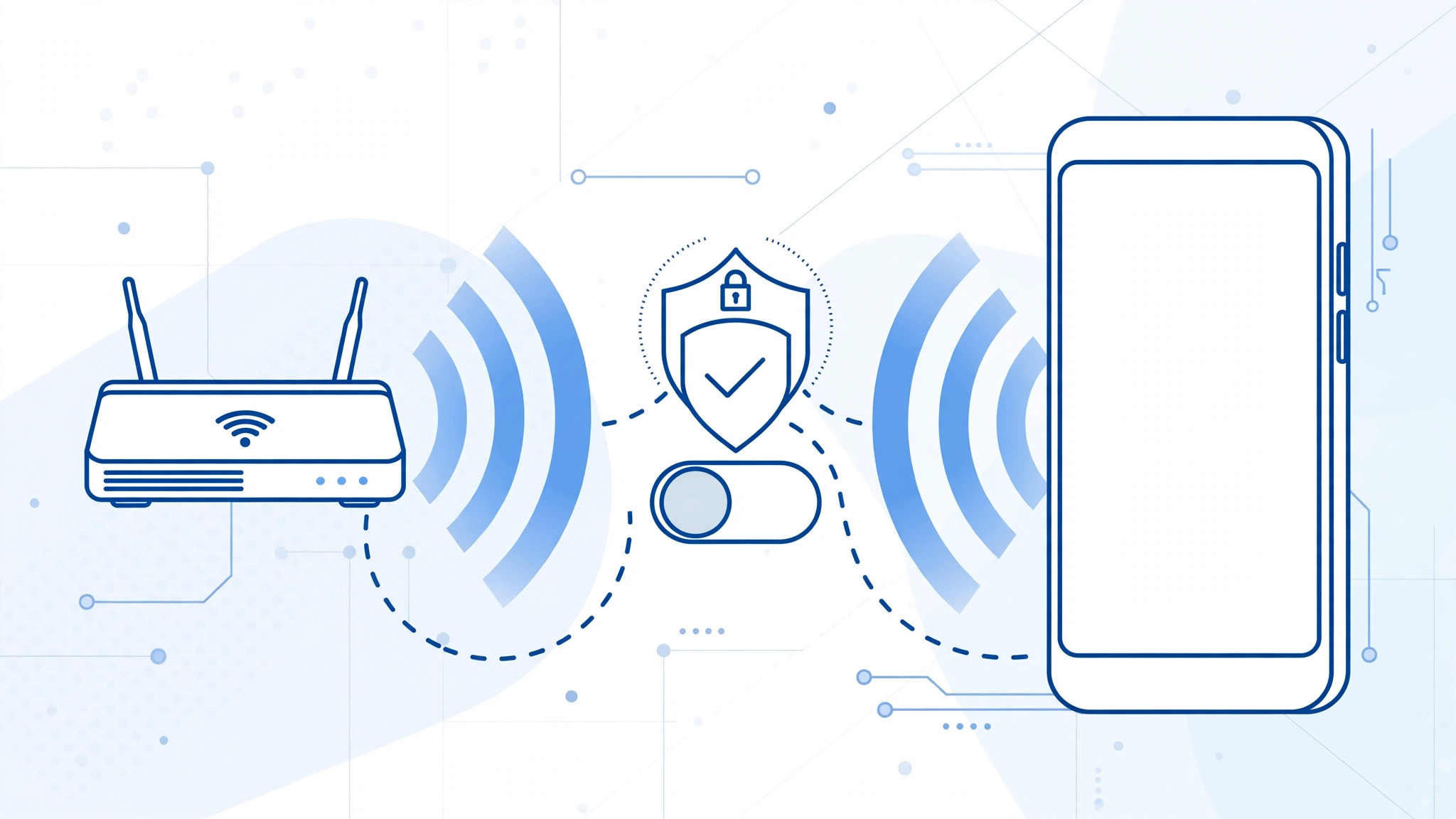
Since iOS 14, your iPhone uses a randomized “private Wi-Fi address” for each network it joins — a privacy feature that stops networks from tracking your phone via its MAC address. It is excellent on public Wi-Fi, but it breaks networks that expect a stable address: MAC filtering, static DHCP reservations, and some captive portals. If your iPhone keeps re-asking for a Wi-Fi login, or your router sees your phone as a “new device” every time, the private address is the likely culprit. Here is how to turn it off — for that one network only.
Symptoms that point to the private Wi-Fi address
The captive portal keeps re-asking for your login even though you just signed in. Your router’s admin page shows the iPhone as a brand-new device on every reconnect. A static IP reservation you set up for the phone never applies. Or the phone simply fails to join a work or school network that uses MAC filtering. If any of that sounds familiar, read on.
Step-by-step: turn off the private Wi-Fi address for one network
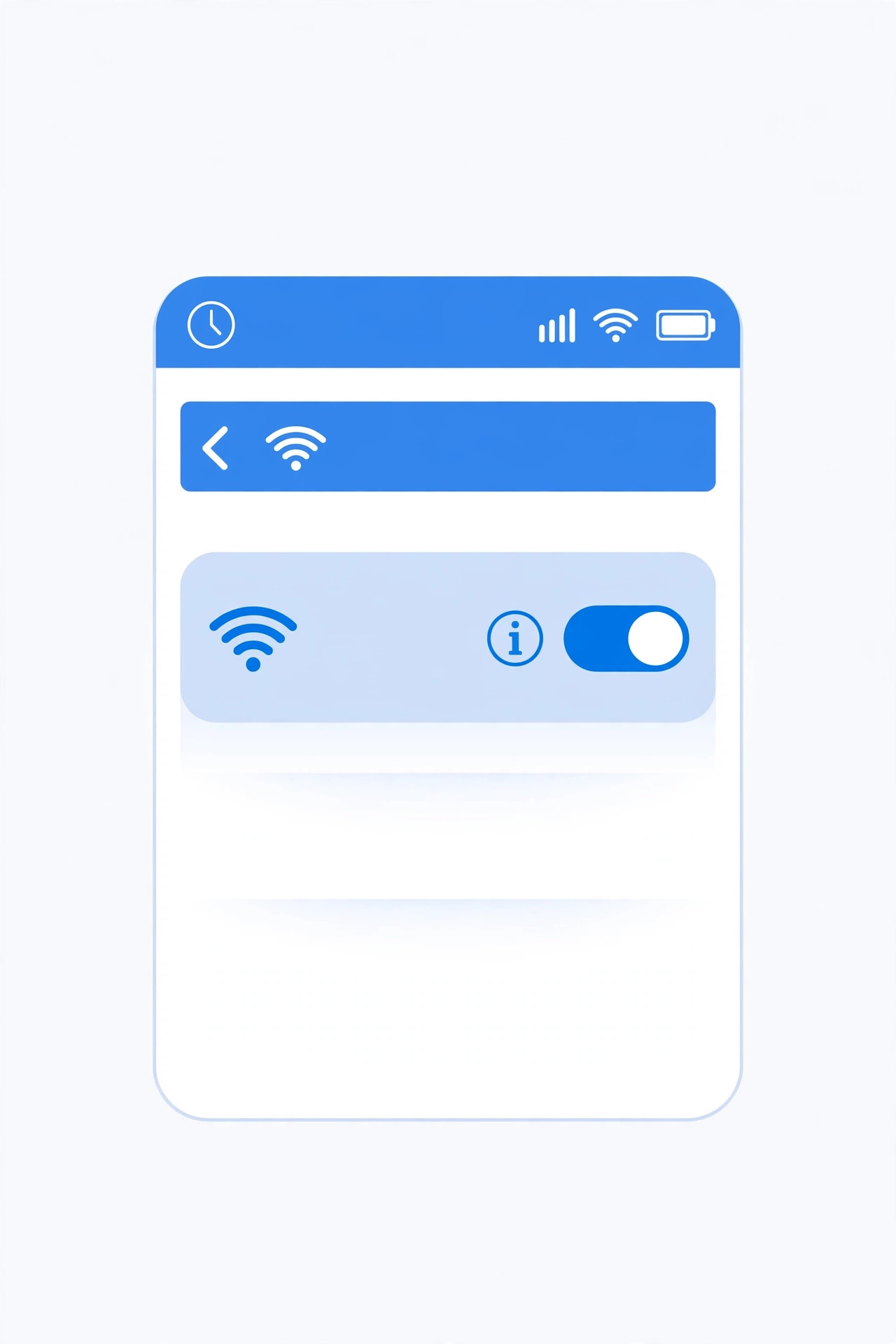
- Open Settings → Wi-Fi on your iPhone.
- Tap the “i” icon next to the network’s name.
- Turn off “Private Wi-Fi Address” (on older iOS versions it is labeled “Private Address”).
- Confirm “Continue” when iOS warns you — your iPhone will rejoin the network using its real MAC address.
- Reconnect if prompted. The network should now recognize your phone consistently, and the repeated logins should stop.
Alternative: let the admin allowlist your private MAC
Prefer to keep the privacy feature? You can find your phone’s current private MAC in Settings → Wi-Fi → tap the network → Wi-Fi Address, and ask the network administrator to allowlist it. Just know that the private address can change if you forget and rejoin the network, so this is the less durable option.
When to turn it off — and when to leave it on
Only disable the private address on trusted networks where a stable address matters: your home router with MAC filtering, or a work network that requires it. Keep it on for public networks — cafés, airports, hotels — where protection against tracking is exactly what you want. And remember the key point: this fix is per-network, not global. Turning it off for your home Wi-Fi doesn’t affect any other network.
Apple explains the feature in its private Wi-Fi address documentation on Apple Support, and it is regularly discussed on MacRumors and MakeUseOf. For more connectivity fixes, see how to set up automatic hotspot connection from iPhone on Mac and how to verify a SIM card and avoid the cooling-off period.
If it still doesn’t work
Still asked to log in repeatedly: forget the network (tap “i” → Forget This Network), rejoin, then disable the private address again. Can’t find the toggle: update iOS — the label moved from “Private Address” to “Private Wi-Fi Address” over the years. The network still won’t connect: the problem may be elsewhere — check the password, restart the router, and confirm the network isn’t blocking new devices for another reason.
Frequently asked questions
Does turning it off affect other Wi-Fi networks?
No. The private Wi-Fi address setting is stored per network. Disabling it for your home Wi-Fi leaves every other network — including public ones — untouched.
Is it safe to use my real MAC address on my home network?
Yes, on a network you trust and control. The privacy risk of a stable MAC matters mainly on public networks, where strangers could track your device across visits.
Conclusion
The private Wi-Fi address is a smart privacy default — until it collides with a network that needs to recognize your phone. Now you know the exact toggle, where it lives, and when to use it: per network, on trusted networks only.





