
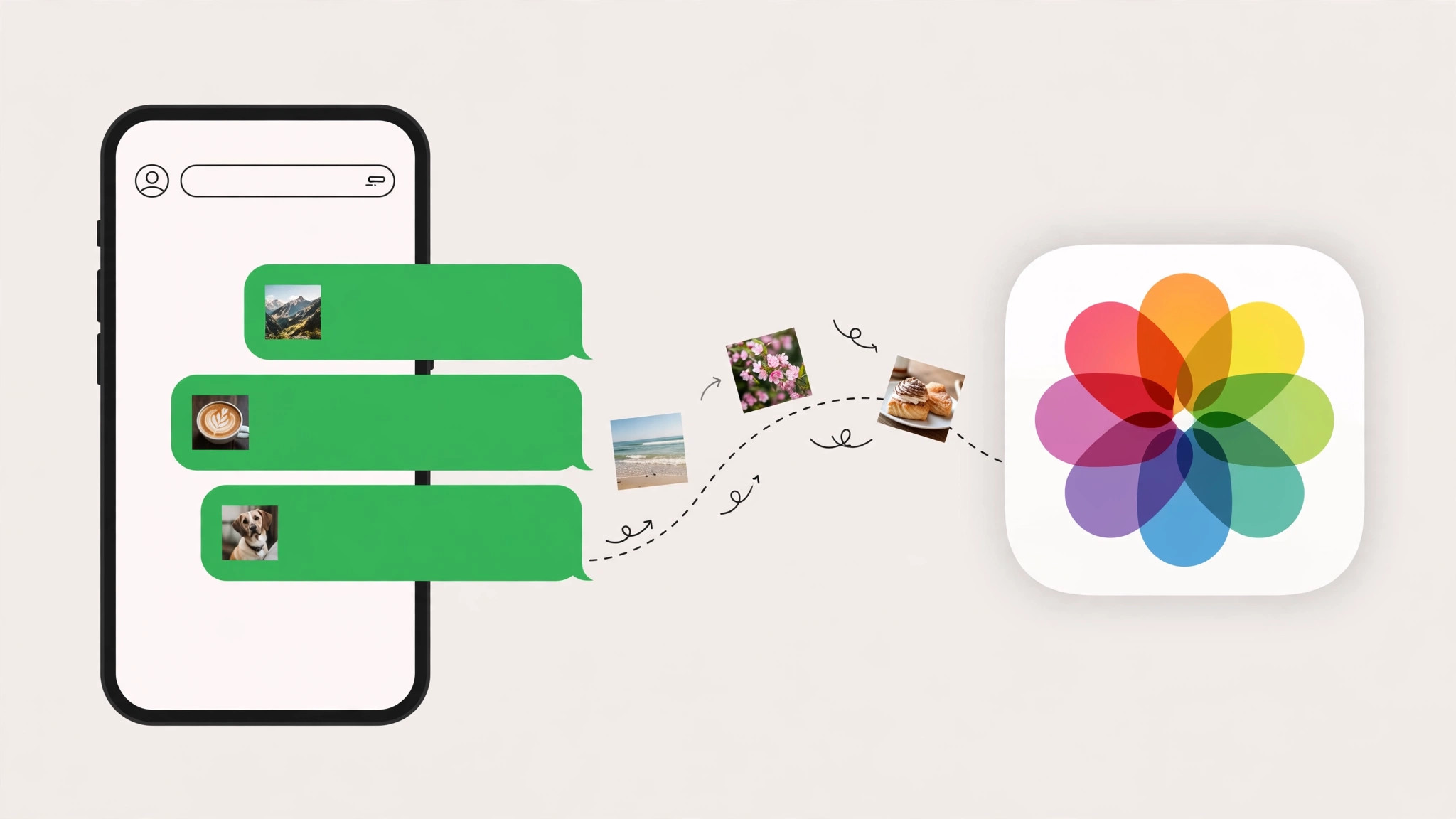
You open the Photos app and find pictures you never saved — memes from a group chat, screenshots a friend sent, photos from iMessage threads. You didn’t tap “Save,” so why are they there? The culprit is Shared with You, an iOS feature that automatically surfaces content shared in Messages into the Photos app (and other Apple apps). Here’s why it happens and how to turn it off — for everyone, or just specific contacts.
Why iMessage photos appear in Photos
When someone sends you photos via iMessage, iOS can automatically add them to your Photos library through Shared with You. The photos appear in a dedicated “Shared with You” collection, and in some cases they’re mixed into your main library and Memories. Apple designed this so you don’t lose photos buried in long message threads — but if you didn’t ask for it, it feels like clutter.
Apple explains the feature in Apple Support’s guide to Shared with You. It works across Photos, Safari, Music, Podcasts, and News — but Photos is where most people notice it.
How to turn off Shared with You for Photos
- Open Settings on your iPhone.
- Tap Messages.
- Tap Shared with You.
- Toggle off Photos (or toggle off “Automatic Sharing” to disable it entirely).
This stops new shared photos from appearing in the Photos app. Photos already saved won’t be deleted — you’ll need to remove those manually.
Disable it for specific contacts
Don’t want to turn it off entirely? You can disable Shared with You per-conversation:
- Open the Messages app and tap the conversation.
- Tap the contact’s name (or the group name) at the top.
- Scroll down and toggle off Show in Shared with You.
- Tap Done.
This is perfect for that one group chat that floods you with memes, while keeping the feature on for family. For more message management, see how to set up message sync between iPhone and Mac, and how to turn off all SharePlay features on iPhone.
If it still doesn’t work
If photos keep appearing after you disabled Shared with You, check that you’re toggling the right setting — there’s a separate “Shared with You” toggle in Settings → Messages, and a per-conversation toggle. Also, photos sent via iCloud Shared Photo Library or shared albums are different from Shared with You and won’t be affected. MacRumors notes that a restart can help if the toggle doesn’t take effect immediately.
FAQ
Will turning this off delete photos already in my library?
No. Disabling Shared with You only stops new photos from being added automatically. Anything already saved stays until you delete it manually.
Does this affect photos I send to others?
No. This only controls what appears in YOUR Photos app from messages you receive. It doesn’t change what others see.
Conclusion
iMessage photos auto-save to the Photos app because of Shared with You — a well-meaning iOS feature that surfaces shared content where you’ll see it. If you like it, keep it on. If it’s cluttering your library, turn it off in Settings → Messages → Shared with You, or disable it just for specific conversations. Either way, you’re in control.





