

With iPadOS 26, Apple has given the iPad one of its biggest multitasking upgrades ever: a Mac-style menu bar that lives inside your apps. Instead of hunting through toolbar icons for the command you need, you can pull down a familiar strip of menus — File, Edit, View, Window, and more — and even search across every available action from a single search field. It is a genuine productivity boost, especially with a keyboard and trackpad attached. The catch? The menu bar stays hidden until you switch it on. Here is how to enable it.
What you’ll need
- An iPad updated to iPadOS 26. Check under Settings → General → Software Update and install the update if you haven’t yet.
- Any app. The menu bar works system-wide, although apps updated for iPadOS 26 expose the fullest set of menus and commands.
How to enable the app menu bar in iPadOS 26
- Update to iPadOS 26. Open Settings → General → Software Update and install the latest version. The menu bar simply doesn’t exist on earlier releases.
- Open Multitasking settings. Head to Settings → Multitasking & Gestures.
- Turn on “Windowed Apps”. This flips iPadOS into its new windowing mode, which the menu bar depends on. With this off, apps stay in the classic full-screen layout and the menu bar never appears.
- Turn on “Swipe to Show Menu Bar”. This toggle arms the reveal gesture — switch it on alongside Windowed Apps.
- Open any app. Try Safari, Notes, or Files to see the full effect.
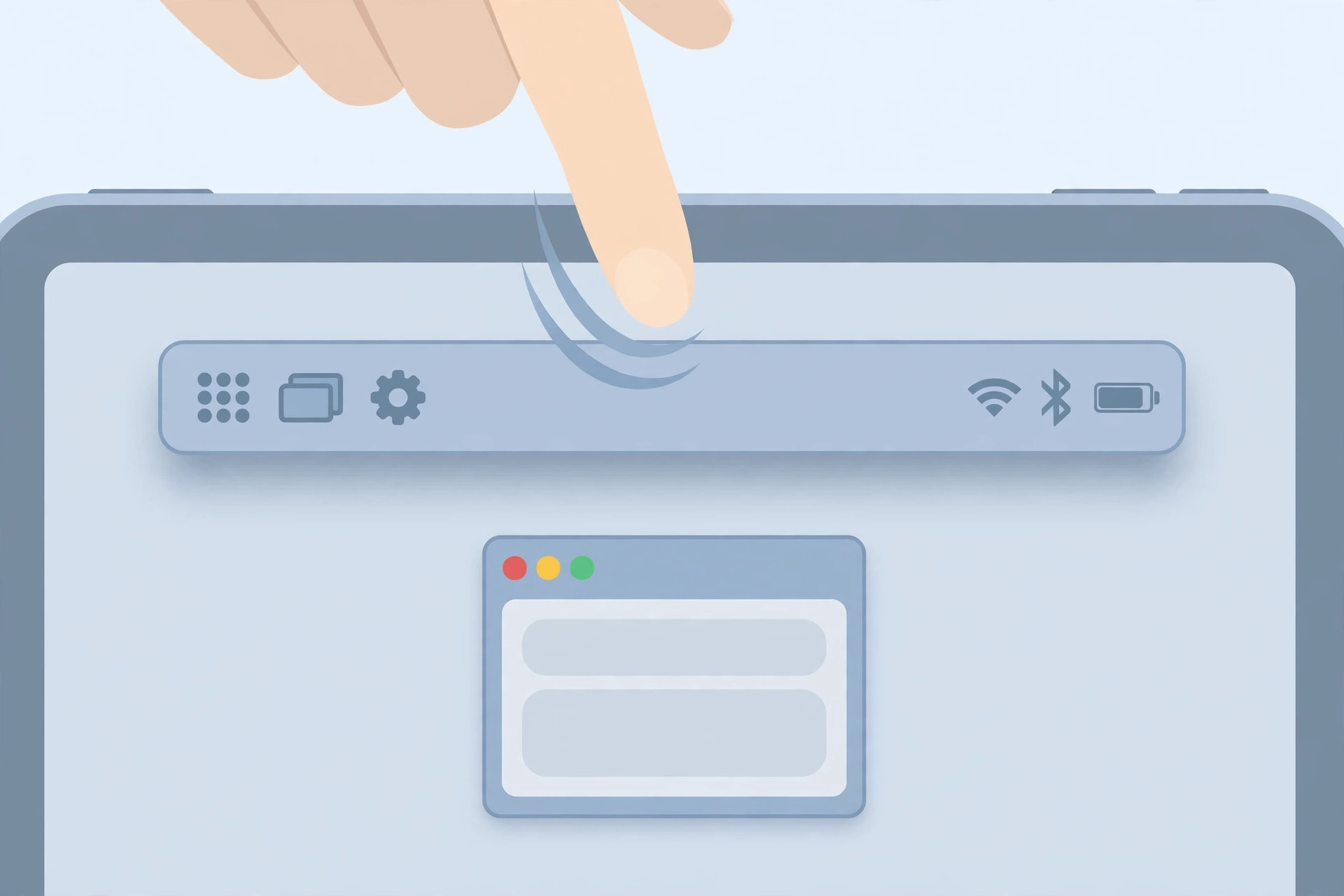
- Reveal the menu bar. Swipe down from the top-center edge of the screen. If you’re using a trackpad or mouse, push the pointer up against the top edge instead. The menu bar glides into view with the app’s menus ready to browse.
- Pick a command — or search for it. Tap File, Edit, or any other menu to browse its actions, or tap the search field inside the menu bar and type what you want to do. iPadOS jumps straight to the matching command, which is far faster than digging through nested toolbars.
If it still doesn’t work
Run through these checks if the menu bar refuses to appear. First, confirm that both toggles under Settings → Multitasking & Gestures are on — the feature needs “Windowed Apps” and “Swipe to Show Menu Bar” enabled together. Second, mind your swipe: starting from the top-right corner opens Control Center instead, so begin at the top-center edge. Third, full-screen games and video players deliberately suppress the menu bar, so test with a regular app like Notes or Safari. Finally, restart the iPad — a fresh boot clears most cases where a new iPadOS feature doesn’t kick in right after updating. MacRumors has a detailed rundown of the new windowing system, menu bar, and pointer improvements, and this video walkthrough shows the menu bar in action. And if you capture screenshots of your new setup, our guide to taking HDR screenshots on iPhone and iPad will help you keep them crisp.
Frequently asked questions
Does the menu bar work with a keyboard and trackpad?
Yes — and that’s where it shines. With a Magic Keyboard or any trackpad or mouse, just push the pointer to the top edge of the screen and the menu bar appears instantly, exactly like on a Mac. The keyboard shortcuts shown next to menu commands work too.
Can I keep the menu bar visible all the time?
No. Apple designed it as a slide-in panel to preserve screen space, so it hides again after you pick a command or tap elsewhere. There is no “always show” option in iPadOS 26.
Conclusion
The iPadOS 26 menu bar makes the iPad a far more capable productivity device, and enabling it takes less than a minute: update, flip two toggles in Multitasking & Gestures, and swipe down from the top edge. Once you’ve searched for a command from the menu bar’s search field, you’ll wonder how you lived without it. While you’re tuning up your iPad, you might also reclaim some storage — see which built-in iPhone apps you can delete for a safe cleanup list.





