
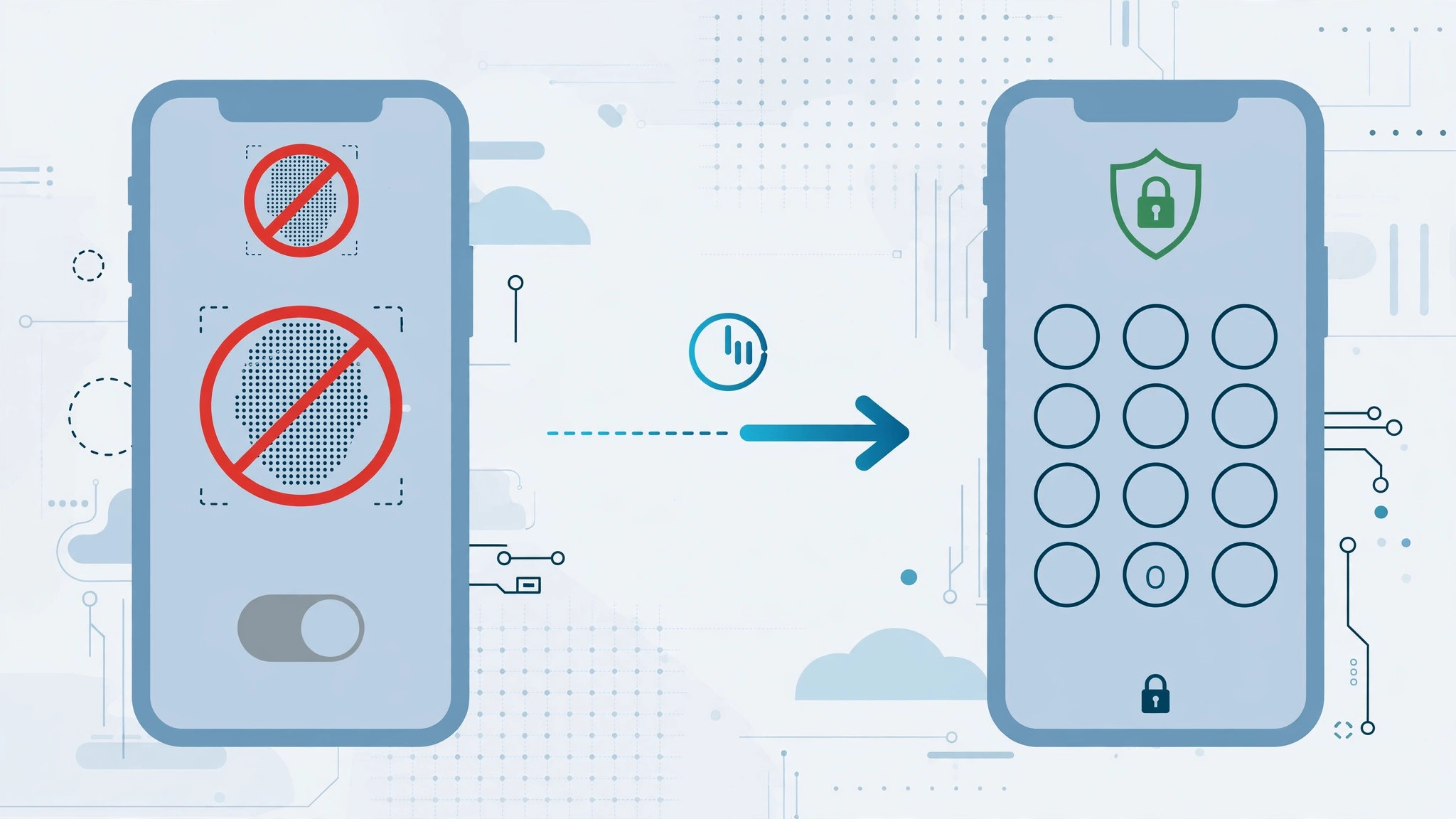
Face ID is fast and convenient, but there are moments when you’d rather your iPhone asked for the passcode instead — handing your phone to someone briefly, passing through a security checkpoint, or simply wanting extra friction before payments go through. The good news: you don’t have to delete your face data or reset anything. iOS lets you suspend Face ID for specific uses while keeping your enrolled face safely stored, ready to switch back on in seconds.
What you’ll need
- An iPhone with Face ID (iPhone X or later, excluding iPhone SE models).
- Your device passcode — you’ll need to enter it to change Face ID settings.
How to temporarily disable Face ID on iPhone
- Open Settings. Tap the Settings app on your Home Screen.
- Go to Face ID & Passcode. Scroll down, tap it, and enter your device passcode when prompted.
- Look at “Use Face ID For”. You’ll see a list of everything Face ID can handle: iPhone Unlock, iTunes & App Store, Wallet & Apple Pay, Password AutoFill, and more.
- Switch off what you want to pause. Toggle off “iPhone Unlock” for passcode-only unlocking. The toggles are independent, so you can also switch off “Wallet & Apple Pay” if you’d like payments to need your deliberate confirmation for a while.
- Use your iPhone normally. With “iPhone Unlock” off, your iPhone asks for the passcode every time you wake it. Nothing else changes.
- Turn it back on anytime. Return to Settings → Face ID & Passcode and flip the toggles back on. Your face data was never deleted, so Face ID works again immediately — no re-enrollment needed.

If it still doesn’t work
If Face ID keeps unlocking your iPhone after you switched it off, double-check that you toggled the right item — “iPhone Unlock” is separate from the App Store, Wallet, and autofill toggles, and each one can be disabled on its own. Also note that iOS asks for your passcode by itself in certain situations: after five unsuccessful Face ID attempts, after a restart, or after triggering Emergency SOS. That’s intended security behavior rather than a bug, and Apple’s Face ID support article documents exactly when it happens. If the toggles are greyed out entirely, a Screen Time restriction or a work configuration profile may be blocking changes — check with whoever manages the device.
Frequently asked questions
Does turning off Face ID delete my face data?
No. Switching off items under “Use Face ID For” only suspends Face ID for those purposes. Your enrolled facial data stays securely stored on the device, and flipping the toggles back on restores Face ID instantly.
Can I disable Face ID for Apple Pay but keep it for unlocking?
Yes. Every item under “Use Face ID For” has its own toggle, so you can leave “iPhone Unlock” on while switching off “Wallet & Apple Pay” — handy when you want unlocking to stay fast but payments to require deliberate confirmation.
Conclusion
Pausing Face ID is a two-toggle job that leaves your face data untouched: open Settings → Face ID & Passcode, switch off the uses you want to suspend, and switch them back on whenever you’re ready. It’s the simplest way to get passcode-only unlocking for a while without the hassle of re-enrolling your face later. For more ways to fine-tune your iPhone, learn how to add and change the iPhone startup sound in iOS or turn off all SharePlay features on iPhone.





