
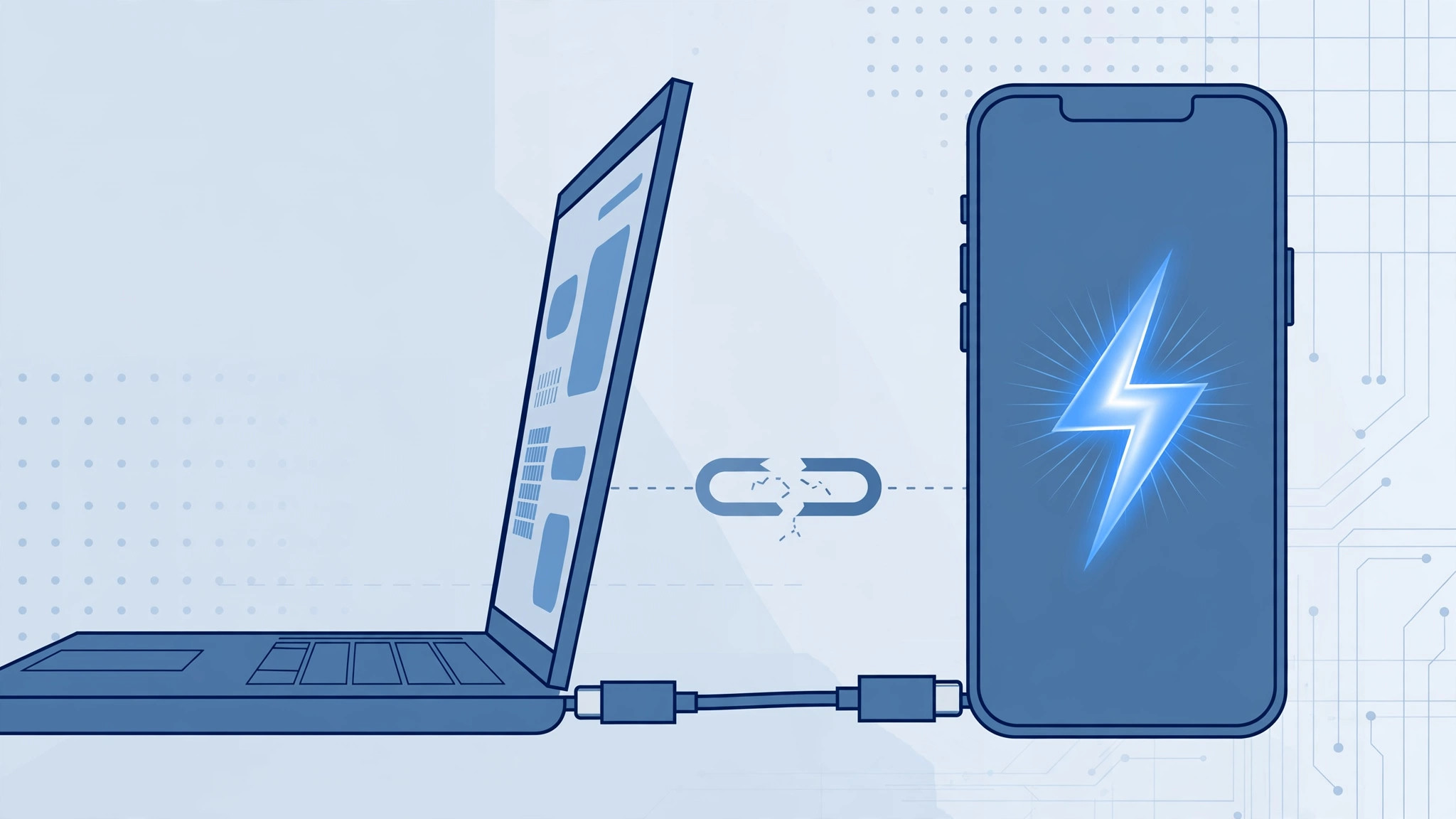
Your iPhone charges when you plug it into your computer — but the computer acts as if nothing is connected: no device in iTunes or Finder, no photos to import, no backup option. Before you reinstall drivers or reset anything: charging and data transfer use different wires inside the USB cable. A cable can carry power perfectly while being physically incapable of carrying data. Here is how to find out what is going on.
Why a cable can charge but never transfer data
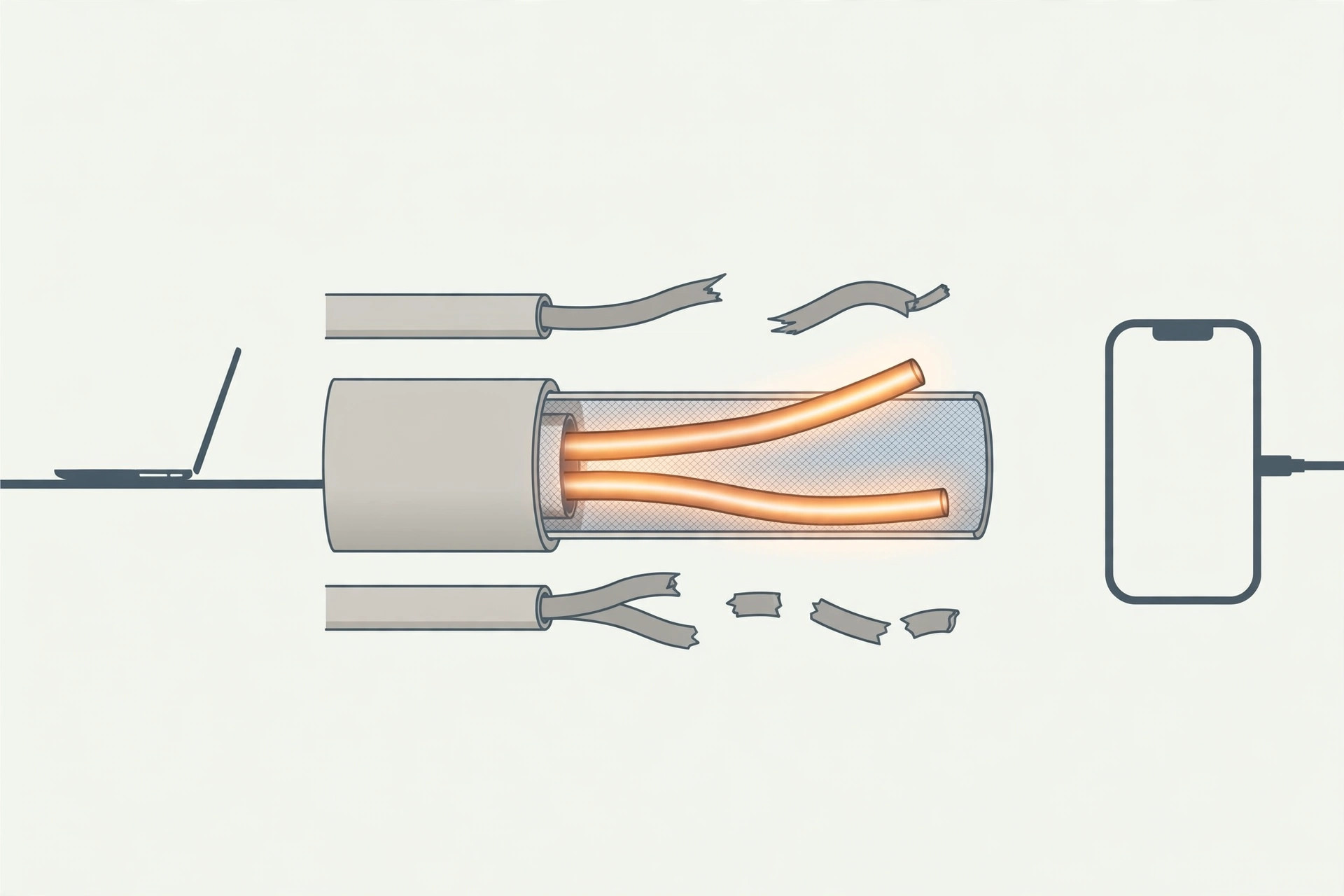
A USB cable has separate pins for power and for data. Charging needs only the power pins, but data transfer needs the D+ and D− data wires too. Many cheap “charging cables” are charge-only: they have no data wires at all and will power your phone forever without any computer detecting it. If that is your cable, only a new data cable will help. Apple’s support guide to connecting your iPhone to a computer assumes a cable that carries data, so rule the cable out first.
Step 1: test with a known-good data cable
Try a different cable — ideally original Apple or MFi-certified. If the computer suddenly sees your iPhone, your old cable is charge-only or has broken data lines; retire it. MacRumors readers hit this constantly with bargain-bin cables.
Step 2: unlock the iPhone and tap “Trust This Computer?”
Even with a perfect cable, the iPhone stays invisible until you unlock it and accept the “Trust This Computer?” prompt. Without tapping Trust, the iPhone charges but shares nothing. If the prompt never appears, unplug and replug. Once the computer sees your iPhone, our guide to setting up automatic hotspot connection from iPhone on Mac builds on this same link.
Step 3: clean lint out of the charging port
Lint packs into the iPhone’s charging port over months in a pocket. This debris can block the data contacts while the power pins still connect — exactly this symptom. Pick lint out with a wooden or plastic pick, such as a toothpick — never metal. iFixit has photo guides for inspecting and cleaning iPhone charging ports.
Step 4: try another USB port and another computer
Some USB ports — especially on hubs or front-panel ports — deliver power but flaky data. Plug directly into a USB port on the computer itself, and try a different computer if you can. Then restart both the iPhone and the computer; a reboot clears stuck device detection more often than you would think.
Step 5: on Windows, reinstall the Apple Mobile Device driver
On a PC, update to the latest iTunes, then reinstall the Apple Mobile Device USB driver through Device Manager: find the iPhone entry, uninstall the device, unplug and replug it, and let Windows rediscover it. (On a Mac, the iPhone shows up in the Finder sidebar — and once your devices are talking, our guide to setting up message sync between iPhone and Mac keeps them in sync.)
If it still doesn’t work
If a good data cable, a clean port, the Trust prompt, fresh drivers, and restarts still leave the iPhone invisible, the charging port or the Tristar charging IC on the logic board may be damaged — especially if the connector feels loose. That is hardware damage, not a settings problem, and it needs a repair shop or Apple service.
Frequently asked questions
Can a software update turn a charge-only cable into a data cable?
No. A charge-only cable has no data wires inside — physically. No update, driver, or setting can add what is not there.
Why did my cable transfer data before and stop?
The thin data wires inside a cable can break while the thicker power conductors survive. If a cable that once transferred data now only charges, its data lines have failed — the fix is the same: a new data cable. (Connecting to update the iPhone? Our guide to completely blocking iOS 26 updates on iPhone covers the computer-free route.)
Conclusion
A charging-but-invisible iPhone is almost always a cable problem — and the most misunderstood kind is the charge-only cable, which can never transfer data by design. Test with a real data cable first, tap Trust, clean the port, then look at drivers and hardware.





