
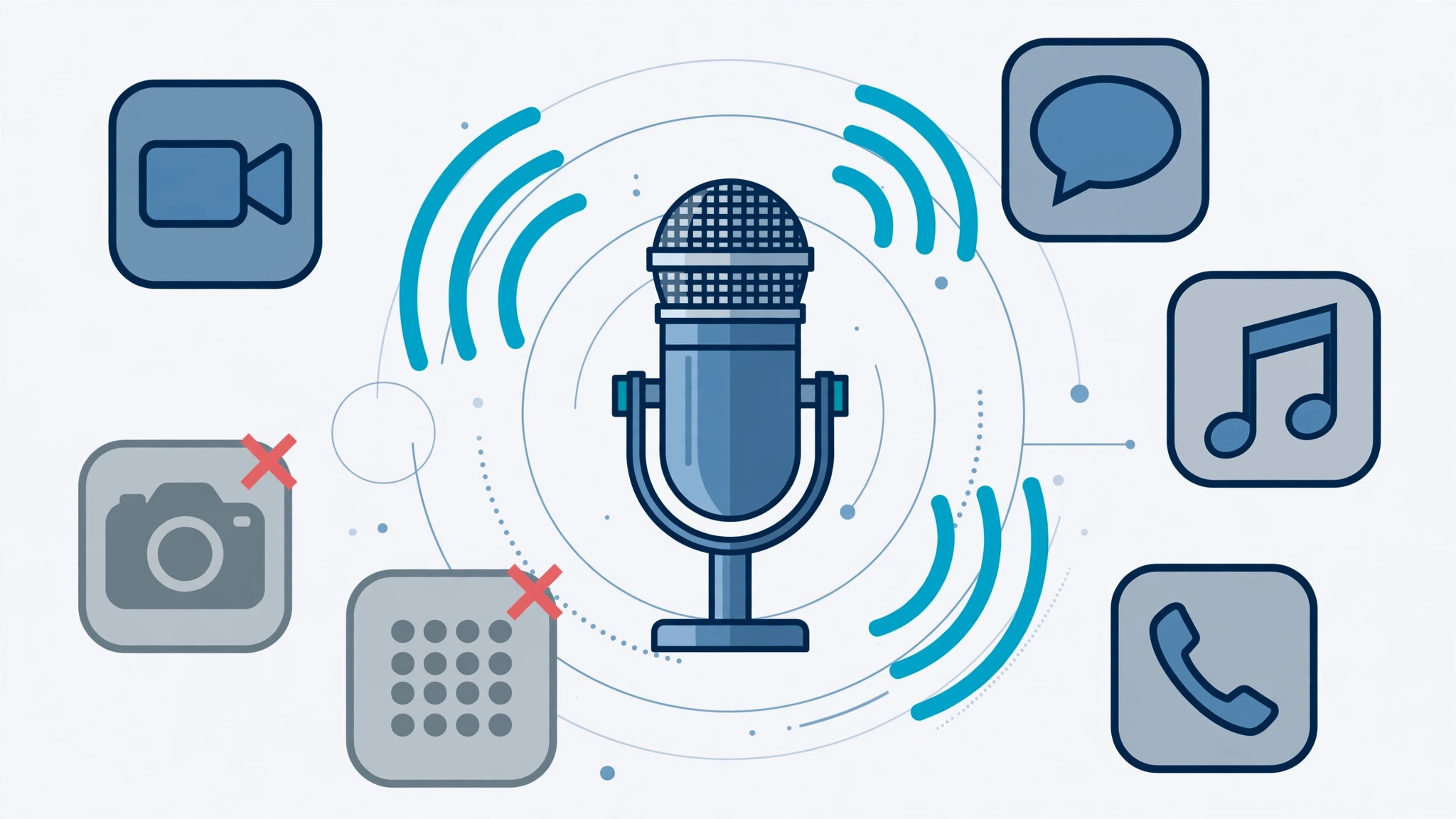
Here’s a frustratingly common scenario: your iPhone’s microphone works perfectly in Voice Memos and phone calls, but the moment you open one particular app — a voice recorder, WhatsApp, Discord, a karaoke app — it hears nothing. Before you assume the hardware is broken, run this quick diagnostic: in almost every case like this, the culprit is a simple app permission, and the fix takes seconds.
Step 1: Test the microphone with Voice Memos
First, find out whether this is a hardware problem or an app problem:
- Open the Voice Memos app and record a few seconds of audio.
- Play it back. If the recording is clear, your microphone hardware is fine — skip straight to the permission fix below.
- If Voice Memos records nothing or very quietly, the problem may be hardware: jump to the “If it still doesn’t work” section.
Step 2: Re-enable the microphone permission for the app
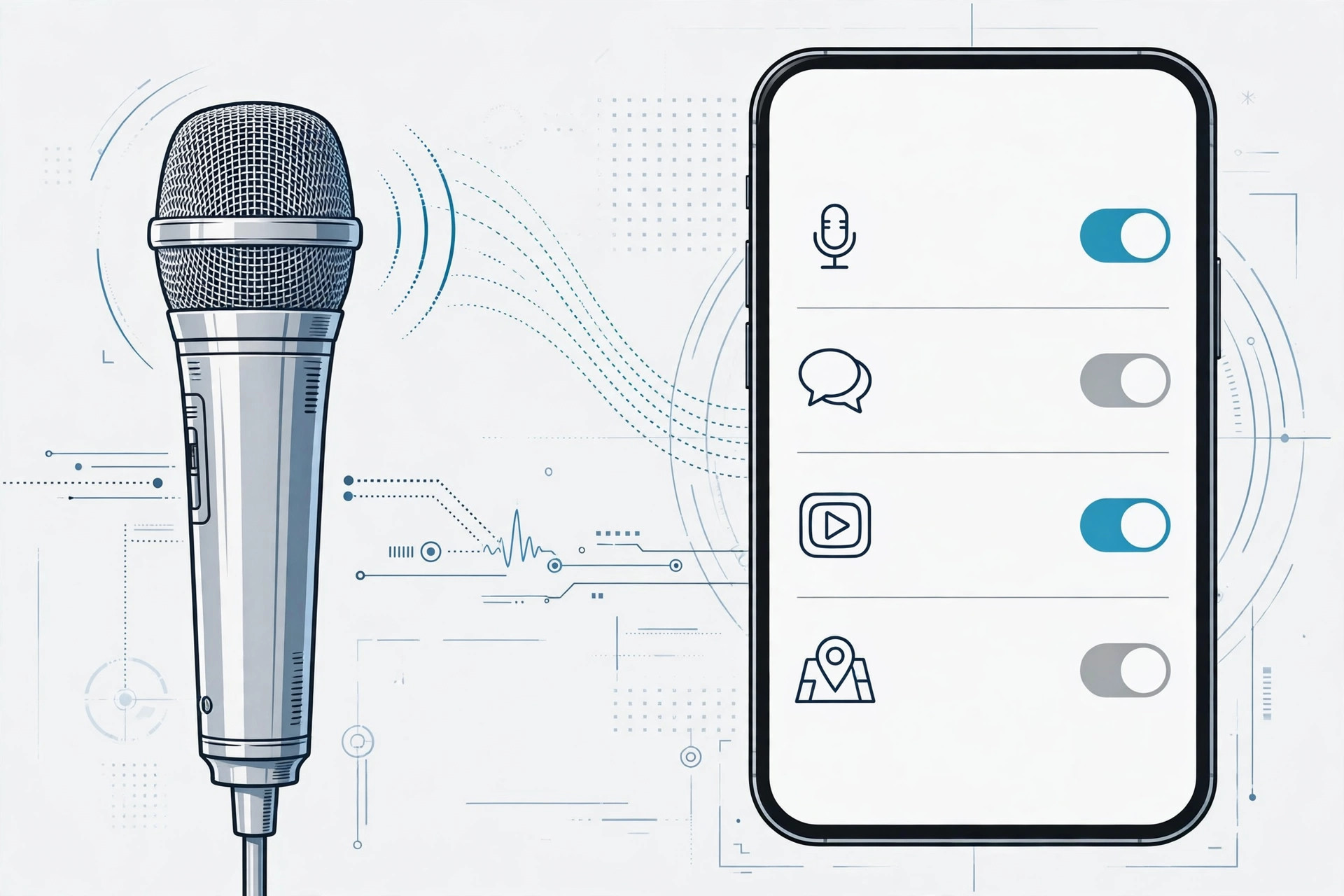
This is the fix that solves the vast majority of cases. When an app first asks for microphone access, it’s easy to tap “Don’t Allow” by mistake — or the permission may have been switched off later.
- Open Settings > Privacy & Security > Microphone.
- Find the app in the list and flip its toggle on.
- Fully close and reopen the app (swipe it away from the app switcher), then try the microphone again.
Apple’s iPhone support pages confirm that denying this permission silently blocks the app from the microphone with no error message — which is exactly why the failure feels so mysterious.
Step 3: Rule out the usual suspects
- Remove your case. Many cases and tempered-glass protectors cover the microphone holes. Pop the case off and clean the openings gently with a soft, dry brush.
- Disconnect Bluetooth accessories. If AirPods or another headset are connected, the iPhone may be routing audio input through them instead of its own mic. Turn Bluetooth off temporarily and test again. (Related: our guide on stopping the iPhone from auto-switching audio to headphones.)
- Update iOS and the app, then restart the iPhone. A stale app build or a glitchy audio session is cleared by a fresh start.
- Reinstall the app if nothing else helps — this wipes any corrupted permission state and forces the microphone prompt to appear again.
If it still doesn’t work
If the microphone fails everywhere — Voice Memos, Camera, phone calls, and every app — you’re almost certainly looking at a hardware fault: a blocked or damaged mic opening, water damage, or a failed component. Check 9to5Mac and MacRumors for any known service programs covering your model, then book a repair with Apple or an authorized service provider. Also try our noise-level measurement test to confirm the mic’s readings before you go in, and if you’re seeing broader audio quirks, see our FaceTime audio troubleshooting guide.
Frequently asked questions
Why does my mic work in phone calls but not in one app?
Because phone calls don’t need the microphone permission toggle — third-party apps do. The app almost certainly had its microphone access denied or switched off; re-enabling it under Settings > Privacy & Security > Microphone fixes it.
Do I need to restart my iPhone after enabling the permission?
Usually not. Fully closing and reopening the app is enough for it to pick up the new permission. Restart the iPhone only if the app still can’t hear you after relaunching it.
Conclusion
A microphone that works in Voice Memos but not in one app is practically never a hardware failure — it’s a denied permission. Start with the Voice Memos test, flip the toggle in Privacy & Security, and you’ll be heard again in under a minute.





