
You’re halfway through a video when the iPhone screen suddenly goes dark. You tap it awake, press play again — and a minute later, it happens again. It’s infuriating, but the cause is almost always a simple setting rather than a broken phone. Here’s what to check, in the order that fixes it for most people.
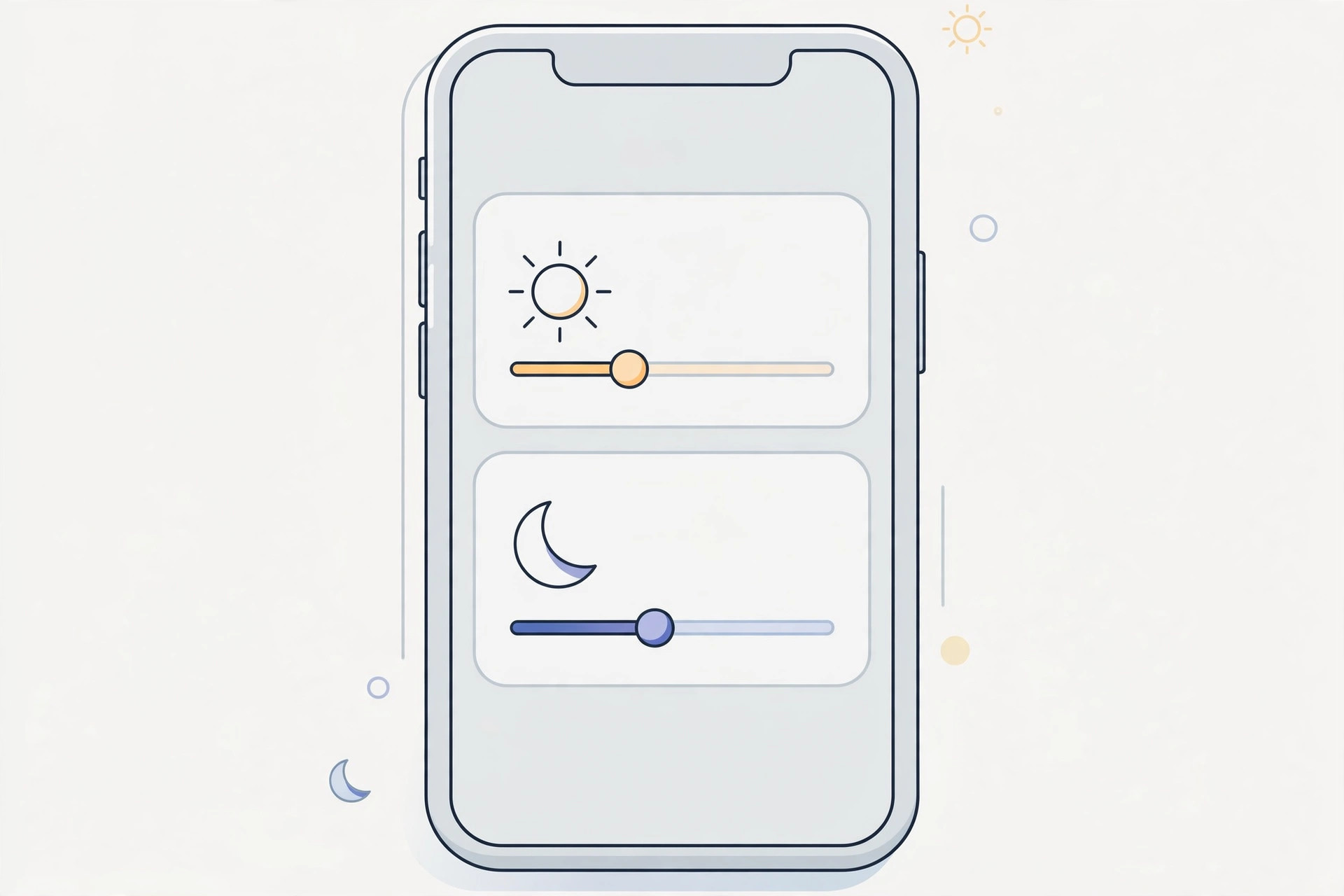
Stop the iPhone screen from turning off during videos
1. Extend the Auto-Lock timer
The number-one culprit is Auto-Lock. When a video app fails to tell iOS that playback is active, the phone follows its normal screen timeout and locks on schedule — even mid-video. Go to Settings > Display & Brightness > Auto-Lock and pick a longer interval, such as 5 minutes. If you often watch long videos, a longer timeout helps, but avoid leaving it on Never permanently or the battery will drain. Apple’s iPhone support pages describe the Display & Brightness settings, including Auto-Lock.
2. Restart the iPhone
A temporary software glitch can stop iOS from recognizing that a video is playing. Power the iPhone fully off, wait a few seconds, and turn it back on. If the screen was only misbehaving because of a one-off hiccup, this clears it — and it costs you a minute.
3. Update iOS and the video app
Some apps are bad at signaling playback state to the system, so the screen locks on schedule while the video keeps running. Developers fix this in updates, and Apple fixes system-side quirks in iOS updates too. Update the app in the App Store, then go to Settings > General > Software Update and install anything pending. MacRumors regularly covers iOS releases and the playback bugs they fix.
4. Test the same video in a different app
Play the same video in Apple TV or the Photos app instead of the third-party player you were using. If the screen stays awake there, the problem is app-specific — stick with the working app, or reinstall the misbehaving one and check its settings for any playback or background-play options.
5. Reset all settings
If the screen turns off during playback in every app, a misconfigured system option is likely. Go to Settings > General > Transfer or Reset iPhone > Reset All Settings. This keeps your photos, apps, and files but returns system preferences — including display timers — to defaults. After the reset, check Auto-Lock again and set a comfortable interval. While you’re customizing the lock screen, you might also like our guide on how to move lock screen widgets down in iOS 26.
If it still doesn’t work
When the screen keeps going dark in every app even after a settings reset, back up the iPhone and restore it via a computer — a clean restore rules out deep software corruption. If the behavior survives that, have Apple Support or an authorized service center check the device; a sensor or power-management fault is rare, but possible.
Frequently asked questions
Why does my screen turn off only in one video app?
That app isn’t telling iOS that video is playing, so the normal Auto-Lock timer kicks in. Update the app, and if the developer hasn’t fixed it, watch in a different player until they do.
Should I just set Auto-Lock to Never?
It works, but it’s a battery and security trade-off — the screen stays on in your pocket and anyone can pick the phone up unlocked. A 5-minute timer is the better compromise for most people.
Conclusion
A screen that dies mid-video is nearly always Auto-Lock doing its job at the wrong moment. Extend the timer, restart, update, and test another app — that sequence resolves it for the vast majority of iPhones. And if you’re fine-tuning the rest of iOS 26, see how to bring back the alarm stop button instead of swipe-to-dismiss.





