
Want your Mac’s lock screen to show a favorite photo instead of the default wallpaper? macOS doesn’t offer a dedicated lock-screen wallpaper setting — but depending on your macOS version, there’s either a dead-simple way or a clever workaround to get it done. Here’s both.
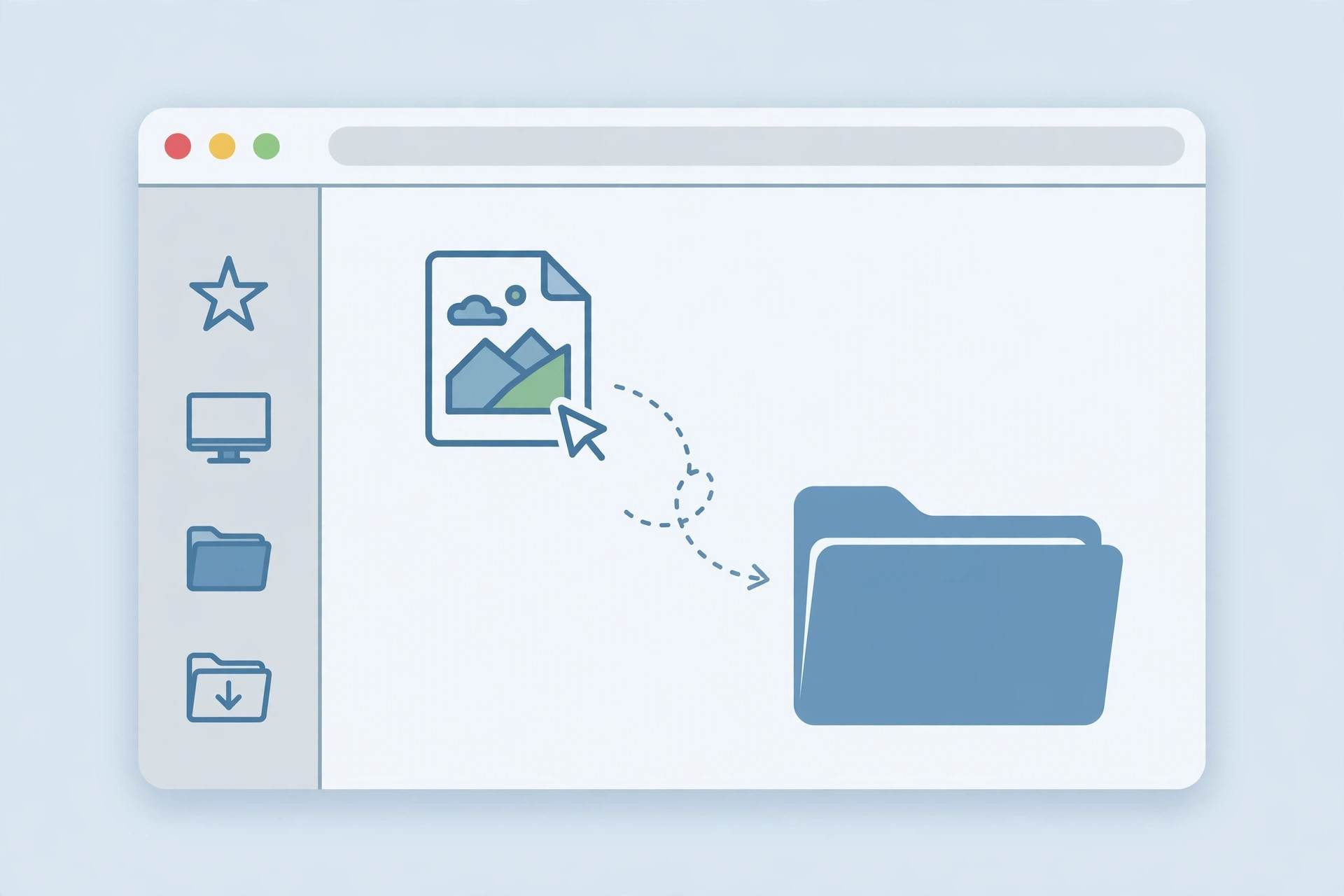
How to change the lock screen wallpaper on Mac
1. On modern macOS: change the desktop wallpaper
On recent macOS versions (Sonoma, Sequoia, and newer), the lock screen simply mirrors your desktop wallpaper — Apple removed the separate lock-screen image. Open System Settings > Wallpaper and pick any image; it becomes your lock screen too, and you can even set different wallpapers per Space. Apple’s Mac support pages cover the personalization options in System Settings. If you’re sprucing up your Mac, you may also like our guide on enabling face lighting during video calls on Mac.
2. The manual workaround for older macOS
On older macOS releases, the lock screen image is a cached system file you can swap by hand. Pick the image you want, crop or resize it to your display’s exact resolution (check System Settings > Displays), and save it as a PNG file named exactly com.apple.desktop.admin. Then open Finder, press Cmd + Shift + G, type /Library/Caches, and paste the file there, confirming the replacement when asked. Restart your Mac — the custom image now appears on the lock screen. 9to5Mac has covered similar macOS customization tricks over the years.
3. Know the caveat
The manual swap only lasts until you change the desktop wallpaper — macOS regenerates the cached lock-screen file at that point, wiping out your custom image. If that happens, just repeat the file swap. On modern macOS this isn’t an issue at all, since the lock screen follows the desktop wallpaper automatically.
If it still doesn’t work
Double-check the details that trip people up: the file must be a PNG, the name must be exactly com.apple.desktop.admin (watch out for a doubled extension like .png.png), and it must land in /Library/Caches — not ~/Library/Caches. A restart is required before the new image shows. If you’re on a managed work Mac, an administrator profile may block the change.
Frequently asked questions
Can I use a different image for the lock screen than the desktop on new macOS?
No — on Sonoma and newer, the lock screen always matches the desktop wallpaper. The separate-image trick only works on older releases via the manual file swap.
Will the custom image survive a macOS update?
Major updates often reset system cache files, so keep a copy of your PNG handy and re-apply the swap after updating.
Conclusion
Changing the Mac lock screen wallpaper takes minutes once you know which method fits your macOS version: System Settings on modern releases, the /Library/Caches file swap on older ones. And while you’re personalizing, try changing folder colors and adding emoji in macOS 26 for a fully custom desktop.





