
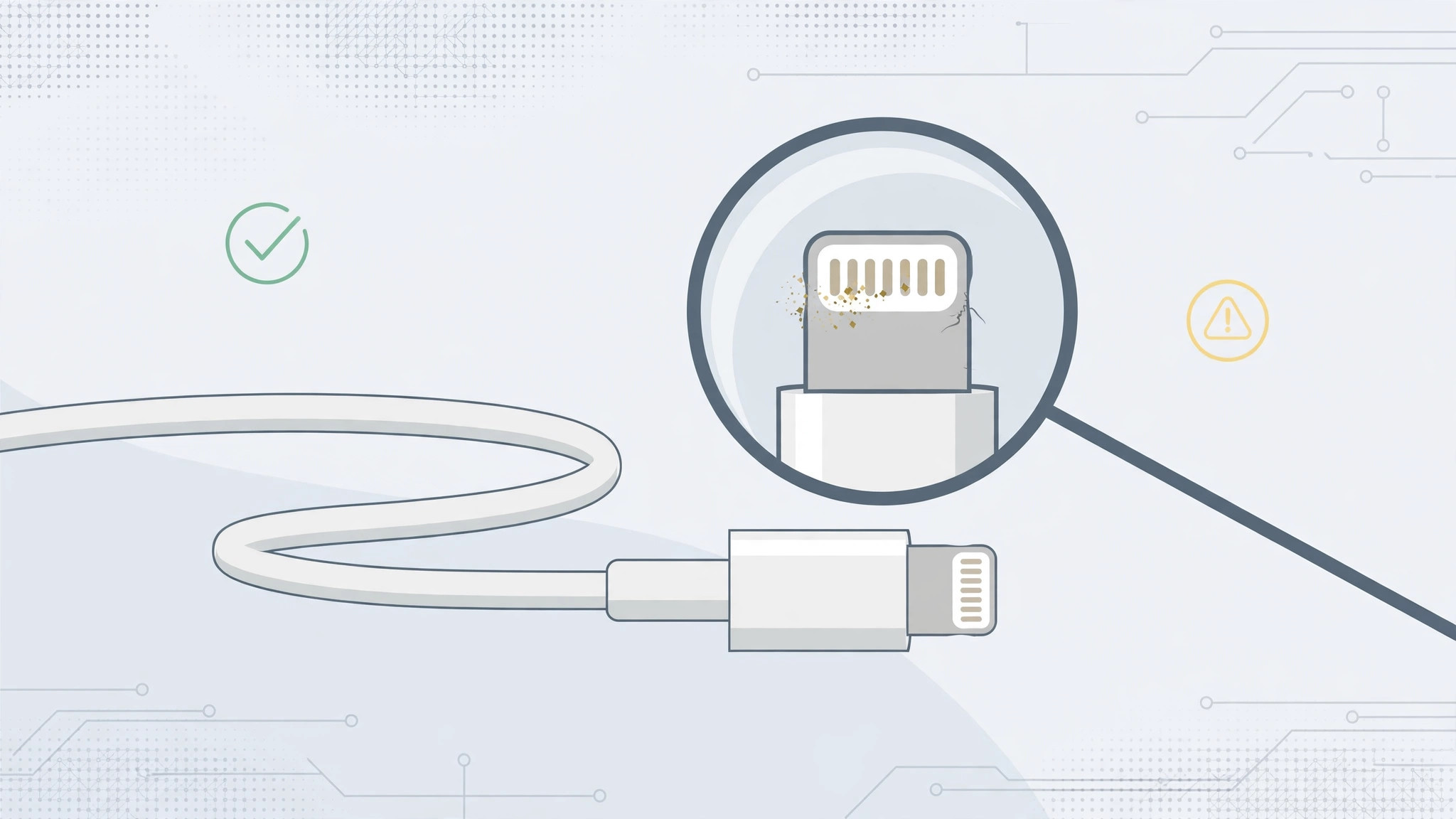
Your Lightning cable charges the iPhone just fine from a wall adapter — but plug it into your Mac or PC and the phone starts connecting and disconnecting in an endless loop. Maddening, and not always the cable’s fault. Here is a systematic way to find out which part of the chain — cable, iPhone port, or computer — is actually broken.
The tell-tale symptom
Pay attention to the exact pattern. If the cable powers the iPhone normally through a wall adapter yet the phone keeps dropping and reconnecting when plugged into a computer, the cable is your prime suspect — not the phone. A Lightning connector carries power and data on separate contacts, so the charging pins can be perfectly fine while the data pins are worn out, dirty, or damaged. The result: power flows, but sync data stutters in and out.
Step 1: Inspect and clean both ends
- Look closely at the Lightning plug itself. Check for lint packed around the gold contacts, green corrosion, or pins that look bent or pushed in.
- Shine a flashlight into the iPhone’s charging port. Pocket lint compacts in there over months and presses against the contacts.
- Clear debris gently with a dry, soft brush or a wooden toothpick. Never use metal — it can short the pins and kill the port. Apple’s iPhone support pages echo the same caution about keeping the port clean and dry.
Step 2: Isolate the cable
A cable can look fine and still be the problem, so test it against another computer.
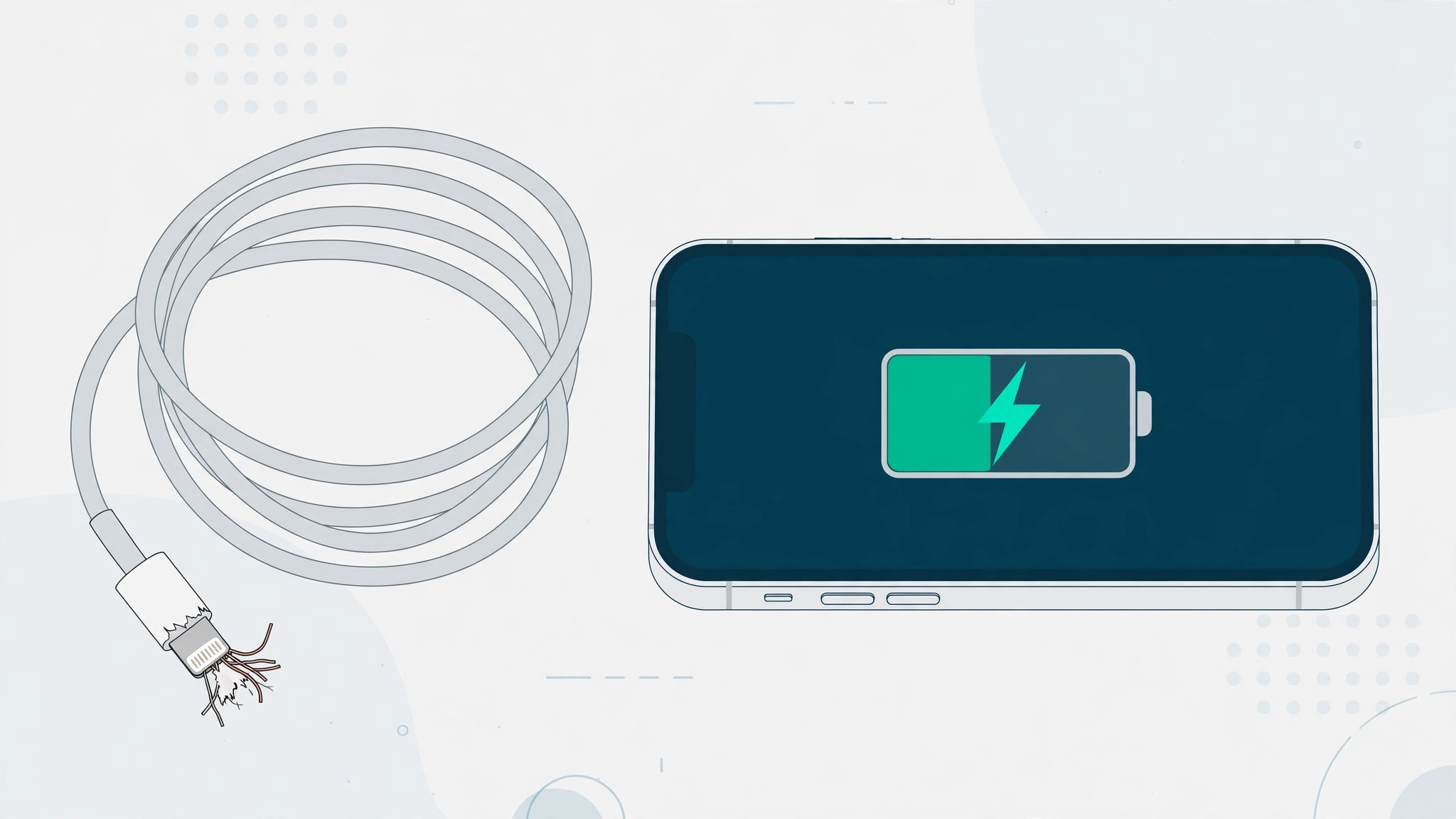
- Plug the iPhone into a second computer with the same cable. If the connect/disconnect dance repeats there, the cable is faulty — replace it with a genuine Apple cable or a certified MFi cable. Cheap knockoffs are notorious for exactly this failure; MacRumors has long warned that uncertified cables die young and can even damage the port.
- If the cable behaves perfectly on the second machine, the first computer is at fault. Try a different USB port — front-panel and hub ports are flakier than rear motherboard ports. If you are running a beta OS, suspect software: update the system and reinstall the USB/device drivers, since beta builds routinely break USB device handshakes.
Step 3: Rule out the iPhone’s port
Borrow a known-good cable — one that syncs reliably with another iPhone — and try it on your phone. If every cable you own misbehaves in this iPhone while working fine elsewhere, the Lightning port itself is worn or damaged and the phone needs service. If your iPhone also stops taking a charge from computers in other odd ways, our guide on why the iPhone stops charging from a computer after an hour covers the other common culprit. And if you want to know what your cable is actually capable of, see how to measure iPhone-to-Mac data transfer speed over cable.
If it still doesn’t work
Work through the chain once more: clean port, second computer, second cable. If the iPhone won’t sync with any cable on any computer, back up immediately and book a service appointment — a failing port can degrade into a dead one. As AppleInsider has reported, port repairs are straightforward at Apple Stores and authorized providers, and they are far cheaper than replacing the phone.
Frequently asked questions
Can a cable really charge but not sync?
Yes — this is the classic sign of worn data contacts. Power and data travel on separate pins inside the Lightning connector, so a cable with damaged data pins will charge normally while failing every sync attempt.
Is a third-party cable okay, or must I buy Apple’s?
A third-party cable is fine as long as it is MFi-certified (Made for iPhone). The certification means Apple has verified its electronics; uncertified cables are the ones that fail early and, in rare cases, damage your device.
Conclusion
Don’t replace parts at random. The connect-disconnect pattern tells you to suspect the cable first, a second computer tells you whether the computer is innocent, and a known-good cable tells you whether the iPhone’s port is the problem. Follow the chain and you’ll buy exactly one replacement — the right one.





