
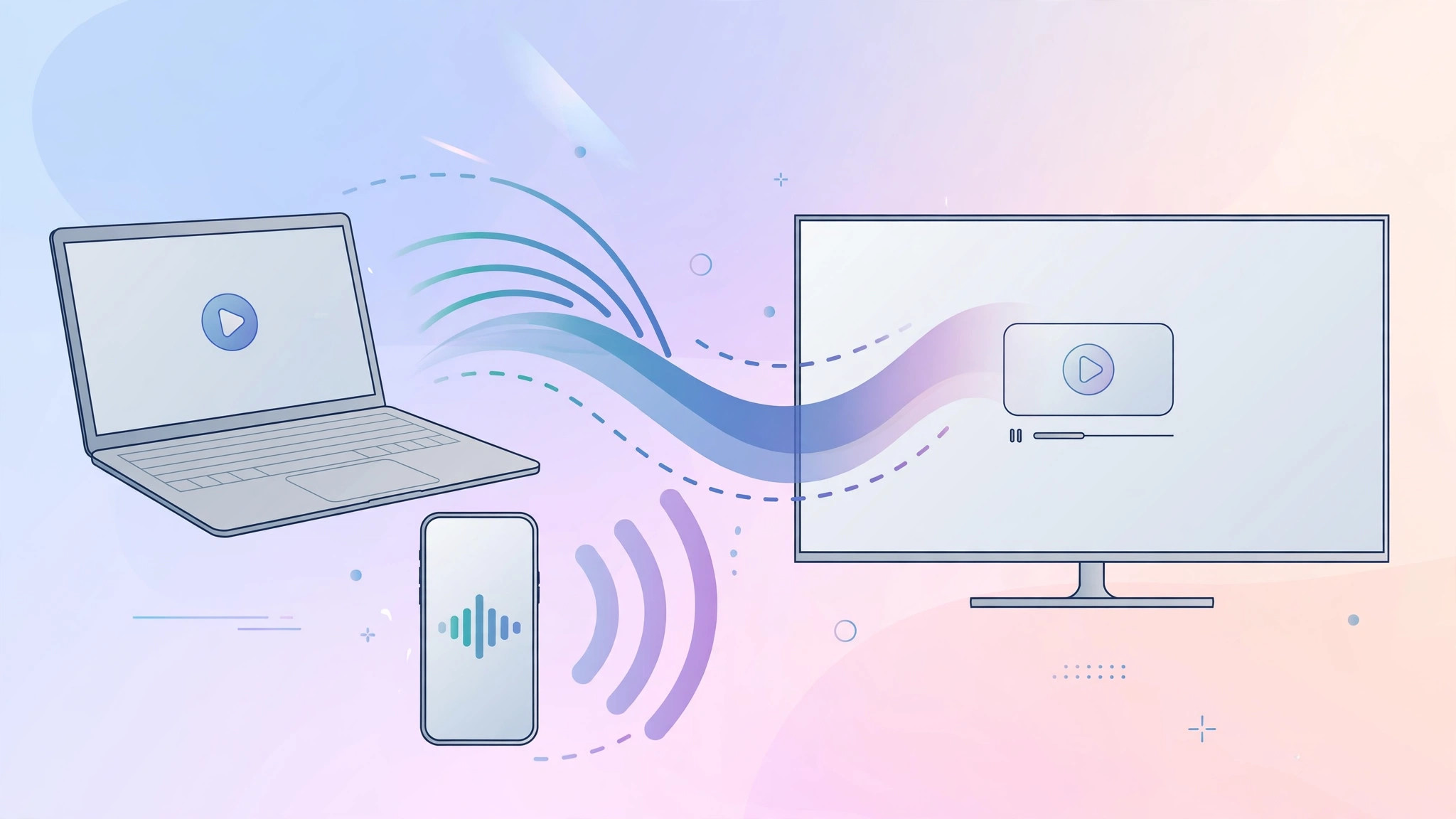
You have a movie on your Mac or a photo album on your iPhone, and everyone in the room would rather watch on the TV. Getting Apple devices onto the big screen is easier than it used to be: you can beam everything wirelessly with AirPlay, or run a single cable for a rock-solid connection. Here is how both methods work, step by step.
Your two options: wireless or wired
Apple gives you two ways to put Mac or iPhone video and audio on a television. AirPlay streams over your Wi-Fi network — no cables, and you can keep using your phone while the video plays. An HDMI cable (or a USB-C/Lightning-to-HDMI adapter) gives you a direct, lag-free connection that doesn’t depend on your network at all. If you own an Apple TV box, you already have everything needed for the wireless route; many modern smart TVs also have AirPlay 2 built in, so no extra hardware is required. For the official rundown of what AirPlay supports, see Apple’s AirPlay overview.
Option 1: Stream wirelessly with AirPlay
This is the classic setup: an Apple TV connected to the television, with your Mac or iPhone on the same Wi-Fi network.
- Connect the Apple TV. Plug it into the TV with an HDMI cable, switch the TV to that HDMI input, and join the same Wi-Fi network as your Mac or iPhone. Skip this step if your smart TV has AirPlay 2 built in — just enable AirPlay in the TV’s settings.
- Mirror from your Mac. Click Control Center in the menu bar, choose Screen Mirroring, and select your Apple TV or AirPlay 2 TV. Your whole desktop appears on the TV, with sound. To stream only a video, click the AirPlay icon inside the video app instead — playback keeps running while you do other things.
- Mirror from your iPhone or iPad. Open Control Center, tap Screen Mirroring, and pick the Apple TV. Whatever is on your screen — photos, apps, games — shows up on the TV. Inside video apps, the AirPlay icon streams just the clip.
- Route the audio. Video without sound is no fun. On a Mac, hold the Option key, click the volume icon in the menu bar, and choose the Apple TV as the output device so audio plays through the TV speakers. On the iPhone, screen mirroring sends the audio along automatically.
Option 2: Go wired with an HDMI cable
Wireless not cooperating, or presenting somewhere with dubious Wi-Fi? A cable never drops out.
- Connect an HDMI cable from your Mac directly to the TV. Most recent Macs need a USB-C-to-HDMI adapter or cable.
- For iPhone or iPad, use a Lightning-to-HDMI or USB-C-to-HDMI adapter (Apple’s Digital AV Adapter or a certified equivalent), then plug a standard HDMI cable from the adapter into the TV.
- Switch the TV to the matching HDMI input — picture and sound should appear immediately. On the Mac, you can arrange the displays in System Settings → Displays if you want the TV to mirror your screen or act as an extended desktop.
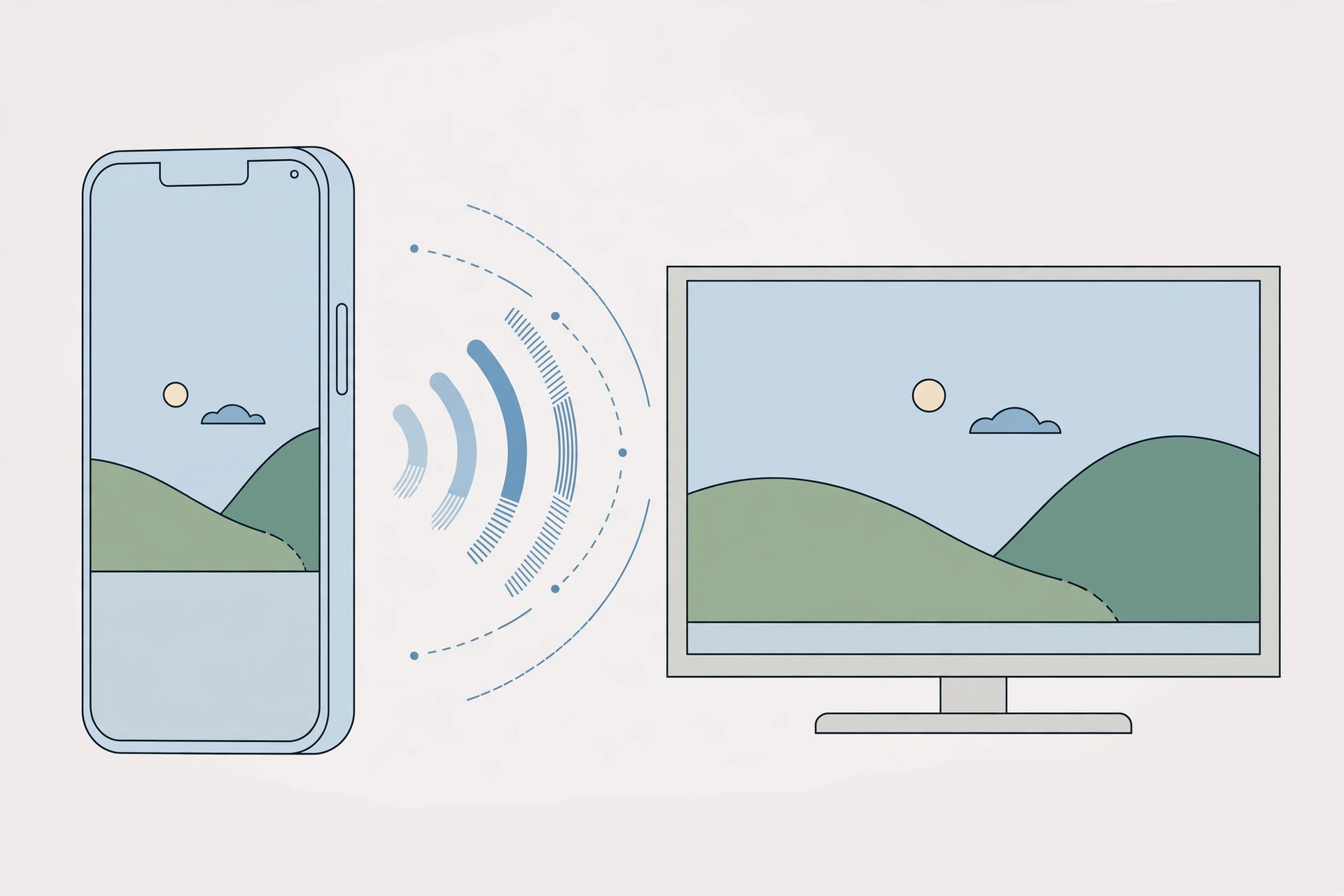
Not all adapters and cables are equal: a cheap cable can silently bottleneck your connection. If you are curious what your cable actually delivers, see our guide on measuring iPhone-to-Mac data transfer speed over cable.
If it still doesn’t work
First, make sure every device is on the same Wi-Fi network — phones often hop onto a guest network while the Apple TV sits on the main one. If your Wi-Fi is flaky in general, you can set up automatic hotspot connection from iPhone on Mac as a backup path. Restart the Apple TV, the iPhone or Mac, and the TV itself, then check for software updates on all of them. As 9to5Mac has noted, outdated tvOS is a common culprit when AirPlay targets vanish from the list. For wired setups, try a different HDMI port and confirm the TV is on the right input — and test the adapter with another cable before blaming the phone. Tom’s Guide also recommends checking that your TV’s firmware actually supports AirPlay 2 if the set never appears as a target.
Frequently asked questions
Can I AirPlay to a TV without an Apple TV box?
Yes — if your TV supports AirPlay 2. Most smart TVs from Samsung, LG, Sony, and Vizio made since 2019 have it built in. Enable it in the TV’s settings and it shows up as an AirPlay target just like an Apple TV would.
Does screen mirroring work without Wi-Fi?
Newer Apple devices support peer-to-peer AirPlay over Bluetooth and direct wireless, so mirroring can work even without a network — but it is less reliable than a proper Wi-Fi connection. For anything important, like a presentation, use the wired HDMI route.
Conclusion
For everyday watching, AirPlay is the convenient choice: pick your Apple TV or AirPlay 2 TV from Screen Mirroring and you are done, with the audio following automatically. When the network can’t be trusted, a USB-C or Lightning-to-HDMI adapter gets you the same result over a wire. Either way, your Mac or iPhone content belongs on the biggest screen in the room.





