
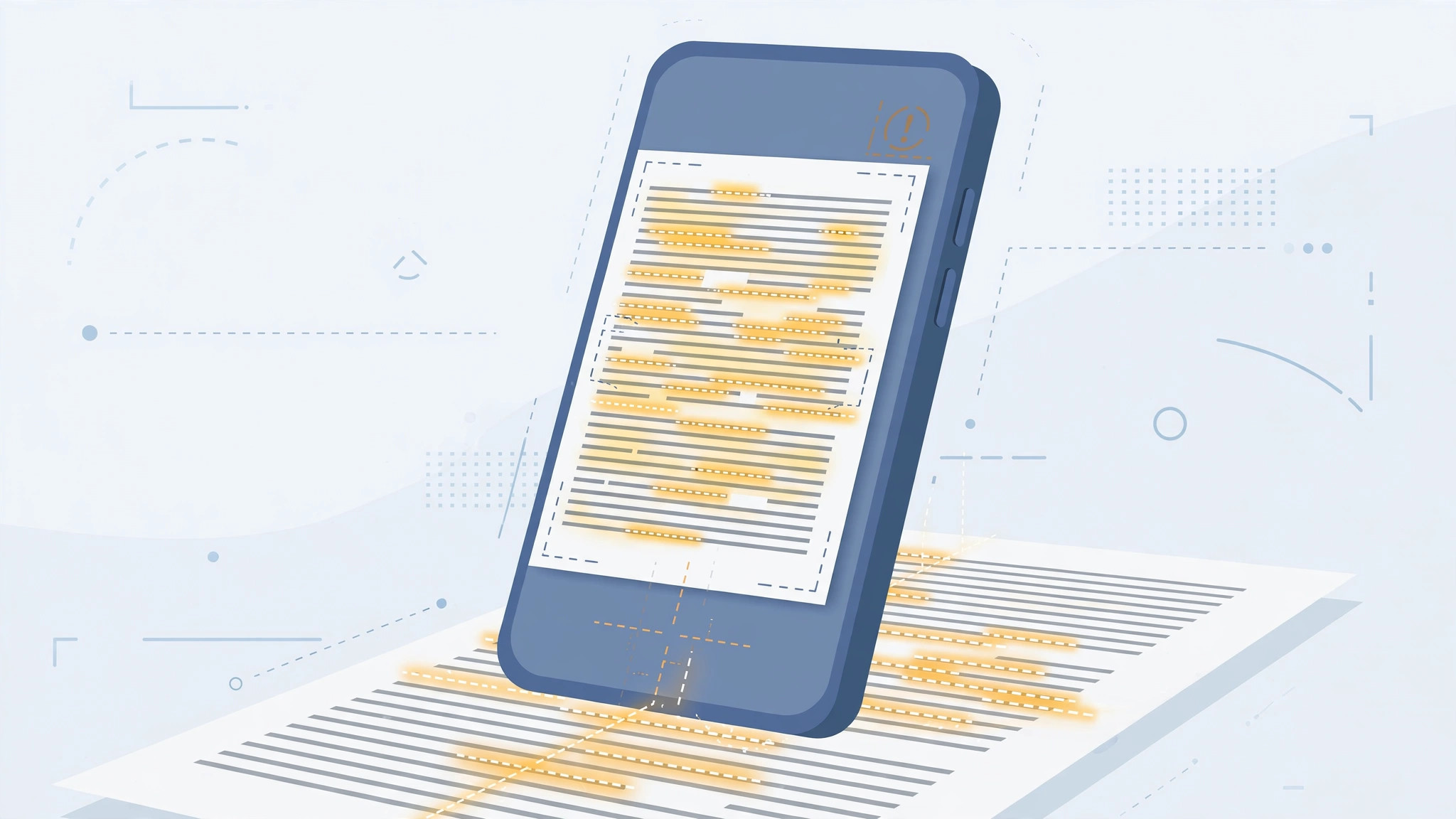
Live Text — the iPhone feature that recognizes text in photos and through the camera — is incredibly useful until it suddenly stops working. You point your camera at a sign and nothing happens, or the Live Text button doesn’t appear in Photos. Before you assume your iPhone is broken, work through these fixes in order: most Live Text problems are solved by step two.
Step 1: Check the requirements
Live Text shipped with iOS 15, so make sure your iPhone is running iOS 15 or later (Settings > General > Software Update). One more detail: recognizing text in videos needs iOS 16 or later. If you’re on an older version, update first — no setting can enable a feature your iOS doesn’t have.
Step 2: Restart the iPhone
The plain reboot fixes Live Text in most cases. Press and hold the side button and either volume button, slide to power off, wait a few seconds, then turn it back on. It’s boring advice because it works: a restart re-initializes the camera and the on-device text recognition engine.
Step 3: Toggle Live Text off and on
- Open Settings > General > Language & Region.
- Find the “Live Text” switch (it may be labeled “Text Scanner” in iOS 16) and turn it off.
- Wait a few seconds, then turn it back on. Apple Support documents this setting, and 9to5Mac has noted that the toggle’s label varies between iOS versions.
Step 4: Rule out camera problems
Live Text depends on the camera module. If the Camera app itself misbehaves — black viewfinder, blurry focus, crashes — live recognition can’t work either. Address camera faults first (clean the lens, restart, and if problems persist, have the hardware checked). For related camera quirks, see our guide on why Spatial Photo mode isn’t working in iOS 26 and how to disable quick camera launch from the iPhone lock screen.
Step 5: Test both entry points
Try recognition in both places and compare:
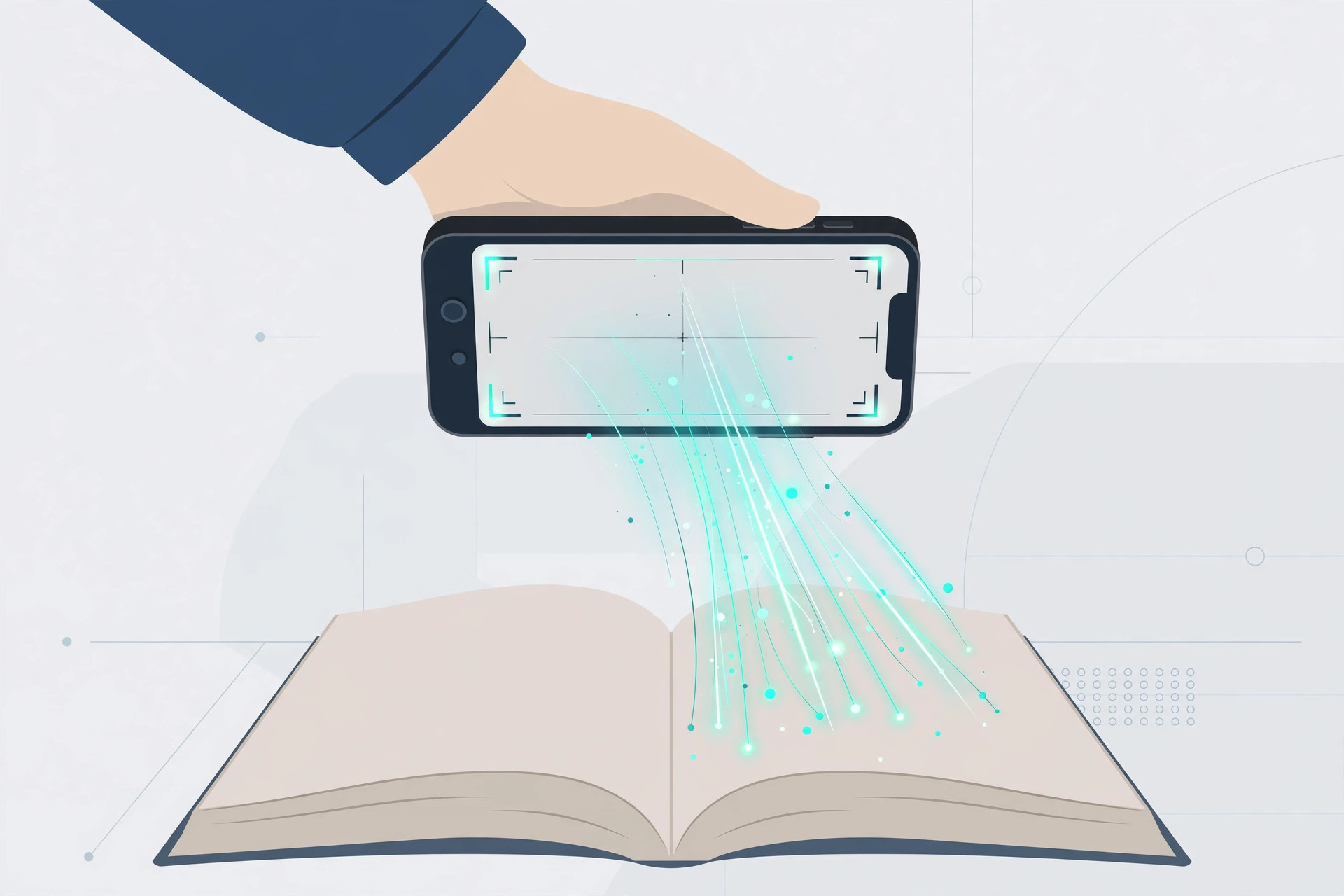
- Live capture: open the Camera app, point it at printed text in Photo mode, and look for the Live Text indicator.
- Saved photo: open a photo containing text in the Photos app and tap the Live Text indicator in the corner.
If one works and the other doesn’t, you’ve narrowed the fault: a live-capture failure points at the camera, while a Photos-only failure points at the recognition engine. MacRumors has covered how Live Text behaves across these entry points.
If it still doesn’t work
If Live Text fails everywhere after a restart and a settings toggle, check your region and language settings — Live Text supports a limited set of languages, and it won’t engage for unsupported scripts. Also make sure you have enough free storage; on-device machine learning features can misbehave when the phone is critically full. As a last resort, reset all settings (Settings > General > Transfer or Reset iPhone > Reset > Reset All Settings) — this keeps your data but restores system defaults.
Frequently asked questions
Which iPhones support Live Text?
Live Text needs iOS 15+ and an iPhone with the A12 Bionic chip or newer (iPhone XS and later). Older models can’t run the on-device recognition.
Why does the Live Text button sometimes disappear?
The indicator only appears when the system actually detects text in the frame. If there’s no readable text — or the text is too small, blurry, or in an unsupported language — the button won’t show.
Conclusion
Live Text failures look dramatic but are usually trivial: a restart, a settings toggle, or a camera check resolves nearly all of them. Work through the steps in order, test both the Camera and Photos entry points, and you’ll have text recognition back in minutes.





