
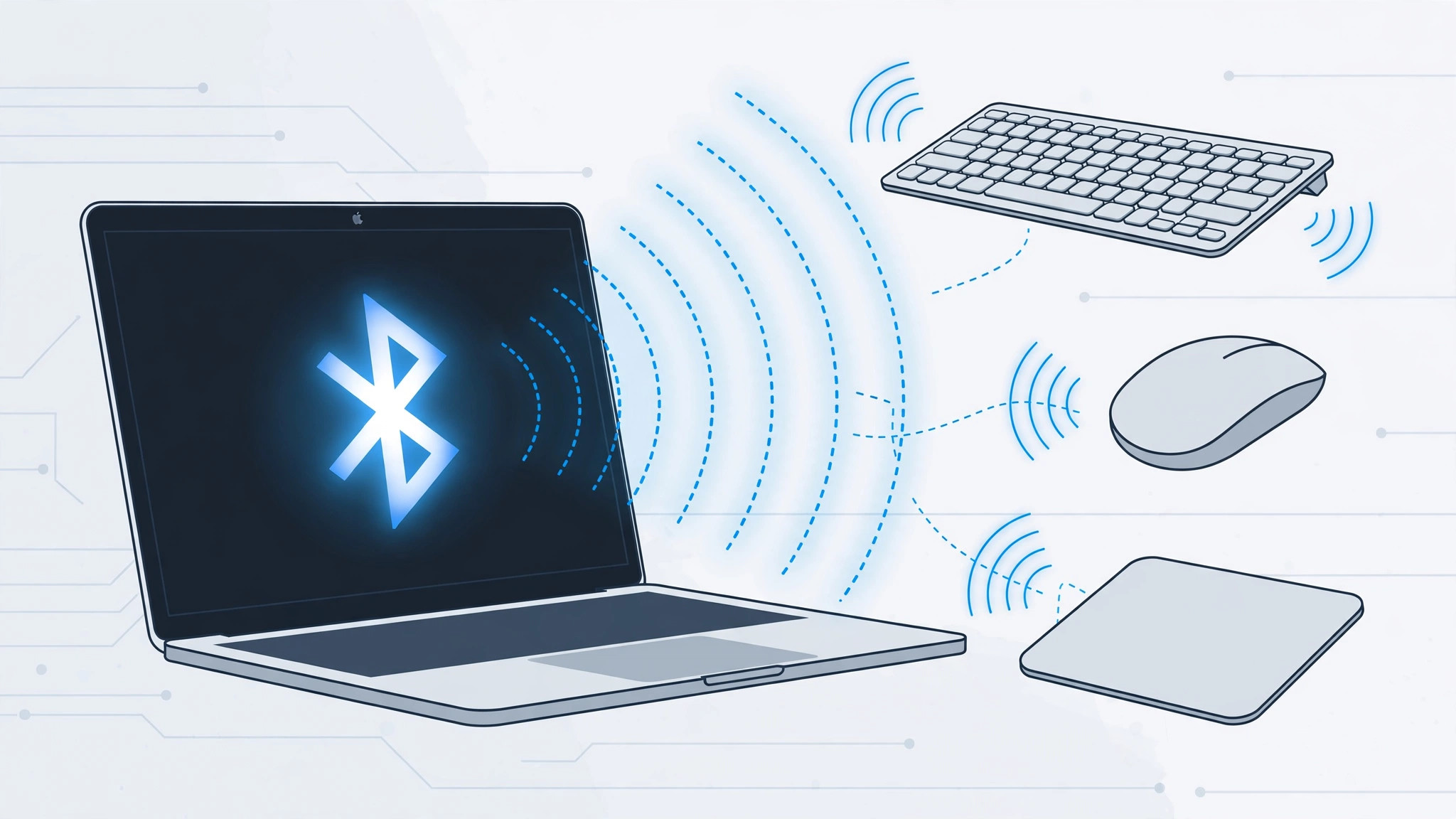
You sit down, wiggle the Magic Keyboard — and nothing happens. No cursor, no keystrokes, just silence from a Bluetooth accessory that worked yesterday. A wireless keyboard, mouse, or trackpad refusing to connect to your Mac is maddening, but the fix is almost always one of the seven steps below, in this order.
Fix 1: Start with the basics
- Turn the wireless accessory off and back on using its power switch.
- If it uses replaceable batteries, swap in fresh ones — weak batteries cause most pairing failures.
- Restart the Mac, then toggle the Mac’s Bluetooth off and on in System Settings.
Fix 2: Re-pair Apple accessories over a cable
For genuine Apple accessories — Magic Keyboard, Magic Mouse, Magic Trackpad — plug the accessory into the Mac with a Lightning cable for 10–15 minutes, then try pairing again. The wired connection both charges the accessory and re-establishes the Bluetooth pairing handshake. Apple Support’s Mac guides list this as the first step specifically for Apple’s own wireless input devices.

Fix 3: Remove and re-pair from scratch
- Open System Settings → Bluetooth.
- Find the problematic gadget, click the info button, and choose Forget This Device.
- Put the accessory back into pairing mode and pair it again from scratch.
Fix 4: Eliminate interference
Bluetooth shares crowded airspace. Move other wireless gadgets — phones, speakers, hubs — away from the Mac while pairing. Also disconnect unnecessary USB devices: unpowered USB peripherals can draw energy in ways that disrupt the Mac’s wireless modules. The MacRumors forums are full of cases where a cheap USB hub was the invisible culprit.
Fix 5: Reset the Bluetooth module
If nothing above helps, reset the Mac’s Bluetooth stack. Open Terminal and run:
sudo pkill bluetoothdEnter your admin password when asked. This is safe: it simply restarts the Bluetooth daemon — Bluetooth drops for a few seconds, then recovers. It is the current equivalent on Apple Silicon Macs, since the old Bluetooth debug-menu reset is gone. Then pair the accessory again. 9to5Mac has covered this command as the go-to fix for stubborn macOS Bluetooth issues.
If it still doesn’t work
Try the accessory with another Mac or another user account to isolate a hardware fault. If it pairs nowhere, the accessory itself is likely dying — batteries and Bluetooth radios do wear out. If it pairs elsewhere but never on your Mac, a macOS reinstall is the last software resort before a trip to Apple service.
FAQ
Why won’t my Magic Keyboard pair even with fresh batteries?
Try the cable method first — a wired Lightning connection re-establishes the pairing handshake. If that fails, forget the device in Bluetooth settings and reset the Bluetooth module with the Terminal command above.
Is running “sudo pkill bluetoothd” safe?
Yes. It only restarts the Bluetooth background service; your files and settings are untouched. Bluetooth disconnects briefly and comes back on its own.
Conclusion
Bluetooth input problems on Mac follow a predictable ladder: power-cycle, cable-pair, forget-and-repair, kill interference, reset the module. Work it top to bottom and you will reconnect in minutes. If your AirPods misbehave too, here is how to turn off AirPods charging case sounds — and for more Mac–iPhone connectivity, learn how to set up automatic hotspot connection from iPhone on Mac.





