
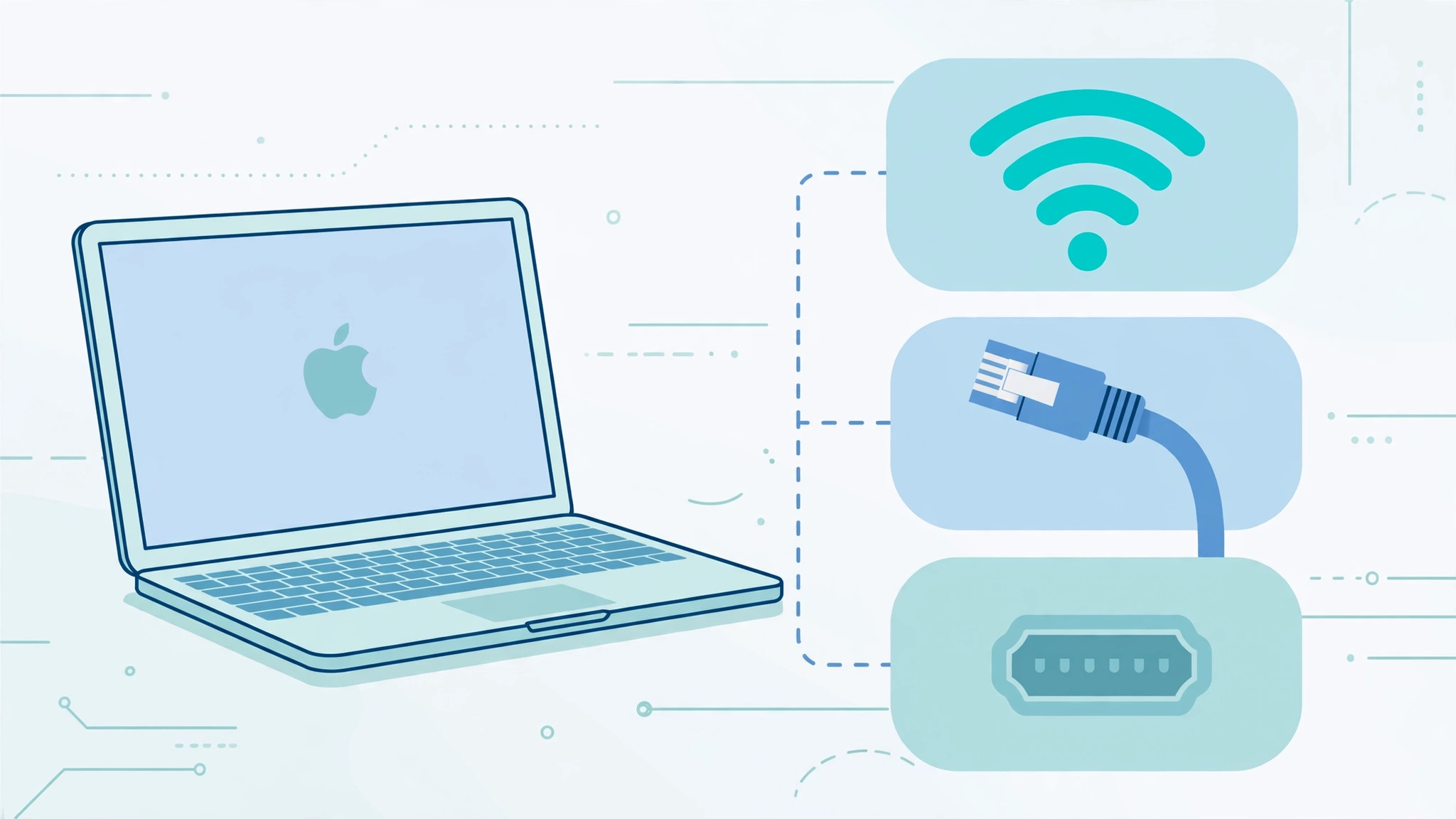
Your Mac is connected to Wi-Fi, but it’s burning through your iPhone’s mobile data instead. This happens when your Mac prioritizes the iPhone USB tethering connection over your home Wi-Fi or Ethernet — a common annoyance if you regularly plug your iPhone into your Mac. The fix is simple: tell macOS which network connections to prefer using the Service Order setting.
How to Set Network Connection Priority on macOS
- Open Network settings. Click the Apple menu, then go to System Settings > Network. You’ll see a list of all your network services on the left — Wi-Fi, Ethernet, iPhone USB, and any others you’ve configured.
- Open the Service Order menu. Look for the three-dots button (•••) at the bottom of the services list. Click it, then select “Set Service Order” from the menu. This opens the priority list where you control which connection macOS tries first.
- Drag your preferred connections to the top. In the Service Order window, drag Wi-Fi and Ethernet above iPhone USB. macOS tries connections from top to bottom — so with Wi-Fi at the top, your Mac will always use Wi-Fi when it’s available, and only fall back to your iPhone’s mobile data when no other network is reachable. Click OK to save the new order. Apple Support documents the Network settings panel in their macOS user guide.
- Verify the new priority works. With Wi-Fi available, check that your Mac is using it: hold Option and click the Wi-Fi icon in the menu bar to see connection details. Your iPhone’s data should now sit idle unless Wi-Fi drops. If you tether frequently, you may also want to read our guide on how to set up automatic hotspot connection from iPhone on Mac.
- Remove iPhone tethering entirely (optional). If you never want your Mac to use your iPhone’s data, you can disable the iPhone USB service altogether. In System Settings > Network, select “iPhone USB” from the services list, then toggle it off in its settings panel. Your Mac will no longer see the iPhone as a network option at all — though you can re-enable it anytime.

If It Still Doesn’t Work
If your Mac keeps jumping to iPhone USB despite the new order, make sure Wi-Fi is actually connected — macOS falls back to lower-priority services when the preferred one has no internet access. Also check that the iPhone USB service isn’t set to connect automatically in its own settings. A restart after changing the service order can help macOS apply the new priority cleanly. MacRumors forums have additional threads on tethering priority quirks across macOS versions. Note: the exact wording follows the Ventura-era interface; in newer macOS releases, the control lives under Network > ••• > Set Service Order. If you use Focus modes to manage connectivity, see how to allow calls only from a specific SIM card in Focus mode.
Frequently Asked Questions
Will changing the service order affect my iPhone’s hotspot?
No — the service order only controls which connection your Mac prefers. Your iPhone’s Personal Hotspot keeps working normally for other devices. You’re simply telling the Mac to try Wi-Fi and Ethernet before reaching for the iPhone’s mobile data.
Why does my Mac keep using iPhone USB even with Wi-Fi on?
This usually means iPhone USB sits above Wi-Fi in the service order, or Wi-Fi is connected but has no working internet (captive portals and weak signals cause this). Reorder the services so Wi-Fi is on top, and confirm Wi-Fi actually has internet access.
Conclusion
Setting the network service order takes less than a minute and can save you from surprise mobile data usage. Put Wi-Fi and Ethernet at the top, push iPhone USB to the bottom — or disable it entirely — and your Mac will stop reaching for your phone’s data plan when a perfectly good Wi-Fi network is available.





