

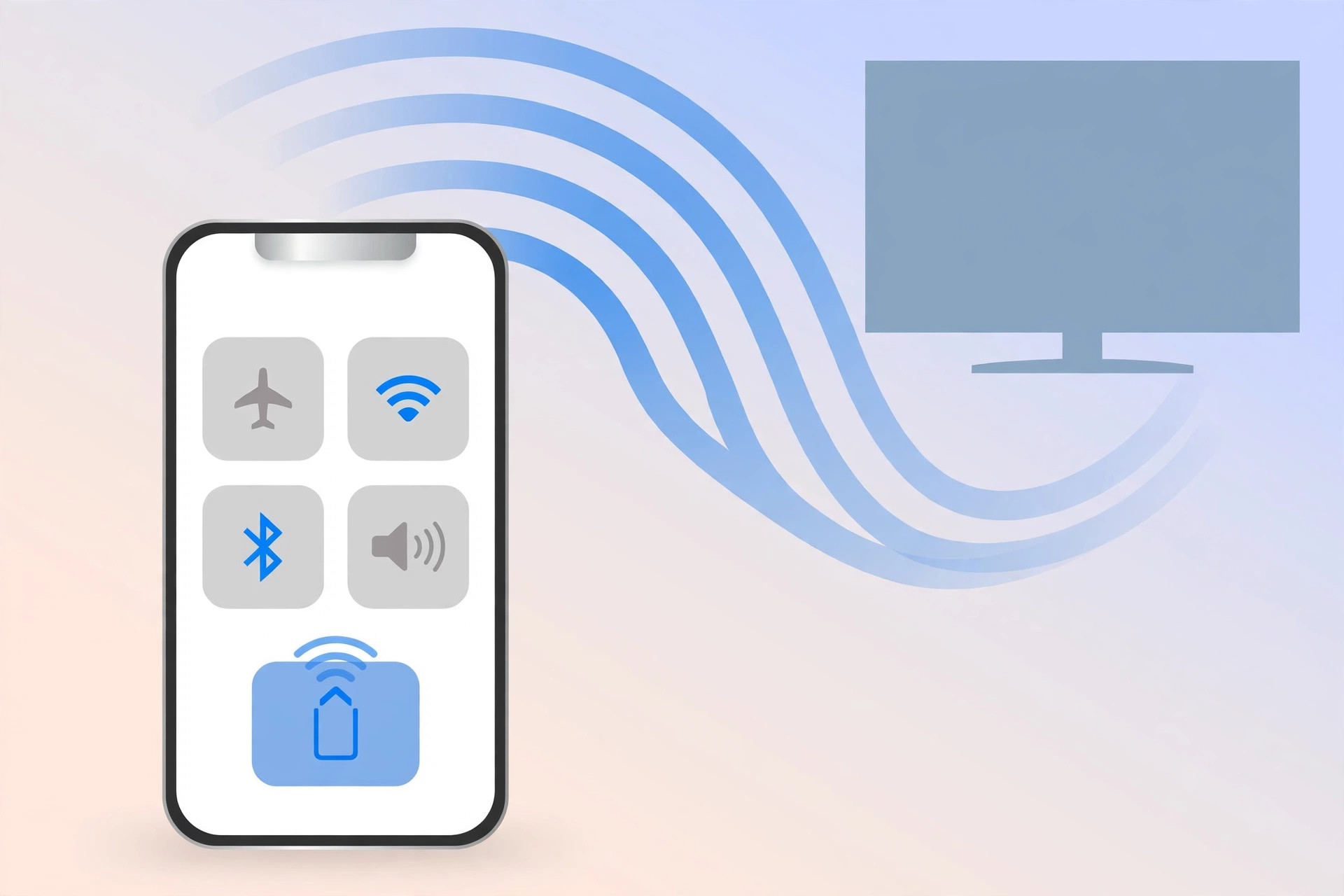
Want to watch iPhone videos on the big screen, flip through vacation photos with the whole family, or run a presentation straight from your phone? Mirroring your iPhone’s display to a TV or a Mac is easier than most people think — and you have both wired and wireless options depending on the gear you already own.
Method 1: Mirror to a Mac with a cable
This is the lowest-latency option, and it is great for recording tutorials.
- Connect your iPhone to the Mac with a Lightning or USB-C cable.
- Open QuickTime Player on the Mac and choose File → New Movie Recording.
- Click the small arrow next to the record button and select your iPhone as the camera source. The iPhone screen appears on the Mac almost instantly.
- Hit record to capture the session — you can even add microphone commentary while you demonstrate.
Method 2: Mirror to a Mac wirelessly
No cable handy? Receiver apps such as Reflector turn your Mac into an AirPlay receiver — a free trial is available, and similar apps exist if you want to shop around.
- Install the receiver app on your Mac and launch it.
- On your iPhone, open Control Center and tap Screen Mirroring.
- Select your Mac from the list — the iPhone display appears within seconds.
- If the picture stutters on weak Wi-Fi, lower the AirPlay resolution in the app’s connection settings.
Method 3: Mirror to a TV with a cable
For a rock-solid connection to a TV, monitor, or projector, Apple’s Lightning Digital AV Adapter plus a standard HDMI cable is the classic route.
- Plug the adapter into your iPhone and run an HDMI cable from the adapter to the TV.
- Switch the TV to the matching HDMI input — the iPhone screen appears immediately with near-zero latency.
- The adapter has a spare Lightning port, so you can charge the phone while mirroring — handy for long movie sessions.
Method 4: Mirror to a TV wirelessly with Apple TV
If you own an Apple TV, AirPlay screen mirroring is built right in.
- Plug the Apple TV into your TV over HDMI and make sure both devices sit on the same Wi-Fi network.
- On your iPhone, open Control Center and tap Screen Mirroring.
- Choose your Apple TV — the picture shows up in a second or two.
Audio follows the picture to the TV automatically. If your iPhone keeps sending sound to the wrong device instead, see our guide on stopping the iPhone from auto-switching audio output.
If it still doesn’t work
For wireless methods, first confirm the iPhone and the receiver are on the same Wi-Fi network — a phone on cellular data or a guest network will never see the TV. Restart both devices and make sure the iPhone runs a recent iOS version. For cable methods, check that the TV sits on the correct HDMI input and try a different cable if the screen stays black. MacRumors and 9to5Mac regularly cover AirPlay quirks when new iOS versions change behavior. And if you want the Mac to share its connection during the setup, read how to set up automatic hotspot connections from iPhone on Mac.
Frequently asked questions
Do I need Wi-Fi to mirror with a cable?
No. The QuickTime method and the Lightning-to-HDMI adapter work entirely over the cable, so they are perfect for places with no Wi-Fi — hotel TVs, projectors, and conference rooms.
Why is wireless mirroring laggy?
Lag almost always comes down to the Wi-Fi network: congestion, distance from the router, or interference. Move closer to the router, prefer the 5 GHz band, or lower the streaming resolution. For gaming or anything latency-sensitive, switch to a cable.
Conclusion
Between QuickTime, AirPlay receiver apps, the HDMI adapter, and Apple TV, there is a mirroring method for every setup and budget. Start with whatever gear you already own — once the picture is on the big screen, you will wonder why you waited so long.





