
Your iPhone calls used to ring on your Mac — you’d answer from the desk without touching the phone. Then you changed your number, and the Mac went silent. Nothing is broken: Continuity’s call relay is tied to the number your iPhone registers with Apple’s servers, so a number change quietly breaks the handshake. Here’s how to re-link everything.
Apple’s Continuity support page covers iPhone Cellular Calls, but it doesn’t spell out what a number change breaks — let’s fix it step by step.
Re-link iPhone calls to your Mac
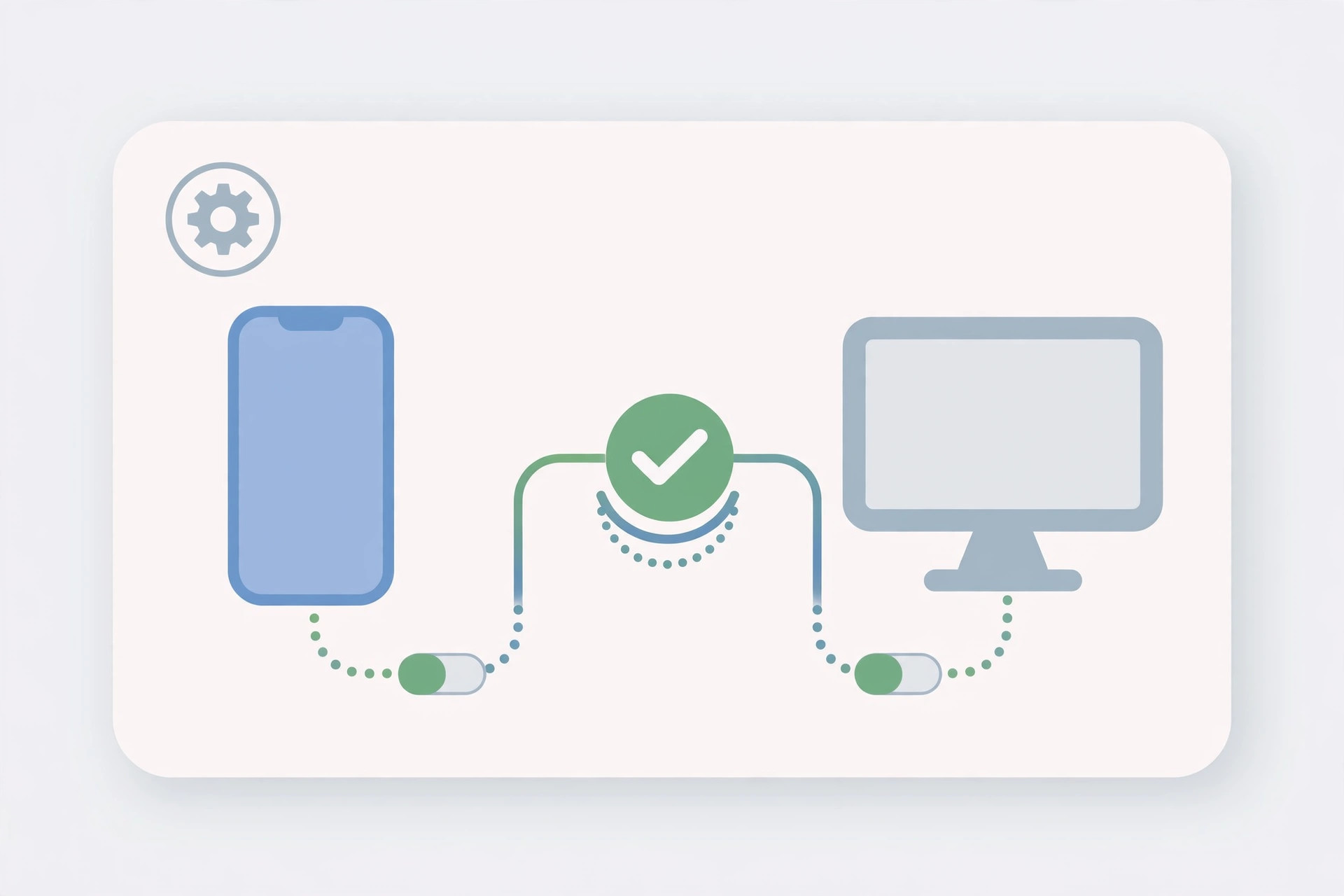
- On your iPhone, open Settings > Phone > Calls on Other Devices. Make sure it’s turned on, and that your Mac is listed and enabled.
- Still on the iPhone, go to Settings > Apps > FaceTime. Confirm you’re signed in with your Apple Account and that your new number is checked under “You can be reached by FaceTime at.”
- On your Mac, open the FaceTime app, then choose FaceTime > Settings from the menu bar. Verify you’re signed in with the same Apple ID as the iPhone, and check “Calls from iPhone”.
- Confirm the Continuity basics on both devices: same Apple ID, same Wi-Fi network, Bluetooth turned on, and Handoff enabled (iPhone: Settings > General > AirPlay & Continuity; Mac: System Settings > General > AirDrop & Handoff).
- Update your Apple ID’s trusted phone number: on the iPhone go to Settings > [your name] > Sign-In & Security, and make sure the new number is there so verification codes can reach you.
- Have someone call your new number — or call your own voicemail — and check that the Mac rings.
9to5Mac has fielded reader questions about this exact scenario, and YouTube walkthroughs demonstrate the FaceTime re-link if you’d rather watch it done.
If it still doesn’t work
If the Mac still doesn’t ring, sign out of FaceTime on the Mac (FaceTime > Settings > Sign Out), restart the Mac, and sign back in — this forces a fresh Continuity registration with the new number. Also check the Mac isn’t silencing calls: make sure Do Not Disturb or a Focus mode isn’t active, and that the Mac’s volume isn’t muted. On the iPhone, verify the new number is also activated for iMessage (Settings > Apps > Messages > Send & Receive) — the same registration issue affects message sync, which our guide to setting up message sync between iPhone and Mac covers in depth. And if you also want calls to stop ringing everywhere, see how to stop iPhone calls from ringing on your Mac — the same toggles work in reverse. If you swapped SIMs as part of the number change, our guide to importing SIM contacts to iPhone will get your address book back in order too.
Frequently asked questions
Why did changing my number break call relay?
Continuity routes iPhone cellular calls to your Mac through Apple’s servers, and your devices are paired using the phone number registered with FaceTime and iMessage. When the number changes, the old registration goes stale — the Mac no longer recognizes the iPhone as the same calling device until you re-register the new number on both ends.
Does my Mac need the new SIM or number?
No. The Mac never touches the cellular network — it receives calls over Wi-Fi through your Apple ID. The only requirement is that the iPhone with the new active number is signed in to the same Apple ID and has Calls on Other Devices enabled for that Mac.
Conclusion
A number change breaks the invisible link between your iPhone and Mac, but re-registering the new number in FaceTime on both devices rebuilds it in minutes. Run through the steps above once, and your Mac will be ringing with your iPhone again.





