
Every Mac owner has a page that just refuses to behave in Safari. Maybe a bank portal throws an error, a web app’s buttons do nothing, or a video player stutters while everything works fine in Chrome. Your instinct is to copy the address, open another browser, and paste — but Safari has a built-in shortcut that skips all of that. Here’s how to reopen any Safari page in Chrome, Firefox, or Edge in two clicks.
Why pages misbehave in Safari
Safari is fast and power-efficient, but some websites are tested mainly against Chrome and its Blink engine. As AppleInsider has covered over the years, banking sites and corporate web apps are the usual suspects — they rely on features that Safari handles differently or blocks for privacy reasons. If you’ve been customizing Safari’s design to make it your own, you already know the browser is flexible; this trick is just another handy piece of that flexibility.
Enable Safari’s Develop menu
The option to reopen a page in another browser lives in Safari’s hidden Develop menu, which is off by default. Turn it on once:
1. Open Safari’s Settings
In the menu bar, click Safari, then Settings (or press Command + ,). Switch to the Advanced tab at the far right of the Settings window.
2. Show the Develop menu
At the bottom of the Advanced tab, tick Show Develop menu in menu bar. You can close Settings now — a new Develop item appears in the menu bar between Bookmarks and Window, as documented in Macworld’s Safari guides.
Open the current page in another browser
3. Load the page that’s giving you trouble
Navigate to the stubborn page in Safari as you normally would. Wait for it to finish loading, even if it renders incorrectly — the address is what matters.
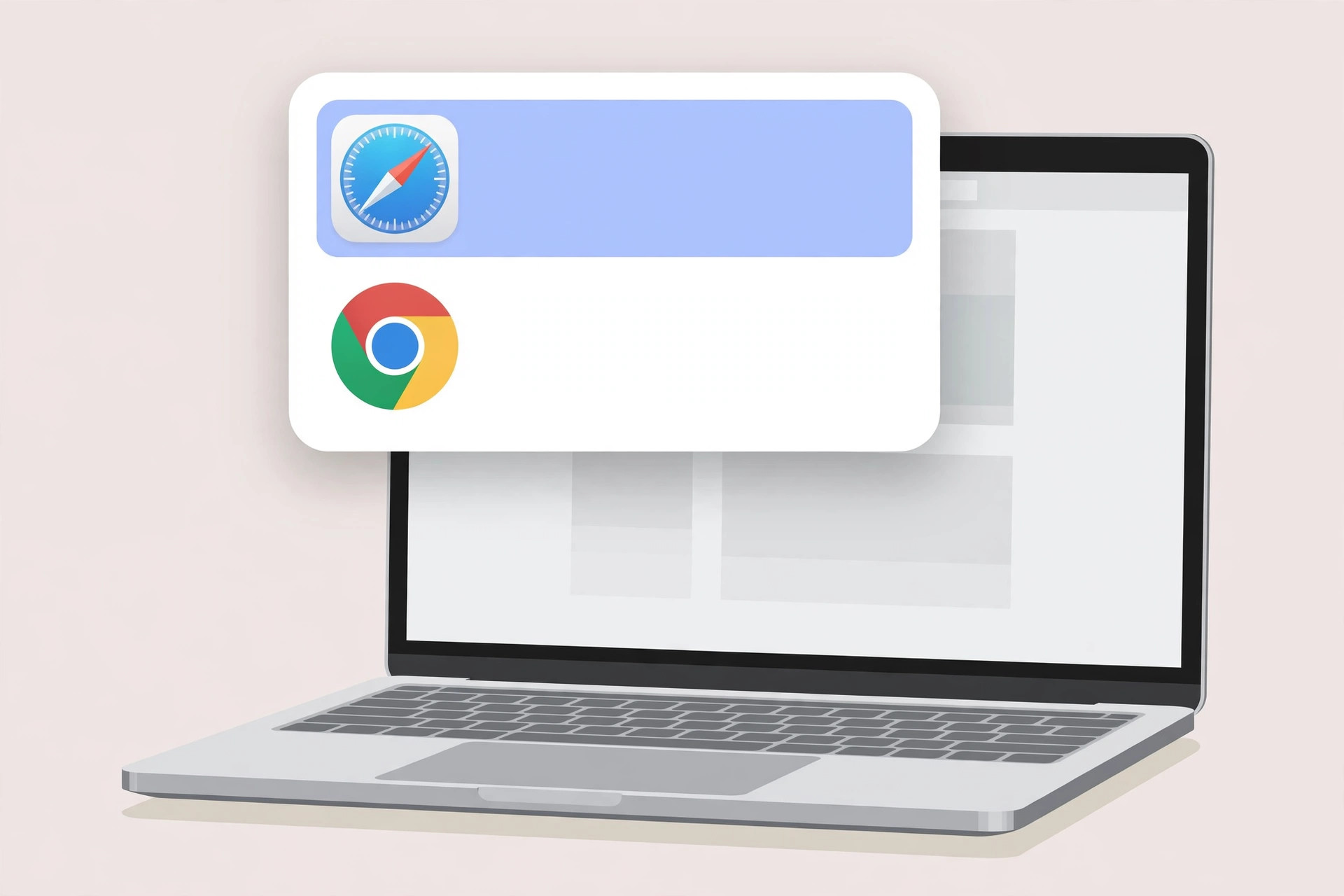
4. Use Develop > Open Page With
Click Develop in the menu bar, hover over Open Page With, and pick the browser you want — Chrome, Firefox, Edge, or whatever else you have installed. Safari instantly hands the current page’s address to that browser and opens it there. No copying, no pasting, no retyping addresses.
If it still doesn’t work
If Open Page With lists only Safari, the other browsers aren’t fully installed — download and run them at least once so macOS registers them. If the page still misbehaves in the second browser too, the problem isn’t Safari at all: try disabling your VPN or content blocker, or check The Mac Observer for news of wider outages. And if Safari keeps nagging you about things like password suggestions, that’s a separate setting you can quiet down.
FAQ
Does this work in private browsing windows?
Yes. The Develop menu’s Open Page With option works in private windows too, though the receiving browser will open the page in its own normal window — it won’t inherit Safari’s private session.
Can I make Chrome open automatically for certain sites?
Not with this menu alone — it’s a manual, per-page action. If you always want specific sites in another browser, set that browser as your default or use its own site-specific settings instead.
Conclusion
The Develop menu’s Open Page With option is one of those quiet macOS conveniences that, once discovered, you’ll use weekly. Enable it once, and the next time Safari chokes on a page, you’re two clicks away from viewing it in a browser that handles it better.





