
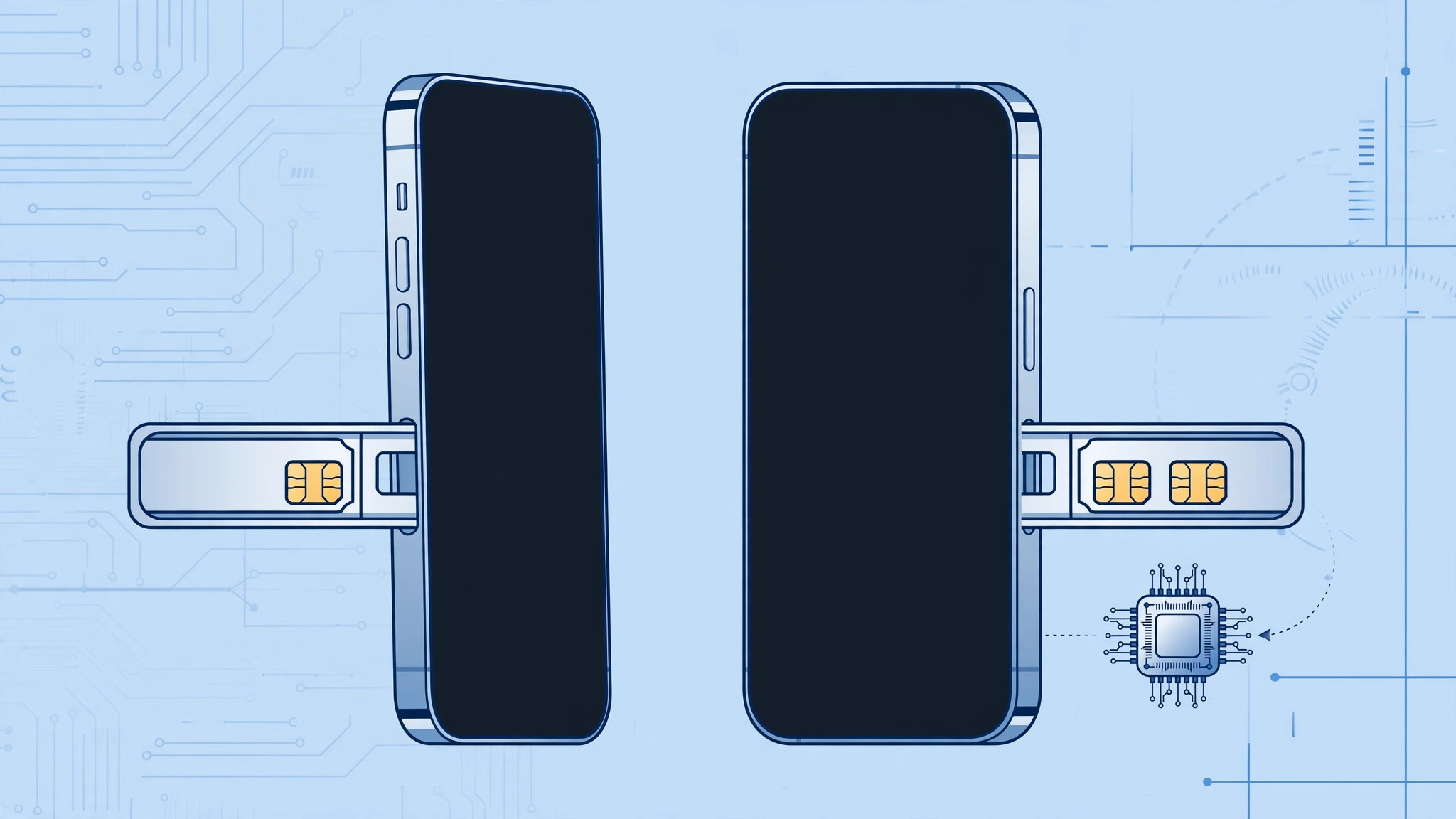
Shopping for an iPhone — especially a used one or a model imported from another country — often raises one nagging question: is this the regular version or the dual-SIM version? The answer decides whether you can run two physical SIM cards, whether you need an eSIM plan, and whether a second line will work on your carrier at all.
You don’t need special tools or apps: three quick checks — the SIM tray, the About screen, and the Cellular menu — reveal exactly what your iPhone supports. Here is how to run them.
How to check if your iPhone is dual-SIM
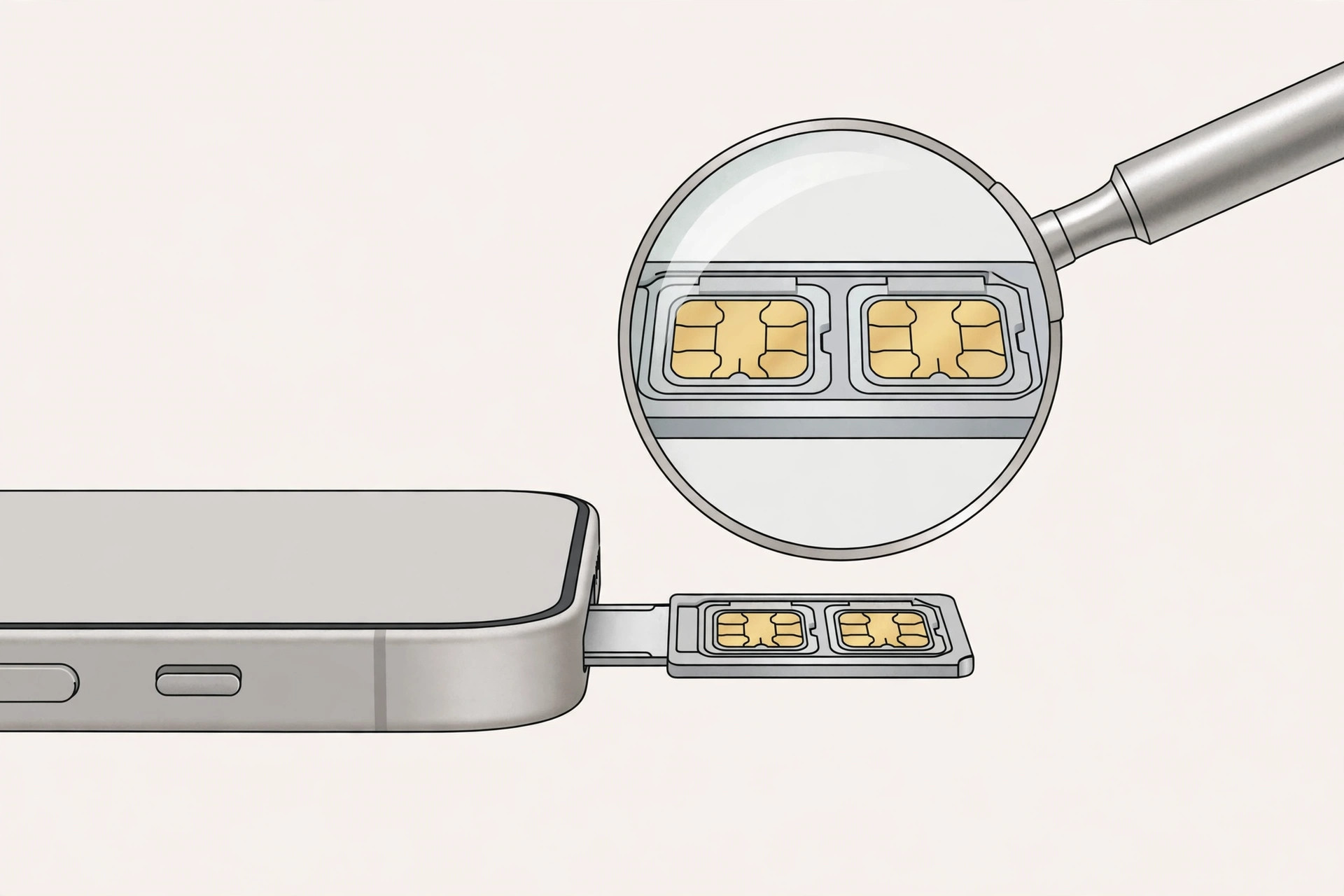
- Inspect the SIM tray. Push a SIM-ejector tool (or a straightened paperclip) into the small hole on the side of the iPhone and slide the tray out. If you see two stacked nano-SIM slots, you are holding a dual-physical-SIM model — these are sold in mainland China, Hong Kong, and Macau. A single nano-SIM slot means the second line runs on eSIM, which is the standard setup in most other regions. And if there is no tray at all, you have an eSIM-only iPhone: Apple removed the physical tray on every iPhone 14 and later sold in the United States. If you are reactivating an old line while you check, it also helps to verify your SIM card to avoid the cooling-off period.
- Open Settings → General → About. Scroll down to the identifiers. A dual-SIM-capable iPhone lists two IMEI numbers — “IMEI” and “IMEI2” — alongside an EID (the eSIM identifier). If you see only one IMEI plus an EID, the phone pairs one physical SIM with one eSIM.
- Open Settings → Cellular. Look for an “Add eSIM” or “Add Cellular Plan” button. Its presence means the iPhone supports dual SIM through eSIM, even if the tray holds just one physical card. It is the fastest software-only check. Once you know the hardware, managing two numbers gets easier — for example, you can allow calls from only one SIM in a Focus mode.
- Match the region to the hardware. Dual-physical-SIM iPhones (from the iPhone XR, XS, and XS Max through the iPhone 11–17 series) are sold only in mainland China, Hong Kong, and Macau, and they have no eSIM support at all. Everywhere else, Apple pairs a single nano-SIM tray with eSIM; in the US, the iPhone 14 generation and newer dropped the tray entirely. For the full breakdown, see Apple’s official dual-SIM documentation, which lists exactly which combinations each model supports.
If it still doesn’t work
Dual-SIM hardware is only half the story: your carrier must also support the second line. Some carriers don’t offer eSIM at all, and a few restrict dual-SIM use on certain plans. If “Add eSIM” is missing even though the model should support it, contact your carrier — or check whether the iPhone is carrier-locked, since a locked phone may refuse a second carrier’s plan outright. AppleInsider’s iPhone coverage tracks which regions and carriers support dual SIM — handy when you are buying a grey-market device.
Frequently asked questions
Can I use two physical SIMs on a US iPhone?
No. US models since the iPhone 14 have no physical SIM tray at all — both lines run on eSIM. Older US models (iPhone XS through iPhone 13) pair one nano-SIM with one eSIM. Only the China, Hong Kong, and Macau variants take two physical nano-SIM cards.
Do I need to pay extra to use dual SIM?
The feature itself is free — it is built into the phone. But you do need two active plans (or one plan that includes a second line), and both must come from carriers that support the technology in your region. Check with your carrier before you buy a second plan.
Conclusion
Telling a regular iPhone from a dual-SIM one takes less than a minute: check the tray, the About screen, and the Cellular menu. Those three checks reveal whether you have two physical SIMs, nano-SIM plus eSIM, or an eSIM-only device — and you can buy or set up your second line with confidence.





