
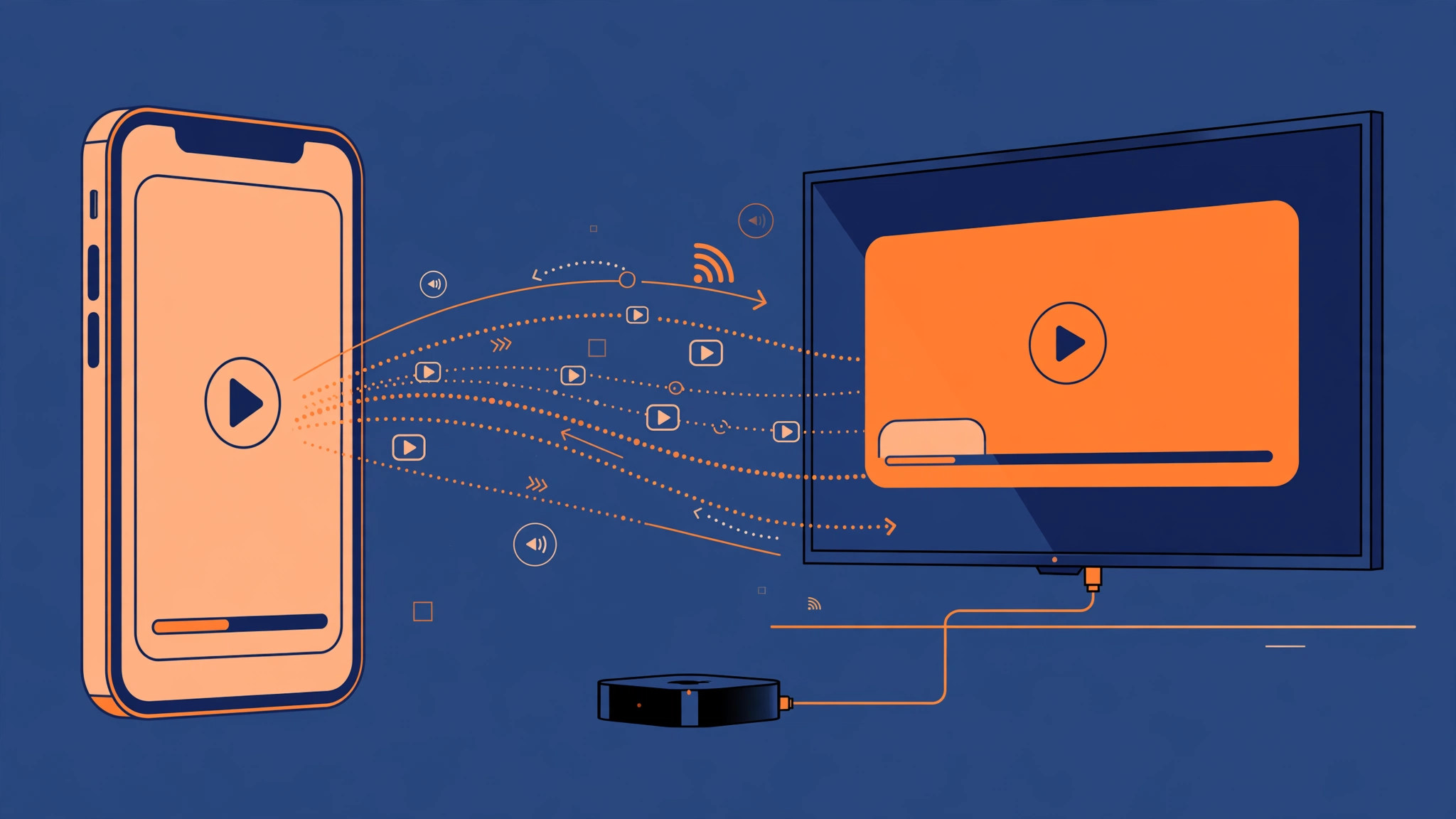
You are about to watch a video on your iPhone — a clip a friend sent, a highlight from a match, anything — and before you even press play, the picture and sound jump to the Apple TV in the living room. You never tapped an AirPlay button. It just happened. This is not a bug: iOS includes a feature called “Automatically AirPlay” that proactively routes video to a TV or Apple TV it has connected to before. Once you know where the switch lives, you can turn the behavior off in under a minute — or keep it, but make your iPhone ask first.
Why your iPhone connects to the Apple TV by itself
Whenever you play a video, iOS checks whether an AirPlay-compatible TV or Apple TV is nearby — specifically one you have used before. If “Automatically AirPlay” sits on its default, the iPhone assumes you want the big screen and hands the video over without asking. Apple built it as a convenience: start a show on your phone, finish it on the TV. But in a shared household the convenience backfires fast. Your video can hijack the living-room TV mid-movie, or a personal clip can suddenly play out loud in the next room. The setting lives in exactly one place, and the same screen also governs automatic handoffs to a HomePod.
How to stop your iPhone from auto-connecting to Apple TV
- Open Settings → General → AirPlay & Handoff. You need iOS 13.2 or later; on older versions this screen does not exist.
- Tap “Automatically AirPlay to TVs.” On newer iOS versions the row is labeled simply “Automatically AirPlay.”
- Choose “Never.” Your iPhone will never push video to a TV on its own again — no more surprise takeovers.
- Or choose “Ask” for the friendly middle ground. With “Ask,” the iPhone shows a confirmation prompt each time it wants to hand video to a TV — ideal for shared households where you sometimes do want the big screen.
- Glance at the HomePod handoff toggle too. On the same screen, “Transfer to HomePod” works the same way for audio. Apple documents both behaviors in its official AirPlay guide.
Fond of silencing unsolicited automation in general? iOS offers similar kill switches elsewhere — see our guides on turning off all SharePlay features and stopping automatic audio switching to headphones.
If it still doesn’t work
If videos keep jumping to the TV after you chose “Never,” remember the setting is per-device: any other iPhone or iPad on the same Apple Account has its own copy, so repeat the steps there. Also confirm you are not tapping the AirPlay icon in the video player by accident, then restart the iPhone so the new preference takes full effect. As 9to5Mac has noted, a stale TV entry in the Home app can re-trigger handoffs — removing and re-adding the TV clears those last stubborn cases.
Frequently asked questions
Will choosing “Never” break normal AirPlay?
No. You can still tap the AirPlay button inside any video app and pick your Apple TV manually. “Never” only disables the automatic part — manual AirPlay keeps working exactly as before.
Does this setting affect screen mirroring from Control Center?
No. Screen mirroring is always manual: nothing leaves your iPhone until you explicitly choose a destination. This setting governs only automatic video handoff to TVs.
Conclusion
An iPhone that hijacks the living-room TV feels like a malfunction, but it is just one overeager default. Flip “Automatically AirPlay” to “Never” for total peace, or to “Ask” if you still like the occasional big-screen moment — either way, your videos now play where you actually want them.





