
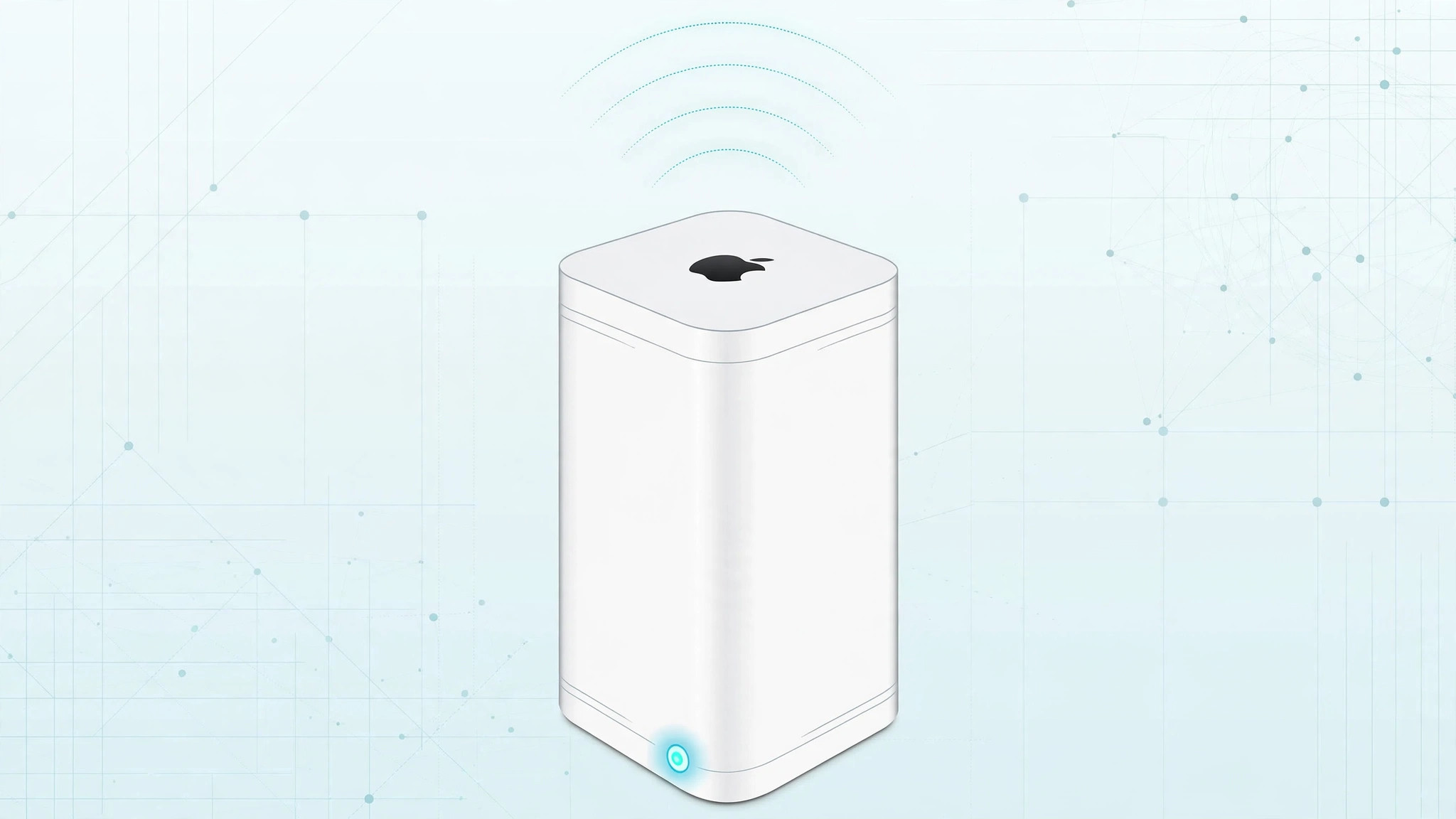
Apple’s Time Capsule was a clever device — a Wi-Fi router with a built-in hard drive for automatic Time Machine backups. But like any router, it could start acting up: dropping connections, refusing new devices, or vanishing from the network entirely. Before you replace it, a reset usually brings it back to life. Time Capsule offers three distinct reset types, and picking the right one matters.
Know the three reset types
A soft reset only clears the device password and disables security for five minutes — useful if you simply forgot the password needed to connect. A hard reset restores the router’s settings to a working state while keeping your last saved configuration and profiles; this is the fix for most network, connection, and settings problems, and the one to start with. A factory reset goes further: it wipes every saved configuration and profile. Note that even a factory reset does not delete the data stored on the Time Capsule’s drives — only the network settings.
Step 1: Perform a hard reset
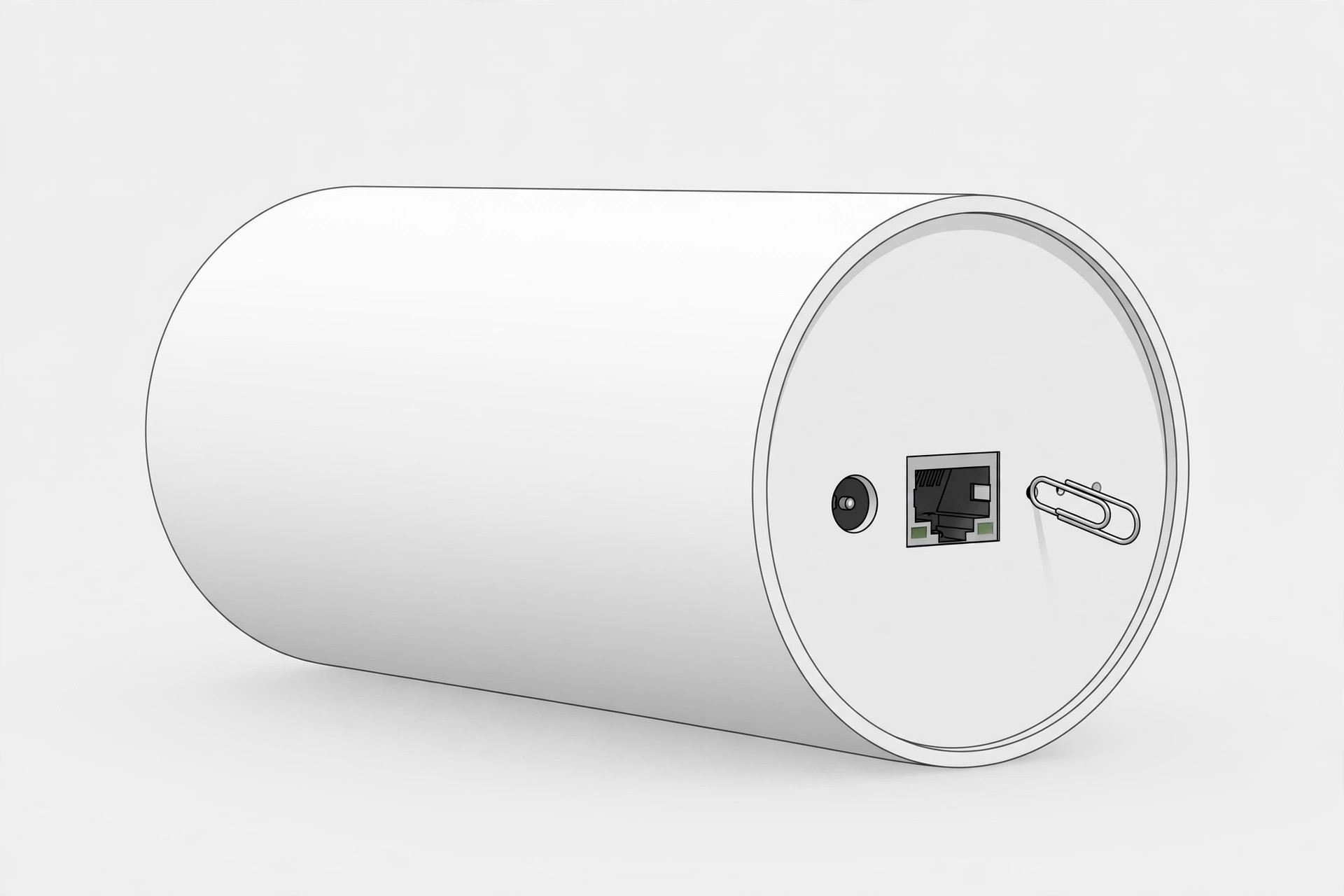
Find the small reset button on the back of the Time Capsule. Straighten a paperclip or grab a pencil tip, then press and hold the button for about five seconds. Watch the status light: when it starts blinking orange rapidly, release the button. The device will reboot on its own.
Step 2: Wait for the reboot to finish
Give the Time Capsule roughly a minute to restart. The status light will settle once it is ready. Don’t unplug it during this window — interrupting a reboot can leave the firmware in a bad state.
Step 3: Reconnect and restore your settings
Open the AirPort app on your Mac or iPhone and let it find the Time Capsule. Connect to it, then use the Restore previous settings option if the app offers it — this brings back your saved network name, password, and profiles without rebuilding everything by hand. Apple’s documentation on resetting AirPort base stations describes the same indicator behavior if you want to double-check the light patterns.
A note on this legacy hardware
Apple discontinued the entire AirPort line, including Time Capsule, in 2018, and these routers no longer receive firmware updates. The steps above still work on surviving units, but if your Time Capsule keeps misbehaving after resets, it may simply be aging out — a modern mesh router is the sensible upgrade. If you’re keeping Apple gear talking to each other in the meantime, our guide to automatic hotspot connections between iPhone and Mac is handy, and for squeezing speed out of wired transfers, see how to measure iPhone-to-Mac transfer speed over cable.
If it still doesn’t work
If a hard reset didn’t fix it, try the factory reset: hold the reset button until the status light blinks amber rapidly (about ten seconds) and let it reboot, then reconfigure the network from scratch in the AirPort app. Outlets like MacRumors and 9to5Mac have long documented that a factory reset followed by a clean setup resolves the stubborn cases a hard reset can’t.
Frequently asked questions
Will resetting delete my Time Machine backups?
No. None of the three reset types touch the data on the Time Capsule’s internal drive — they only affect network settings and passwords. Your backups stay intact.
How do I tell the reset types apart by the status light?
A five-second press that ends in rapid orange blinking is the hard reset; holding longer, around ten seconds, until a rapid amber blink triggers the factory reset. A one-second press is just the soft reset for password recovery.
Conclusion
For a misbehaving Time Capsule, start with a hard reset: five seconds on the reset button, a minute of patience, and a quick check in the AirPort app. It preserves your configuration and fixes the vast majority of network gremlins. Reserve the factory reset for the truly stubborn cases — and remember that this is vintage hardware now, so repeated failures are a sign it’s time for a modern replacement.





