
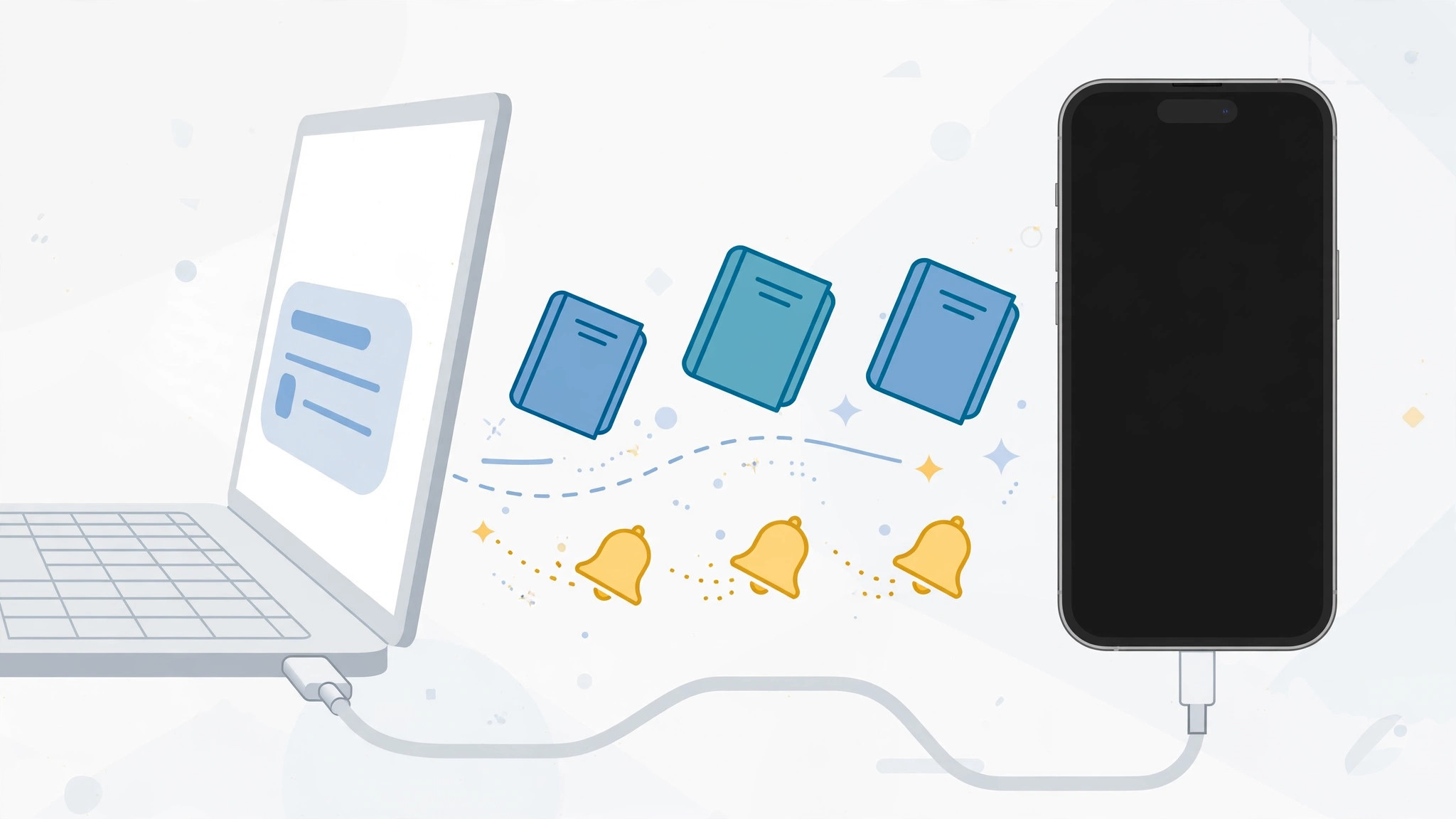
iTunes 12.7 quietly removed two entire sections from your iTunes library: Books and Tones. If you updated and then wondered where your ebooks and custom ringtones went, you are not alone. Apple relocated both — books moved to the Books app, and ringtones moved onto the device itself. Here is how to sync each to your iPhone now.
What changed in iTunes 12.7
With iTunes 12.7, the Books and Tones categories vanished from the iTunes sidebar on Mac and PC. Ebooks are now managed by the Books app (formerly iBooks), while ringtones live on the iPhone instead of in the iTunes library. Apple Support documents the change, and Macworld walked through the fallout for longtime iTunes users. On a modern Mac, device syncing has moved out of iTunes entirely and into the Finder — the steps below work the same, just in a Finder window. For the broader picture of what 12.7 changed, see our guide on syncing content to apps after the iTunes update.
Sync books from a Mac
- Add your ebooks to the Books app. Open Books on your Mac, choose File → Add to Library, and import your EPUB files.
- Connect your iPhone by cable. Select it in iTunes — or in the Finder sidebar on macOS Catalina and later.
- Open the Books tab, enable Sync Books, and click Apply.
- Check the Books app on your iPhone — your ebooks should appear in its library.
Sync books from a Windows PC
iTunes for Windows no longer manages books at all, so the old cable-and-iTunes route is gone. Instead:
- Use iCloud Drive: drop the EPUB into iCloud Drive, open Files on your iPhone, and tap it to open in Books.
- Or AirDrop or email the EPUB to yourself and open the attachment in the Books app.
- Or use a third-party tool like iMazing or WALTR, which can push books straight to the device.
Transfer ringtones from a computer
Previously downloaded ringtones still live in the ~/Music/iTunes/Tones/ folder on your computer. To move them onto the iPhone:
- Connect the iPhone and select it in iTunes (or Finder on modern macOS).
- Open the Tones section under “On My Device.”
- Add or remove tones — drag .m4r files in, or delete ones you no longer want.
Re-download purchased ringtones on the iPhone
Bought ringtones from the iTunes Store? On iOS 11 and later you need no computer at all: go to Settings → Sounds & Haptics → Ringtone → Download All Purchased Tones, and every tone you bought re-downloads to the device. This pairs nicely with other cable-free sync tricks — see our guide on setting up message sync between iPhone and Mac.
Make custom ringtones with no computer
The easiest modern path skips the computer entirely:
- Open GarageBand on your iPhone and start a new project.
- Import a song into the project and trim it to under 40 seconds.
- Choose Share → Ringtone — the tone appears in Settings → Sounds & Haptics, ready to assign.
If it still doesn’t work
Books not appearing after sync? Make sure you enabled Sync Books before clicking Apply — the setting does nothing until applied. Tones not transferring? Confirm the files are .m4r format; MP3s will not work as ringtones. And if the iPhone does not appear in iTunes or Finder at all, try a different cable and port, then restart both devices.
Frequently asked questions
Where did my iTunes books go after the 12.7 update?
Nowhere — Apple just moved their management. On Mac, ebooks live in the Books app; on Windows, iTunes no longer handles them, so use iCloud Drive, AirDrop, or a third-party transfer tool.
Can I still use custom ringtones without a computer?
Yes. GarageBand on the iPhone turns any song into a ringtone in a few taps, and purchased tones re-download directly from Settings → Sounds & Haptics.
Conclusion
iTunes 12.7 scattered books and ringtones to new homes, but nothing was lost. Books now sync through the Books app, tones live on the device, and GarageBand gives you a computer-free path to custom ringtones. Once you know where Apple moved everything, syncing is as simple as it ever was.





