
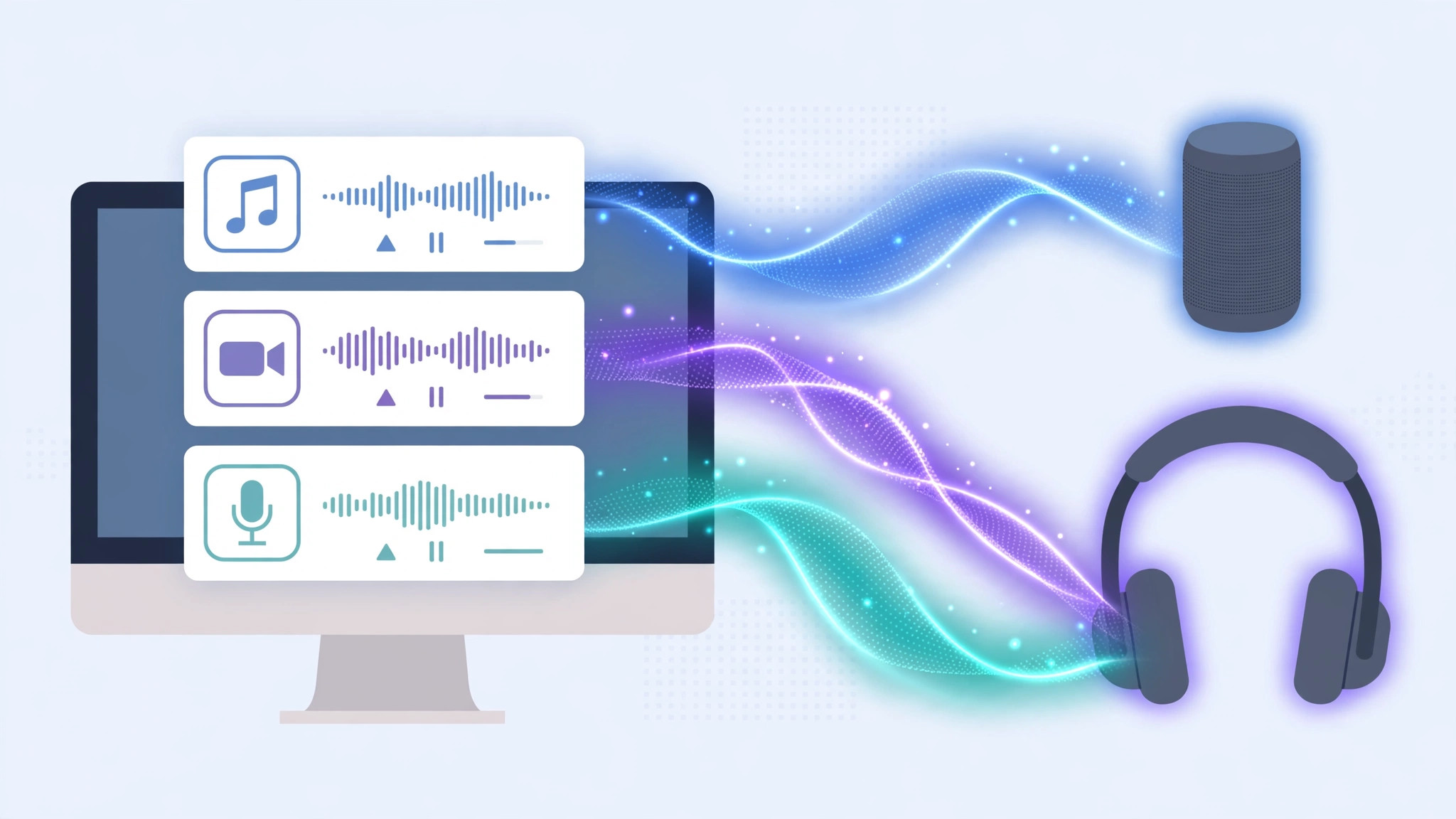
Your Mac treats every speaker, headphone set, and Bluetooth speaker as a single destination. Open Sound settings and you pick one output device — built-in speakers, headphones, or a Bluetooth speaker — and every app, from Music to your browser to VLC, plays through it. There is no built-in way to send Music to the living-room speaker while a video call stays on your headphones. That limitation is exactly what third-party audio routing tools were made to fix.
What you need
The most approachable solution is Audio Hijack by Rogue Amoeba, which gives you a visual, drag-and-drop pipeline: app blocks on the left, output blocks on the right, wires between them. Note clearly that Audio Hijack is paid software. Free alternatives exist — for example, the BlackHole virtual audio driver combined with multi-output devices in Audio MIDI Setup — but they take considerably more manual configuration. Apple Support documents only the built-in, single-device sound output behavior.
Route each app to its own device
- Install and open Audio Hijack. Grant the audio permissions macOS requests — it needs system audio access to intercept app output.
- Create a new session. Start from a blank session so you control every block.
- Add your blocks. From the blocks panel on the right, drag in two Application blocks and two Output Device blocks. Add more pairs if you want to split three or more apps.
- Wire each app to a device. Drag a connection from each Application block to one Output Device block. A typical setup: Music → Bluetooth speaker, browser or VLC → built-in Mac speakers.
- Pick the app and the device. In each Application block, select the actual app from the list. In each Output Device block, choose the target — a paired Bluetooth speaker, built-in speakers, or headphones.
- Start routing. Press the session power button in the bottom-left corner. Each app’s audio now flows only to its assigned device.
- Fine-tune and save. Adjust volume per source from each block’s menu, drag wires to re-route on the fly, and save the session as a preset. Keep separate presets for work calls, movie night, and music, and switch between them in one click.
If it still doesn’t work
Make sure the app you want to route is actually running before you pick it in the Application block — the list shows running apps. If a Bluetooth speaker stays silent, confirm it is paired and selected in its Output Device block, and check that no other app has grabbed exclusive control of the device. Toggling the session power off and on clears most glitches.
Frequently asked questions
Can macOS route audio per app without extra software?
No. macOS offers a single system-wide output device in Sound settings, so per-app routing always needs a third-party utility like Audio Hijack or a virtual-driver setup.
Is there a free alternative to Audio Hijack?
Yes. The free BlackHole virtual audio driver, combined with aggregate or multi-output devices created in Audio MIDI Setup, can split app audio between devices — but expect a steeper, more manual setup. If your iPhone also keeps stealing audio, see our guide on stopping the iPhone from auto-switching audio away from headphones.
Conclusion
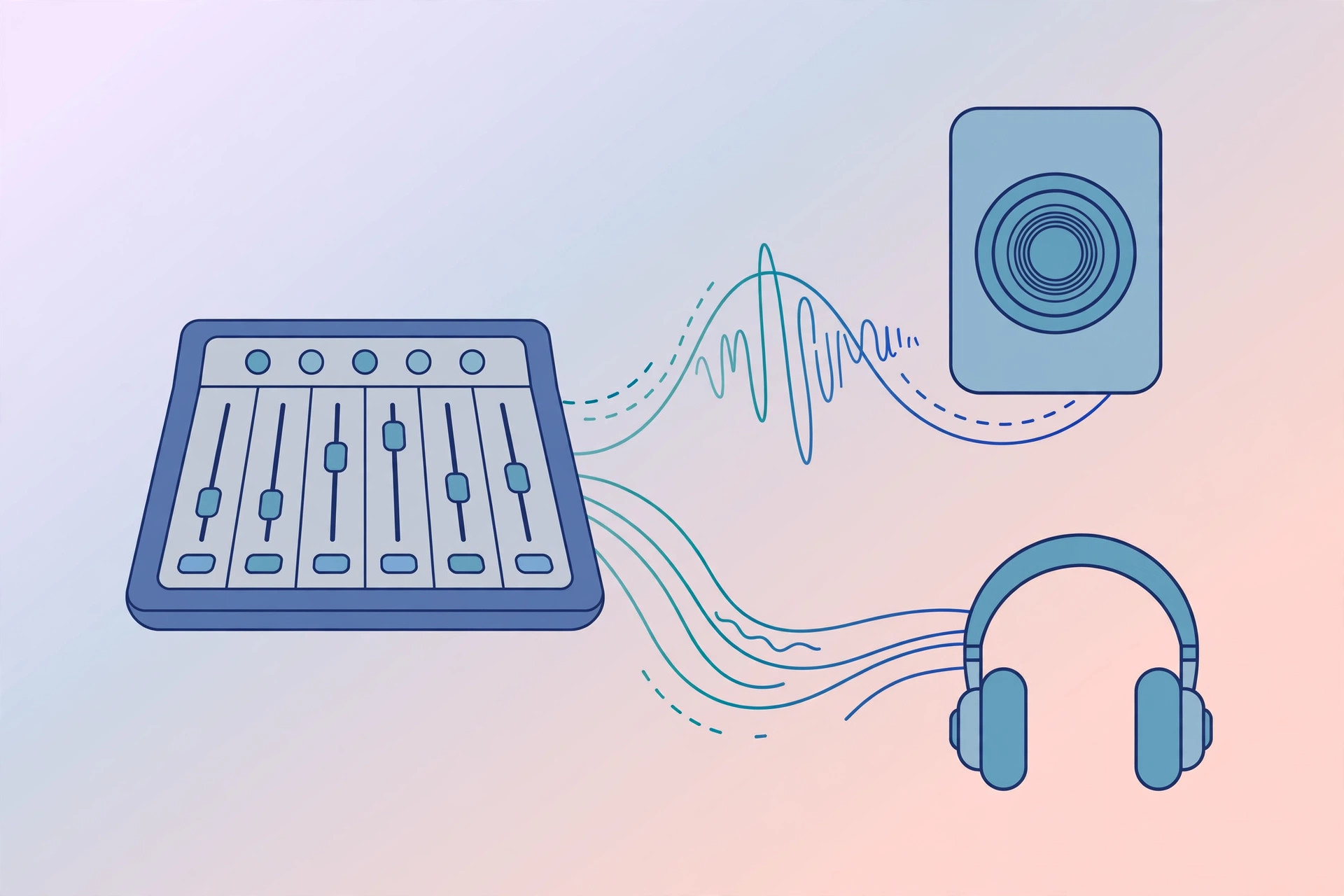
macOS may only speak to one output device at a time, but Audio Hijack turns that single lane into a mixing desk: each app gets its own destination, its own volume, and its own preset. Set it up once, save your sessions, and your Mac’s audio finally goes exactly where you want it. For video calls on your new audio setup, pair this with our guide on how to enable face lighting during video calls on Mac.





