

Your Mac reports 5 GB free, then 2 GB, then a “startup disk is almost full” warning — even though you barely installed anything. If you use Time Machine, the culprit is usually not your files at all: it is the local backup snapshots macOS quietly builds while your backup drive is unplugged. Here is why it happens and how to reclaim the space.
Why Time Machine eats free space, and how to fix it
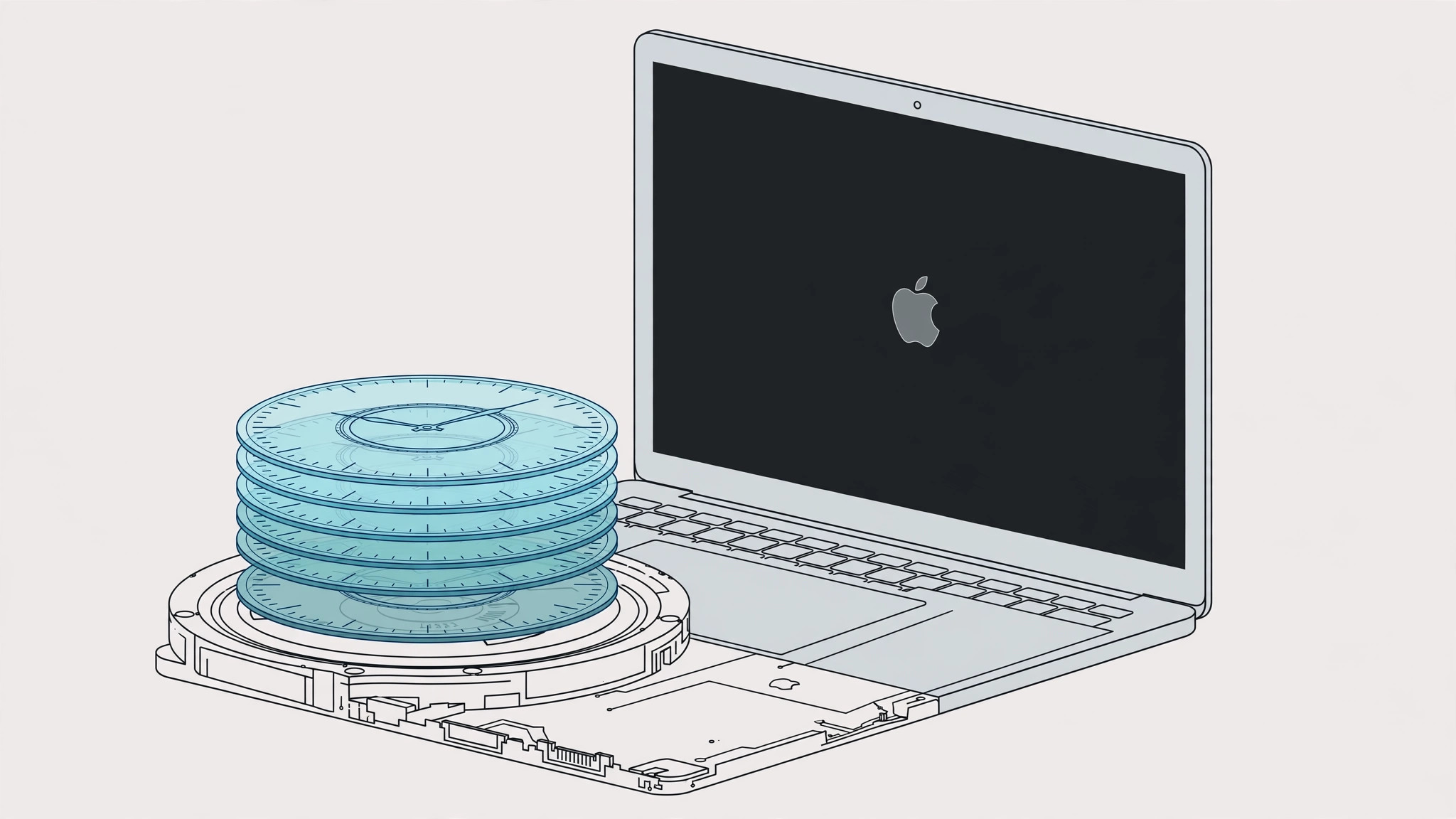
Time Machine normally writes backups to your external drive. But when that drive is disconnected — a laptop reality — macOS keeps making local snapshots on your internal disk instead, so your files are still protected. These snapshots are supposed to delete themselves when space gets tight, but on High Sierra-era systems they often pile up and never let go, swallowing tens of gigabytes.
1. Check that snapshots are the culprit
- Open System Settings (or System Preferences) → General → Storage (on older macOS, About This Mac → Storage).
- Look at the breakdown: a large chunk labeled System Data, Other, or purgeable space that does not match your actual files often means snapshots.
2. Turn off automatic backups temporarily
- Go to System Settings → General → Time Machine (on older macOS: System Preferences → Time Machine).
- Turn Back Up Automatically off.
- Wait a few minutes, then check your free space — macOS starts clearing the local snapshots once automatic backups stop generating new ones.
- Reconnect your backup drive, run one manual backup, and turn automatic backups back on. From then on, snapshots flush to the external drive instead of stacking up locally.
3. Keep the drive connected more often
The simplest long-term fix: plug in your Time Machine drive regularly. Snapshots exist to bridge the gaps between backups; short gaps mean small snapshots. If you are on High Sierra and space is critically low, the automatic cleanup does kick in eventually — but toggling automatic backup off and on is the reliable manual trigger.
Mysterious disk usage has many suspects. If the “out of space” warnings keep coming, see why your Mac keeps saying it is out of space, and learn to monitor cloud storage space on Mac so iCloud does not silently fill the drive too. If backups fail because the destination is the problem, read why macOS won’t install to an external drive.
If it still doesn’t work
Space did not come back? Give it up to an hour — snapshot deletion is a background process. A restart also nudges the cleanup along.
Snapshots keep piling up? Make sure your backup drive has plenty of free space of its own; a full destination drive means macOS keeps everything local. Apple’s Time Machine guide explains how local snapshots work.
On newer macOS? Modern versions manage snapshots far better and purge them aggressively when space runs low, so this problem is mostly a High Sierra-era headache. MacRumors has covered the snapshot behavior across releases.
Frequently asked questions
Are local snapshots the same as my backups?
No. Snapshots are temporary safety copies on your internal drive. Your real backups live on the external Time Machine drive — snapshots just cover the gaps between those backups.
Will turning off automatic backup delete my old backups?
No. It only stops new snapshots from forming and lets macOS clear the local ones. Your backup history on the external drive is untouched.
Local snapshots are a feature, not a bug — they just need an occasional nudge to clean up after themselves.






[…] Time Machine keeps hourly snapshots on your internal drive when your backup disk isn’t connected. These count as used space until macOS purges them. To remove them manually, open Terminal and run tmutil listlocalsnapshots / to see them, then tmutil deletelocalsnapshots <date> for each one. Details on this space hog are in our article about Time Machine eating free space on Mac. […]