
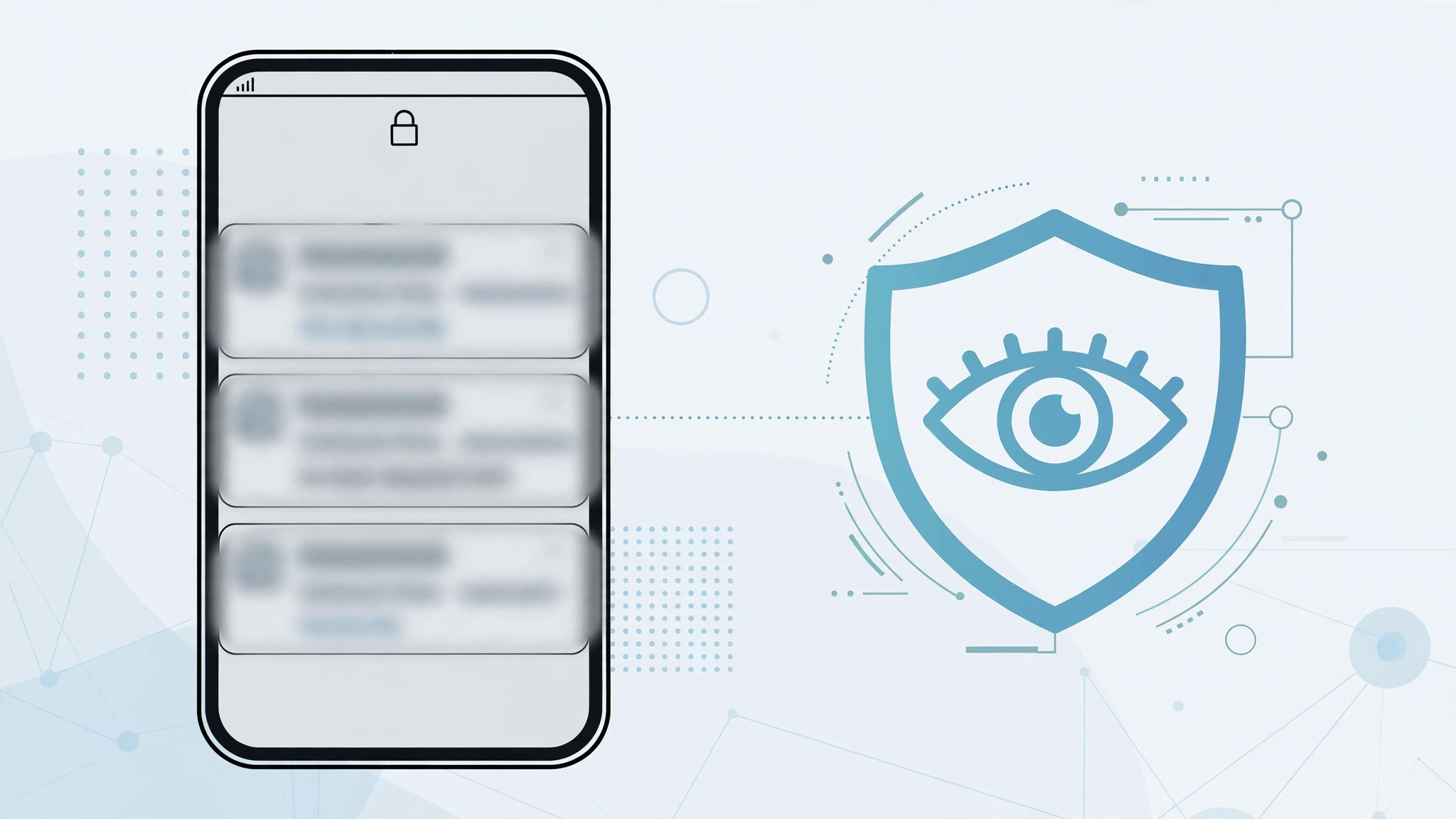
Your lock screen broadcasts your life to anyone nearby: message snippets, email subjects, two-factor codes. iOS lets you keep the alerts while hiding their contents — notifications arrive, but their previews stay hidden until you unlock. That includes the banners that pop up while you are using the phone, but this guide focuses on the lock screen, where the privacy risk is biggest. Here is how to set it up globally and per app.
How to hide notification previews, step by step
1. Set the global default
- Go to Settings → Notifications.
- Tap Show Previews at the top.
- Choose When Unlocked — previews appear only after Face ID or Touch ID unlocks your iPhone. Pick Never to hide preview text everywhere, even in Notification Center.
2. Override it per app
- In Settings → Notifications, tap any app — say Messages or Mail.
- Scroll to Show Previews and pick Always, When Unlocked, or Never just for that app. The per-app choice beats the global one.
- Handy combo: let messaging apps preview When Unlocked while banking apps stay Never.
3. The stricter alternative: hide apps from the lock screen entirely
- Under Settings → Notifications → [app], keep Allow Notifications on.
- Uncheck Lock Screen (and Banners if you like), leaving Badges on.
- The app now alerts you silently in Notification Center without ever lighting up your lock screen.
A note for iOS 11 users
The Show Previews switch arrived with iOS 11, and the path above is exactly how it works on that version: it sits at the very top of Settings → Notifications, above the per-app list. Before iOS 11, the only option was a single per-app “Show on Lock Screen” toggle, so if you are still on iOS 10 or earlier, step 3 is your best bet.
Lock screen privacy goes hand in hand with other notification tweaks. If previews also bother you in StandBy, see how to hide notification previews in StandBy mode. If alerts never arrive at all, read why notifications don’t arrive when your iPhone is locked, and tidy the layout with moving lock screen widgets down in iOS 26.
If it still doesn’t work
Previews still show on the lock screen? Make sure you changed the setting under Settings → Notifications → Show Previews, not inside a single app — and check that the per-app override is not set to Always.
Some apps ignore it? A few apps (notably some banking and messaging apps) manage their own preview text. Check the app’s in-app notification settings too.
Want maximum privacy? Combine Never with hiding notification content on the Apple Watch. Apple’s notification guide documents every option, and MacRumors covers the iOS 11-era behavior in detail.
Frequently asked questions
Will I still see who the notification is from?
Yes. With When Unlocked, you see the app name and a “Notification” placeholder on the lock screen — the sender and message text appear once you authenticate.
Does this affect notification sounds and vibrations?
No. Sounds, vibrations, and badges work exactly as before; only the visible preview text is hidden.
Two minutes in Settings, and your lock screen stops telling strangers your business.





