
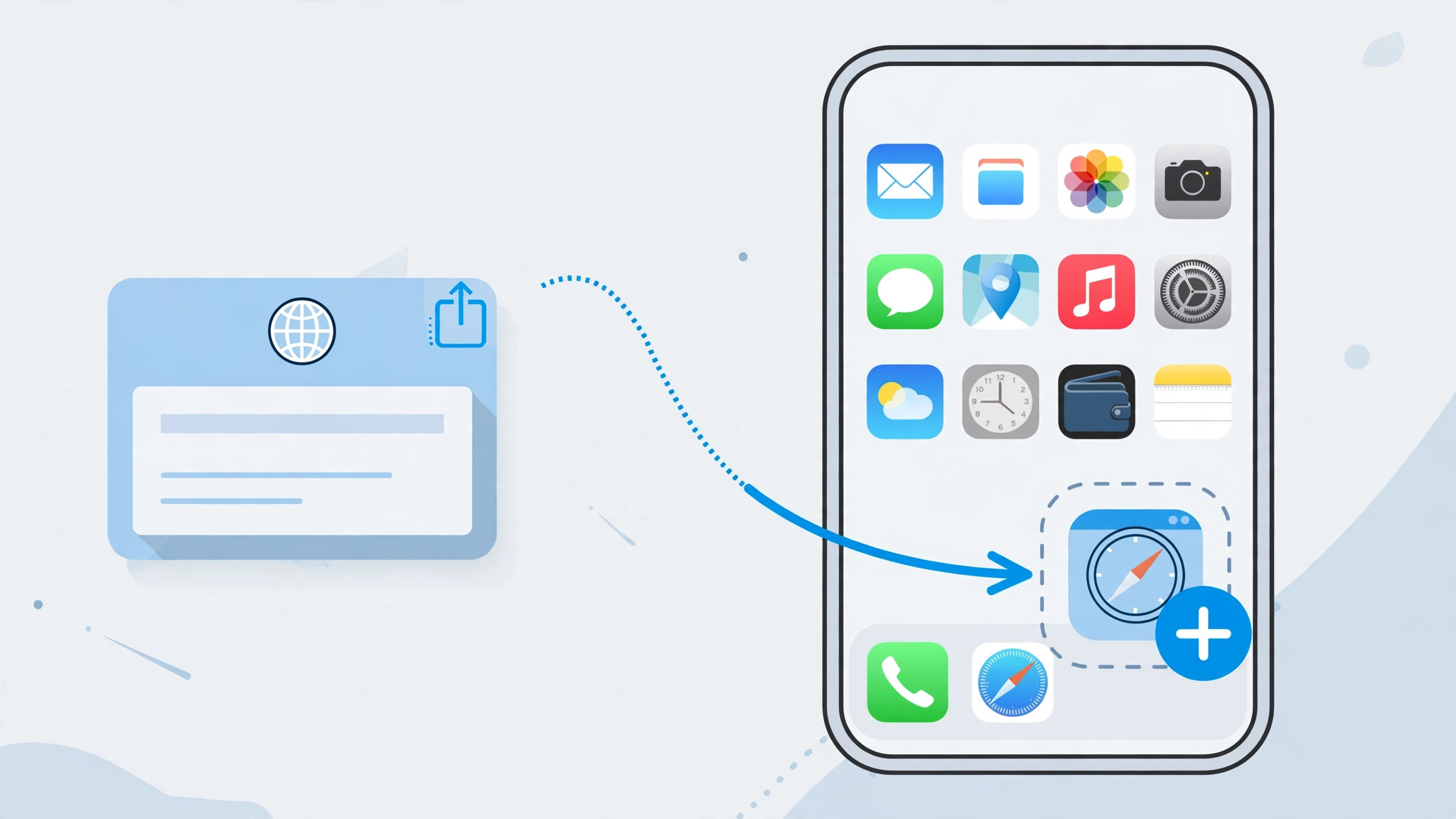
Some websites deserve a spot next to your apps. Maybe it’s a news site you check every morning, a web app you use for work, or a handy tool you don’t want to dig through bookmarks to find. iOS lets you put any website directly on your Home Screen as its own icon — it looks and launches just like an app, but it’s really a shortcut that opens the site in Safari. Setting one up takes about twenty seconds, you can create as many as you like, and it’s perfect for web apps that don’t have a native iOS version.
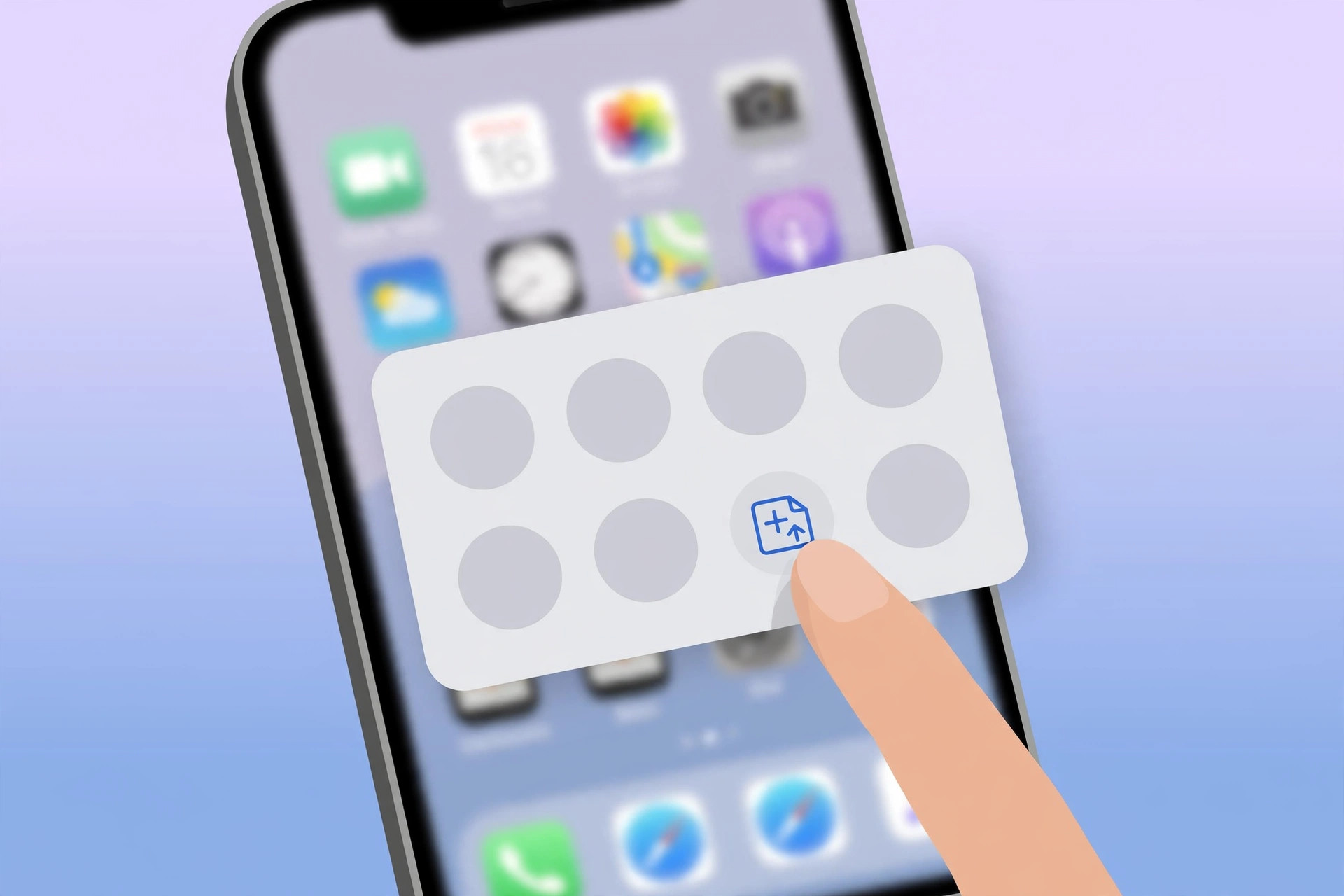
Add a website to your Home Screen
The whole process happens in Safari:
- Open the website in Safari.
- Tap the Share button (the square with an arrow pointing up) in the toolbar.
- Scroll down in the share sheet and tap Add to Home Screen.
- Pick a name for the shortcut — Safari suggests the site’s title, but you can type your own.
- Choose an icon if offered, then tap Add in the top-right corner.
The shortcut appears on your Home Screen like any app icon. Tap it anytime to jump straight to the site — the icon usually uses the site’s own logo. Apple’s iPhone User Guide documents this under adding webpage bookmarks to the Home Screen.
Tip: If you visit several pages on the same site, add a shortcut for each one — for example, separate shortcuts for the homepage and your account dashboard. Each shortcut remembers the exact page you were viewing when you created it, so you can build a personal quick-launch row for the sites you use most.
Organize your website shortcuts
You can create as many shortcuts as you like. Treat them just like apps:
- Drag one shortcut onto another to create a folder.
- Drag shortcuts into the Dock for one-tap access.
- Touch and hold a shortcut to rename it or remove it (deleting the shortcut doesn’t affect your Safari bookmarks).
For more ways to personalize your iPhone, see how to change Safari’s design on iPhone and our guide to the Liquid Glass lock screen clock in iOS 26.
If it still doesn’t work
“Add to Home Screen” missing from the share sheet? First, make sure you’re using Safari — the option doesn’t appear in other browsers or in-app web views. Scroll all the way down in the share sheet; on smaller screens the option can hide below the fold. If a shortcut opens the wrong page, delete it and re-add it while viewing the exact page you want. 9to5Mac‘s iOS guides cover share sheet quirks like this in more depth.
FAQ
Do website shortcuts work offline?
No. A Home Screen shortcut is just a fast way to open the site in Safari — it still needs an internet connection to load the page.
Can I change the shortcut’s name or icon later?
The name is set when you create the shortcut. To change it, delete the shortcut and add it again with the new name — it takes twenty seconds.
Conclusion
Website shortcuts turn your most-visited sites into first-class citizens on your Home Screen. Add the ones you open daily, tuck the rest into a folder, and you’ll never hunt through bookmarks again.





