
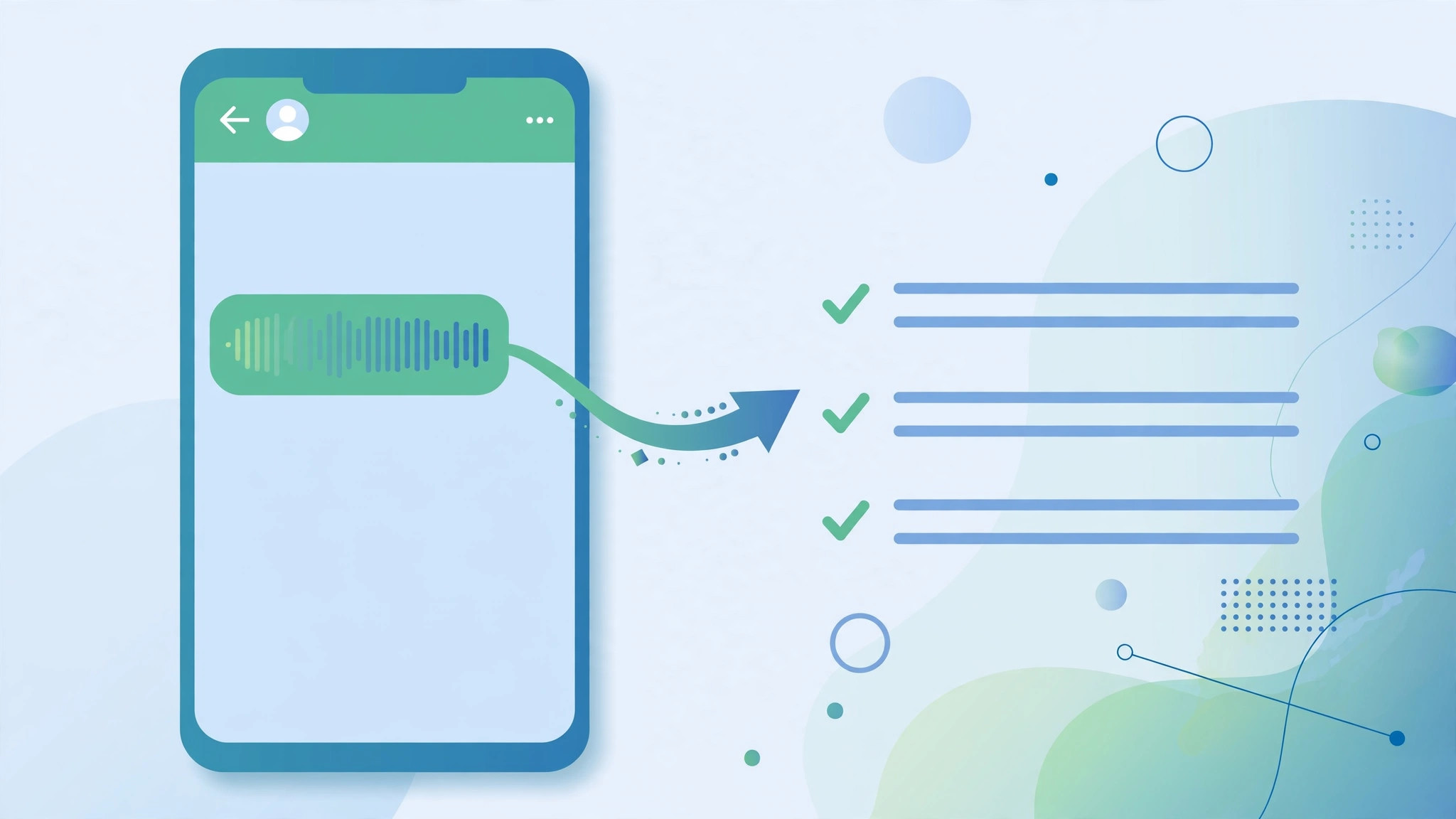
Voice messages are lovely to send and miserable to receive — especially when you are in a meeting, on a noisy train, or staring at a three-minute monologue you do not have time to play. WhatsApp’s answer is voice message transcription: once the feature is switched on, any voice note can be converted into readable text with a single long-press.
There are a couple of catches worth knowing up front. Transcription does not happen on its own — you trigger it message by message. And the switch itself only appears if your app is up to date and the feature has rolled out to your account. This guide walks you through enabling it, downloading the right language pack, and transcribing your first message. If you like keeping your Apple devices in sync, our guide to setting up message sync between iPhone and Mac pairs nicely with this one.
Turn on voice message transcripts
Follow these steps in order — the whole setup takes a few minutes, most of it waiting on a download:
- Update WhatsApp. Open the App Store, search for WhatsApp, and install the latest version. The transcription toggle only exists in recent releases.
- Open Chats settings. Launch WhatsApp, tap Settings in the bottom-right corner, then tap Chats.
- Flip the switch. Turn on “Voice message transcripts”. If you do not see this row at all, your app is outdated or the feature has not reached your account yet — update again and check back later.
- Choose your transcript language. WhatsApp will ask which language to transcribe. Pick the one you actually receive voice notes in.
- Download the language pack. The pack is roughly 100–140 MB, so stay on Wi-Fi while it downloads. This is a one-time download per language.
- Make sure Siri is enabled (iOS 16 and later). On iPhone, transcription relies on system speech frameworks — if you have Siri switched off entirely, the feature may refuse to work.
- Transcribe a message. Long-press any voice message in a chat and tap Transcribe. The text appears right below the voice bubble; tap it to expand longer transcripts.
Your transcripts stay private
One reassuring detail: transcription is generated on-device. WhatsApp says neither it nor any third party can listen to the audio or read the resulting text — the whole conversion happens on your iPhone. The company’s Help Center documents the transcript-language setup, and outlets like TechCrunch and 9to5Mac covered the rollout as it expanded to more users.
If it still doesn’t work
Start with the obvious: confirm WhatsApp is fully updated — the toggle simply does not exist in older builds. If the switch is on but nothing transcribes, check that the language pack finished downloading (a stalled download is the most common culprit) and that your iPhone has Siri enabled. Remember that transcription is manual: nothing converts until you long-press a message and tap Transcribe. And if a friend sends voice notes in a language you did not download a pack for, add that language in the transcript settings.
Frequently asked questions
Can WhatsApp read my transcribed messages?
According to WhatsApp, no. Transcripts are produced on your device, and the company states that neither it nor third parties can access the audio or the text. If privacy is your concern, this is one of the safer convenience features to enable.
Why is the “Voice message transcripts” toggle missing?
Two usual reasons: your WhatsApp version is too old, or the feature has not rolled out to your account yet. Update to the latest release from the App Store and check Settings > Chats again in a few days.
Conclusion
Voice message transcription is one of those small features that quietly changes a daily habit — no more hunting for earbuds to hear what someone said. Enable it in Settings > Chats, grab the language pack over Wi-Fi, and long-press to read. And if your iPhone keeps yanking audio between your headphones and speaker mid-message, our guide to stopping iPhone from switching audio between headphones and speakers will fix that annoyance too.





