
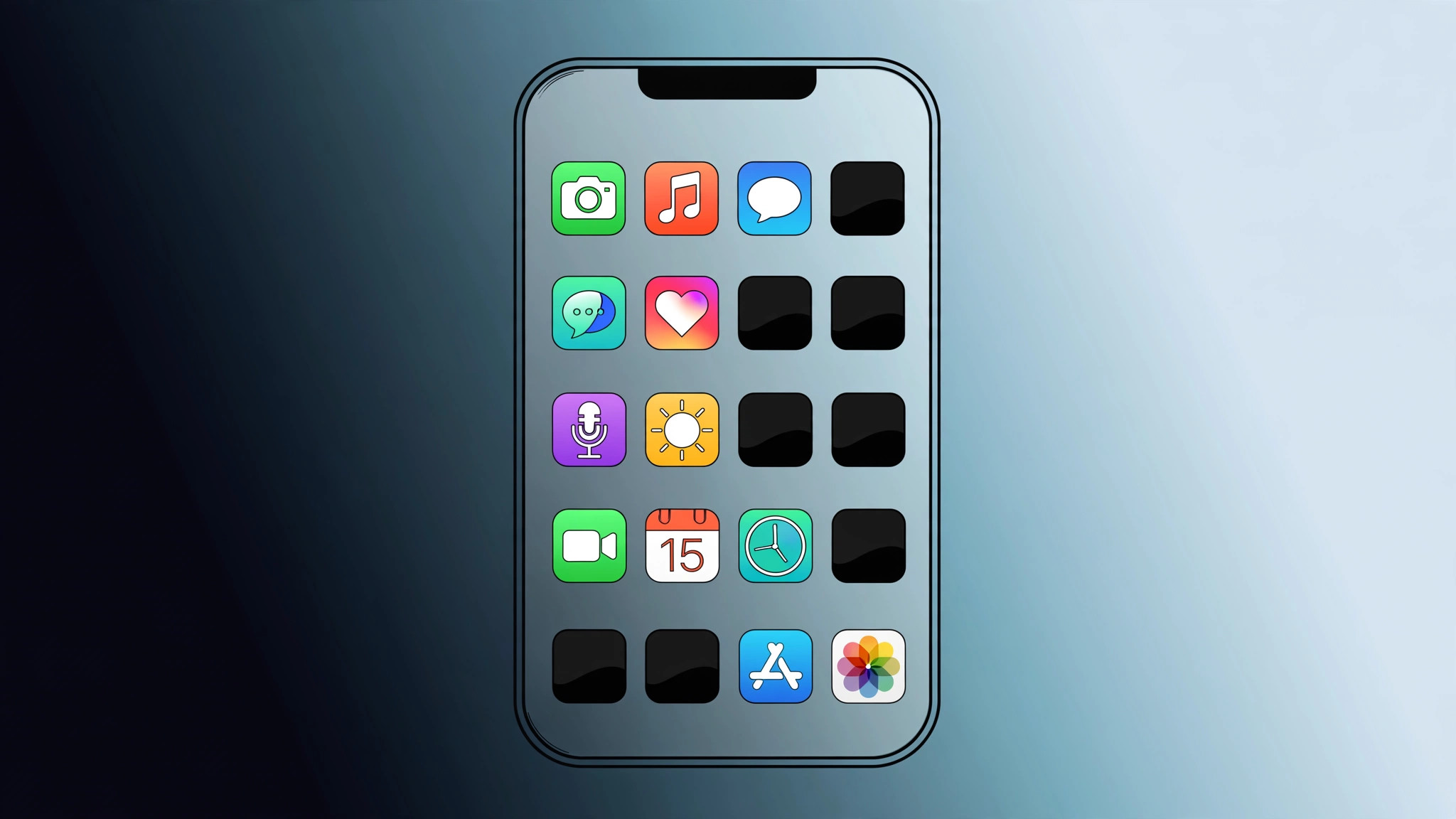
You open your iPhone in the morning and something looks off: one or more app icons have gone completely black. They may still open when tapped, or they may not, but the colorful artwork is gone, replaced by a dark square. Before you assume something is seriously wrong, take a breath: black app icons are almost always a cosmetic or settings issue, not a failing phone. Here are the four causes to check, in order of likelihood.
1. The app is downloading, installing, or updating
This is the most common reason by far. While an app downloads, installs, or updates, iOS shows a dark placeholder icon — often with a subtle grid pattern — until the real artwork finishes loading. If the download stalls on slow Wi-Fi, the black placeholder can sit there for hours.
Wait a minute first; most icons restore themselves once the download finishes. If one is stuck, open the App Store, tap your profile picture, and look for pending downloads you can pause and resume. As a last resort, delete the app and reinstall it — but if it is a stock Apple app, check which built-in iPhone apps you can delete safely before removing anything.
2. Dark or tinted Home Screen icons (iOS 18 and later)
Since iOS 18, the Home Screen can recolor every icon to match Dark Mode or your wallpaper. Long-press an empty area of the Home Screen, tap Edit > Customize, and check the icon style: if Dark or Tinted is selected, every icon renders black or monochrome. Switch it back to Light or Automatic and the colors return instantly. Apple’s guide to customizing the Home Screen documents these options, and MacRumors has covered the feature in detail. On iOS 26 the effect is even more dramatic with the Liquid Glass look — if that redesign bothers you in general, here is how to turn off the Liquid Glass effect.
3. An Accessibility color filter is switched on
A system-wide color filter drains the color from everything on screen, including app icons. Go to Settings > Accessibility > Display & Text Size > Color Filters and make sure the toggle is off. The Grayscale filter in particular turns every icon monochrome and is easy to enable by accident when exploring Accessibility settings. Apple’s Display & Text Size documentation explains each filter, and 9to5Mac flags this as one of the first things to check when your whole screen looks washed out.
4. Restart, then offload or reinstall
If a single icon stays black for no apparent reason, restart your iPhone — a surprising number of display glitches clear with a reboot. If it survives a restart, offload the app: open Settings > General > iPhone Storage, tap the app, and choose Offload App. This removes the app but keeps its documents and data, so reinstalling fetches a fresh copy with its proper icon.
If it still doesn’t work
As a final measure, reset your Home Screen layout in Settings > General > Transfer or Reset iPhone > Reset > Reset Home Screen Layout. This restores the default icon arrangement (your apps stay installed) and clears any corrupted layout data. Also make sure iOS itself is up to date, since Apple fixes icon-rendering bugs in point releases.
Frequently asked questions
Why did all my icons turn dark overnight?
Usually an update changed your appearance settings — for example, a scheduled Dark Mode kicking in or an iOS upgrade enabling tinted icons. Check Edit > Customize on the Home Screen first; one tap back to Light fixes it.
Is a black app icon a sign of malware?
On iPhone, essentially no. Black icons come from pending downloads, Dark or Tinted styles, or color filters — all normal system behaviors. Do not install any “icon fixer” apps from sketchy sources; they cannot fix a system setting and may be the real risk.
The bottom line
Work through the list in order: check for a stalled download, switch the Home Screen icon style back to Light, turn off any color filter, and restart. One of those steps restores black app icons to full color in nearly every case — and none of them costs you any data.





