
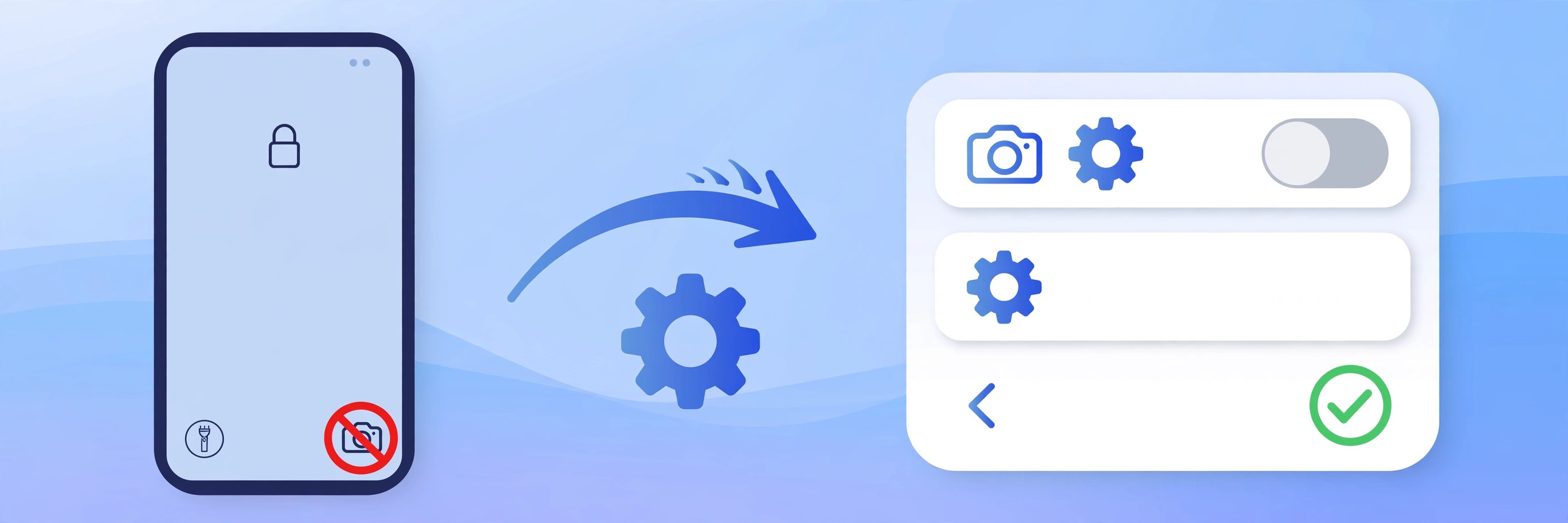
Pull your iPhone out of your pocket and there it is: the camera app, open and staring at the inside of your jeans, with a dozen accidental photos in your library and a little less battery than you had a minute ago. The culprit is the swipe-left gesture on the lock screen — one stray thumb movement and the camera fires up. For years there was no way to turn it off. In iOS 26, Apple finally added the switch.
Why the camera keeps launching by itself
The lock screen has always offered a fast path to the camera: swipe left and you are shooting in under a second. That is great when you need to catch a fleeting moment, and terrible when the “moment” is your pocket lining. Accidental launches drain the battery, clutter your photo library with junk shots, and can even start recording video without you noticing. If you would rather open the camera deliberately, iOS 26 now lets you kill the gesture while keeping every other shortcut intact.
How to disable the camera swipe gesture
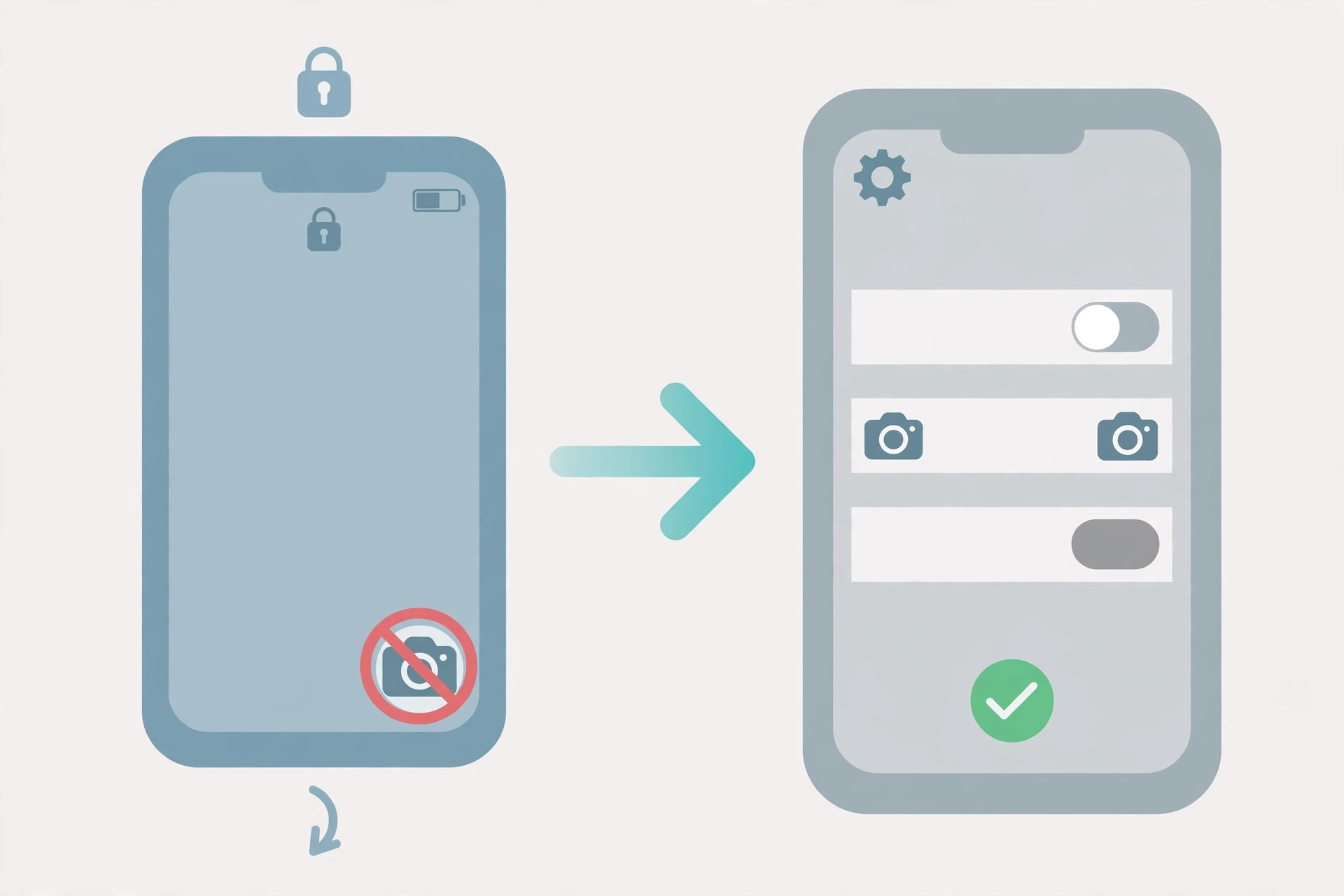
Apple placed the new toggle at the very bottom of the Camera settings. Here is how to reach it:
- Open Settings on your iPhone and scroll down to Camera.
- Tap into the Camera settings, then scroll all the way to the bottom of the screen — the new option sits below everything else.
- Turn off Launch Camera by swiping on the lock screen. This is the toggle Apple introduced with iOS 26 specifically to stop accidental launches.
- Lock your iPhone and swipe left to test it. Nothing should happen now — the gesture is gone.
Disabling the swipe does not leave you fumbling when you actually want a photo. The camera shortcut button on the lock screen still works, and newer iPhones can open the camera with the Camera Control button, the Action button, or a Control Center toggle. Apple’s iPhone support pages document all of these shortcuts if you would rather remap than remove. While you are customizing the lock screen, our Liquid Glass lock screen clock guide shows another neat iOS 26 tweak — and if you are on a mission to tame the update’s changes, our guide to Safari’s three designs covers one more setting worth knowing.
If it still doesn’t work
Do not see the toggle at all? Your iPhone needs iOS 26 or later — check Settings, then General, then Software Update. If the swipe still launches the camera after you flipped the switch, double-check that you turned off the toggle at the very bottom of the Camera settings (not a similarly named option elsewhere), then restart your iPhone. On some models the change only takes full effect after a reboot.
Frequently asked questions
Can I still open the camera quickly from the lock screen?
Yes. Turning off the swipe only kills the gesture. The camera shortcut button on the lock screen, the Camera Control button, the Action button, and the Control Center camera toggle all keep working exactly as before.
Does this disable the camera entirely?
No. The Camera app itself is untouched — you can still open it from the Home Screen, the App Library, or with Siri. This setting only removes the swipe-left shortcut on the lock screen.
Conclusion
One toggle, zero more pocket photos. Head to Settings, then Camera, scroll to the bottom, and switch off the swipe gesture. Your battery — and your photo library — will thank you.






[…] to a gesture. Your other settings, alarms, and lock screen layout — including things like quick camera launch from the lock screen — stay exactly as they […]
[…] the undeletable icons bother you, remember you can always hide them instead — see our guides on taming the Camera on your lock screen and taking control of Safari’s behavior for more ways to customize Apple’s core apps […]
[…] Screen camera shortcut is a separate setting — if you want to tame that one too, see our guide on how to disable quick camera launch from the iPhone Lock Screen. And if you shoot with the newer formats, you may also want to read why spatial photo mode isn’t […]
[…] you are into iPhone photography, you may also like our guides on disabling quick camera launch from the iPhone lock screen and why Spatial photo mode isn’t working in iOS […]
[…] controls. And if the Camera app keeps opening by accident when you pick up the phone, our guide on disabling the quick camera launch from the iPhone lock screen shows how to stop […]
[…] your camera has been acting up in other ways, our guide to iPhone camera and lock-screen settings is worth a read, and for deeper camera glitches see our iPhone camera troubleshooting […]
[…] it with a better-fitting one. While you’re adjusting camera habits, you may also want to try disabling quick camera launch from the lock screen to avoid accidental […]
[…] Bonus: turn off Raise to Wake. Open Settings → Display & Brightness and switch off Raise to Wake. Available on iPhone 6s, iPhone SE, iPhone 7, and later models, this feature lights up the screen every time you lift the phone. With it off, the screen stays dark in your pocket and stray taps cannot reach Siri or dictation. While you are locking down the lock screen, you may also like our guide to disabling the quick camera launch from the iPhone lock screen. […]