
The classic Mac startup chime is one of Apple’s most beloved sounds — a short tone that has greeted Mac users since the 1980s. The iPhone has its own version of this ritual: a subtle power-on sound that plays when your device boots up, plus a matching tone when it shuts down. It is switched off by default, so many iPhone owners never hear it. The good news is that you can enable the iPhone startup sound in a few taps, and this guide walks you through every step.
How to turn on the iPhone power on and off sound
Apple placed the power chime option inside the Accessibility settings. It was originally designed as an accessibility feature that audibly confirms your device is powering on or shutting down, which is helpful if you cannot easily see the screen. Apple’s Accessibility pages list it among the hearing-related options for iPhone and iPad.
- Open the Settings app on your iPhone from the Home Screen or App Library.
- Scroll down and tap Accessibility — it sits in the main Settings list between General and Wallpaper.
- Under the Hearing section, tap Audio/Visual.
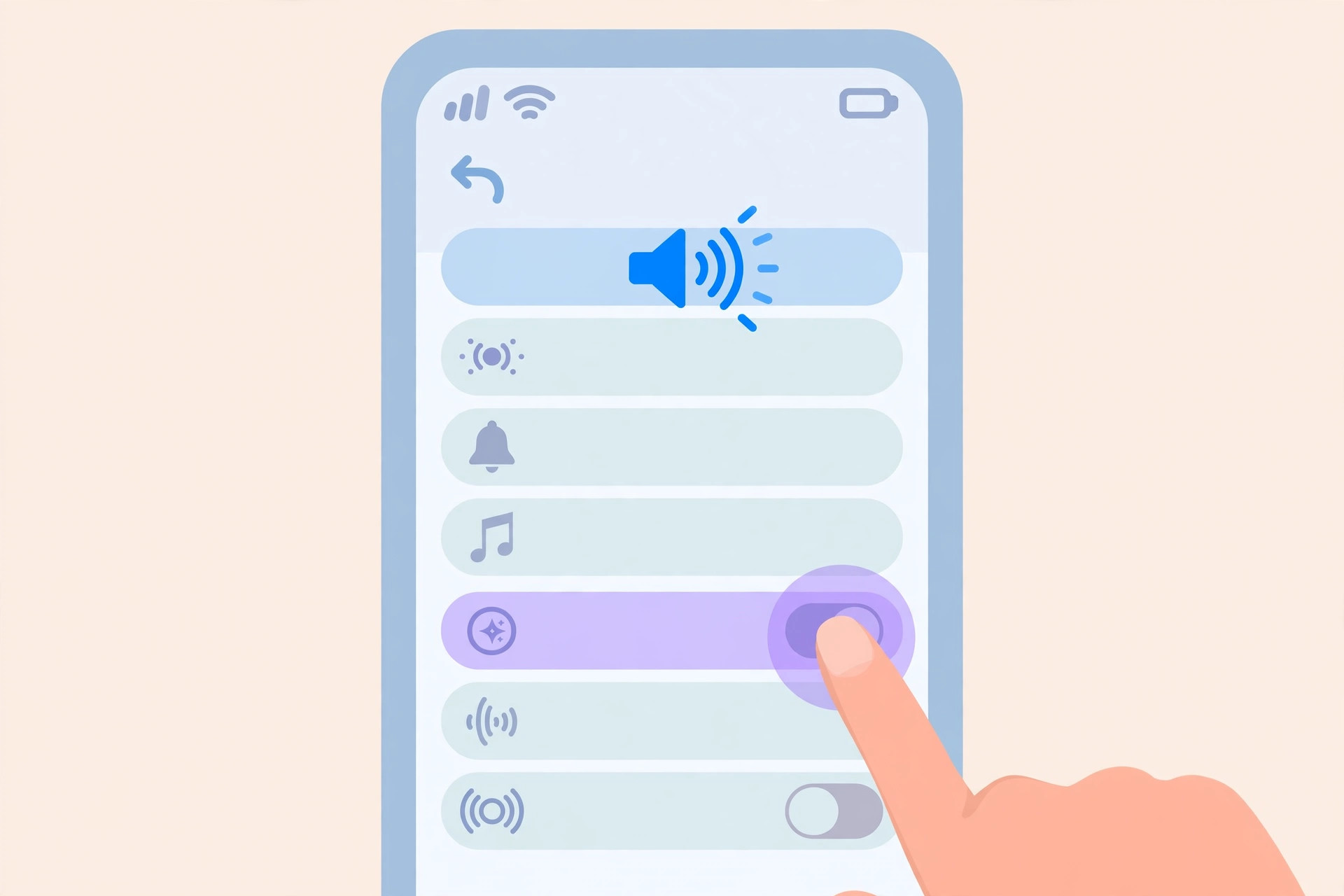
- Find “Power On & Off Sounds” and turn the toggle on (it turns green).
- Restart your iPhone — press and hold the side button with a volume button, slide to power off, then hold the side button to turn it back on — and listen for the new startup chime.
Can you change it to a custom sound?
The chime is a short, gentle built-in tone, and iOS does not let you pick a custom sound or use your own audio file for startup. You can only toggle Apple’s chime on or off — there is no volume slider or sound picker for it. If you enjoy tweaking iPhone audio, see our guide to automatically identifying songs playing nearby on iPhone and turning off AirPods charging case sounds for more ways to customize what you hear.
If it still doesn’t work
- The option is not available on every model — some iPads and older devices simply do not show the Power On & Off Sounds toggle. If it is missing, first update your iPhone to the latest iOS via Settings → General → Software Update.
- Check that your ringer volume is turned up and the Ring/Silent switch (or the Action button silent mode) is not muting system sounds — the chime respects your current volume level.
- Try toggling the switch off and back on, then restarting once more. If the toggle never appears, your device may not support the feature. Coverage from 9to5Mac and MacRumors notes this remains an accessibility feature with limited device support.
Frequently asked questions
Does the startup sound drain the battery?
No. The chime plays exactly once during boot and shuts off with the rest of the startup sequence, so it has no measurable impact on battery life. It is far less demanding than, say, keeping the screen awake for an extra minute.
Can I use a custom song as the startup sound?
No — iOS does not allow custom startup sounds of any kind. You can only enable or disable Apple’s built-in chime. If you want personalized audio alerts, you can set an alarm for urgent reminders with any tone or song from your library instead.
Conclusion
Adding the iPhone startup sound takes less than a minute and gives your device a touch of classic Apple character every time it boots. Just head to Settings → Accessibility → Audio/Visual, flip the Power On & Off Sounds switch, and restart to enjoy the chime. It is a small delight — and now you know exactly where Apple hid it.






[…] Does this affect phone calls too?The setting targets media playback routing. Call audio follows its own rules, but in practice keeping the headphone route stable helps calls stay on your headset as well. If call routing misbehaves, check Settings > Accessibility > Touch > Call Audio Routing. Speaking of iPhone sounds, here’s how to add and change the iPhone startup sound in iOS. […]
[…] you enjoy fine-tuning every beep your iPhone makes, our guide on how to add and change the iPhone startup sound in iOS covers even deeper customization — and you can quiet other hardware noises too, like turning […]