
iOS 26 brought the boldest visual redesign the iPhone has seen in over a decade. Apple calls it Liquid Glass: a design language where menus, buttons, notifications, and the lock screen pick up a frosted, translucent finish that bends light like real glass. Apple’s own iOS 26 page shows it off proudly, and launch coverage from MacRumors and 9to5Mac walked through every shimmering detail.
But not everyone wants their phone to look like a cocktail bar. If you find the glassy translucency distracting or hard to read, you don’t have to live with it. Apple quietly included a way to strip the transparency away, and it takes about ten seconds. Here is how to turn off the Liquid Glass effect in iOS 26.
What the Liquid Glass effect actually changes
Before flipping any switches, it helps to understand what you are turning off. Liquid Glass is not a single theme you can uninstall; it is baked into the system. Control Center tiles, notification banners, the dock, folders, tab bars, and even the volume indicator all use the new translucent material.
The setting below does not revert your iPhone to the old iOS 18 look entirely — the reshaped icons and new layouts stay put. What it does remove is the see-through frosted finish, which is the part most people find objectionable. The result is a flatter, higher-contrast interface that feels much closer to the iOS you already know. If you enjoy parts of the new aesthetic, you might prefer keeping it and just setting up the Liquid Glass effect on the iOS 26 lock screen clock to taste instead.
How to turn off the Liquid Glass effect in iOS 26
Oddly, Apple hid the off switch in Accessibility rather than in Display & Brightness. Follow these steps:
- Open the Settings app on your iPhone.
- Scroll down and tap Accessibility.
- Tap Display & Text Size.
- Turn on the Reduce Transparency toggle.
The change applies instantly — no restart required. Frosted panels turn solid, and text across menus, notifications, and Control Center becomes noticeably easier to read. Apple Support documents this toggle as an accessibility aid, but plenty of users enable it purely for the cleaner look.
What your iPhone looks like afterwards
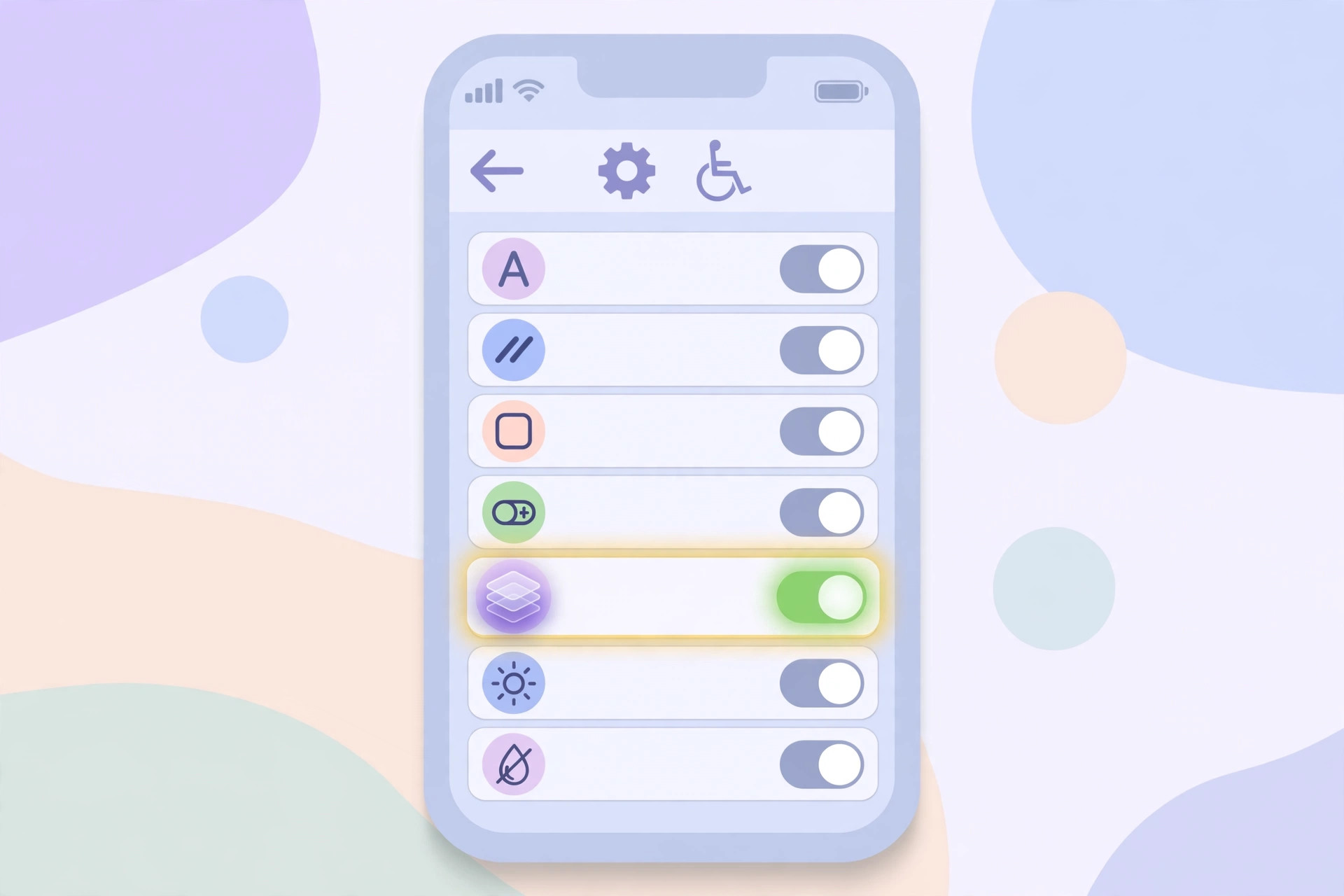
With Reduce Transparency enabled, the notification shade, Control Center, app folders, and the dock lose their glassy finish and render as solid surfaces. Contrast improves everywhere, which is a genuine readability win outdoors. The underlying iOS 26 layout — the new tab bars, the rounded controls, the clock styles — remains, so your phone still feels current, just calmer. Plenty of YouTube demos show the before-and-after difference side by side.
If it still doesn’t work
Keep expectations realistic: this toggle kills the transparency, not the redesign itself. If frosted effects persist inside a particular app, that app may be drawing its own custom blur rather than using the system material — check the app’s own settings or wait for an update. Also confirm you are actually running iOS 26 (Settings > General > About); on older versions the toggle exists but changes nothing about Liquid Glass, because there is none. And if you have decided the new design is not for you at all, you can look into completely blocking iOS 26 updates on iPhone for a device still running iOS 18.
Frequently asked questions
Does turning off the Liquid Glass effect improve battery life?
Only marginally. Rendering blur and refraction does cost the GPU some work, so you might save a tiny amount of power — but do not expect a dramatic battery boost. The real benefit is readability and personal preference.
Can I turn the Liquid Glass effect back on later?
Absolutely. Just head back to Settings > Accessibility > Display & Text Size and switch Reduce Transparency off again. The glassy look returns immediately, so feel free to experiment.
The bottom line
Liquid Glass is Apple’s biggest interface gamble in years, and it has split opinion — AppleInsider‘s coverage captured both the enthusiasm and the backlash. The good news: one Accessibility toggle lets you keep everything good about iOS 26 while ditching the frosted look, and you can reverse it at any time.






[…] Optional but useful: in the same Display & Text Size section, turn on Bold Text. Your screen may refresh briefly while the change applies. Many readers pair larger text with customizing the Liquid Glass clock on the iOS 26 lock screen so everything stays easy to read at a glance — or, if the glass look itself is hard on the eyes, they turn off the Liquid Glass effect entirely. […]
[…] the same static picture on screen for hours. For more display-related tweaks, see our guide on turning off the Liquid Glass effect in iOS 26 and the iOS 26 lock screen […]