
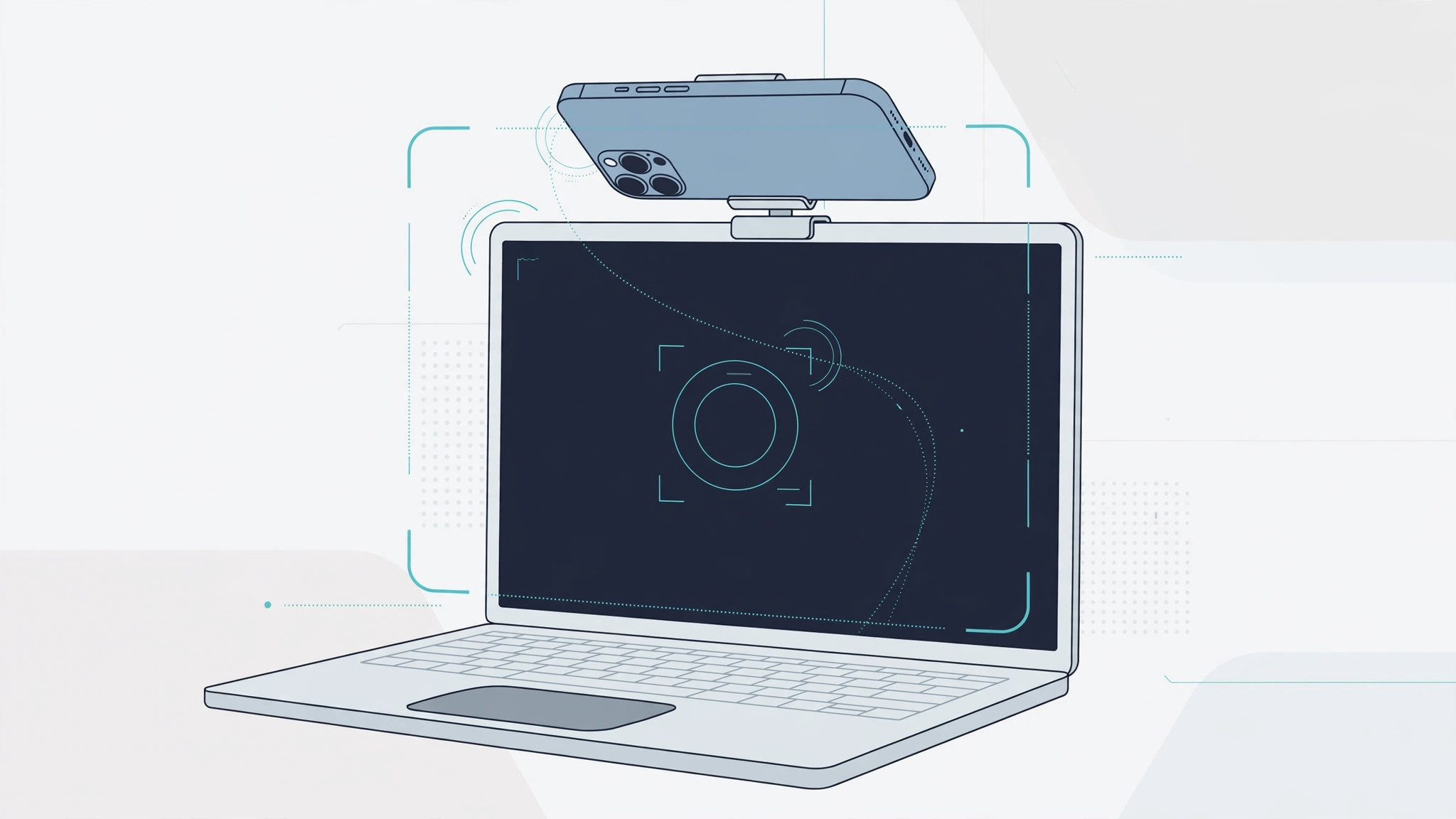
Updating to iOS 17 was supposed to be uneventful — until you opened FaceTime or Zoom on your Mac and your iPhone was nowhere in the camera list. Apple’s Continuity Camera feature, which turns an iPhone into a high-quality wireless webcam for the Mac, has strict requirements, and iOS 17 added a surprising new culprit: StandBy mode can silently block the whole thing.
The good news is that nothing is usually broken. First, make sure the basics are covered: an iPhone XR or later, a Mac running macOS Ventura or later, the same Apple Account on both devices, and Wi-Fi and Bluetooth switched on with the devices near each other. If that all checks out and the camera still won’t appear, work through the steps below.
How to fix your iPhone not appearing as a Mac camera
- Turn off StandBy (or toggle it). Open Settings → StandBy on your iPhone and switch StandBy off. This catches most people: iOS 17’s StandBy display — the fullscreen clock and widgets shown while charging — can keep the camera subsystem in a state that blocks Continuity Camera from advertising your iPhone to the Mac. If you like StandBy, turn it back on afterward; one off-and-on cycle often clears the glitch for good.
- Toggle Continuity Camera off and on. Go to Settings → General → AirPlay & Handoff and switch Continuity Camera off, wait a few seconds, then switch it back on. This forces the iPhone to re-register itself as an available camera for nearby Macs.
- Toggle Handoff on the same screen. Still in Settings → General → AirPlay & Handoff, turn Handoff off and back on. Continuity Camera leans on the same handoff framework, and a stuck Handoff state can quietly prevent the iPhone from showing up.
- Verify the wireless basics, then try USB. Confirm both devices are on the same Wi-Fi network with Bluetooth enabled and the same Apple Account signed in. Unlock both, bring them closer, and restart them if needed. As a dependable fallback, plug the iPhone into the Mac with a cable — a wired connection skips wireless discovery entirely and almost always works.

If it still doesn’t work
If your iPhone appears in the camera list but shows a black screen in FaceTime or Zoom, quit the app completely, reopen it, and reselect your iPhone in the app’s video settings. Also check that no VPN or firewall on the Mac blocks local device discovery, and confirm the app has camera permission under System Settings → Privacy & Security → Camera. For the official requirements, see Apple Support’s guide to using your iPhone as a webcam for Mac; sites like MacRumors and Macworld also track Continuity Camera quirks after major iOS updates.
Once the camera is back, get more from the iPhone–Mac combo: sync Messages between iPhone and Mac, set up an automatic hotspot connection from your iPhone, or enable face lighting during video calls on Mac for a better picture.
Frequently asked questions
Why did Continuity Camera work on iOS 16 but break on iOS 17?
iOS 17 introduced StandBy, which activates while the iPhone charges in landscape orientation. It is the main new variable: StandBy can keep the camera subsystem busy in a way that blocks Continuity Camera — which is why everything worked before the update and stopped after it.
Can I use my iPhone as a Mac webcam over USB?
Yes. Connect the iPhone to the Mac with a Lightning or USB-C cable and pick it as the camera in FaceTime, Zoom, or Photo Booth. A wired link bypasses wireless discovery completely, making it the most reliable option when wireless keeps misbehaving.
Conclusion
An iPhone that refuses to appear as a Mac camera after the iOS 17 update is rarely a hardware fault. Turn off StandBy, toggle Continuity Camera and Handoff under AirPlay & Handoff, and double-check the Wi-Fi, Bluetooth, and Apple Account basics. One of those steps fixes it in nearly every case — and when wireless discovery keeps acting up, a simple USB cable puts you back on camera right away.





