

Why your Mac is the perfect battery dashboard
If your desk is covered in Apple gear — an iPhone charging across the room, AirPods in their case, an Apple Watch on its puck — you probably waste time picking each one up just to check its charge. Your Mac can show all of those battery levels in one place, so you can glance at your screen instead of hunting down every device.
Step 1: Add the Batteries widget to your desktop
- Right-click (or Control-click) an empty spot on your Mac’s desktop and choose Edit Widgets.
- In the widget gallery, search for Batteries and drag it onto the desktop — pick the size that fits your layout.
- The widget automatically lists your Mac plus any connected Bluetooth devices, such as AirPods, your Apple Watch, a Magic Mouse or keyboard. According to Apple’s support documentation, the widget pulls live levels from every paired device within range.
Step 2: Check batteries from Control Center
- Click the Control Center icon in the menu bar, then open the Bluetooth panel.
- Each connected device shows a small battery indicator next to its name — a fast way to check without leaving what you’re doing.
- For even more detail, open System Settings > Bluetooth: every paired device lists its current charge percentage, and as AppleInsider notes, this is also the quickest way to spot a device that keeps disconnecting.
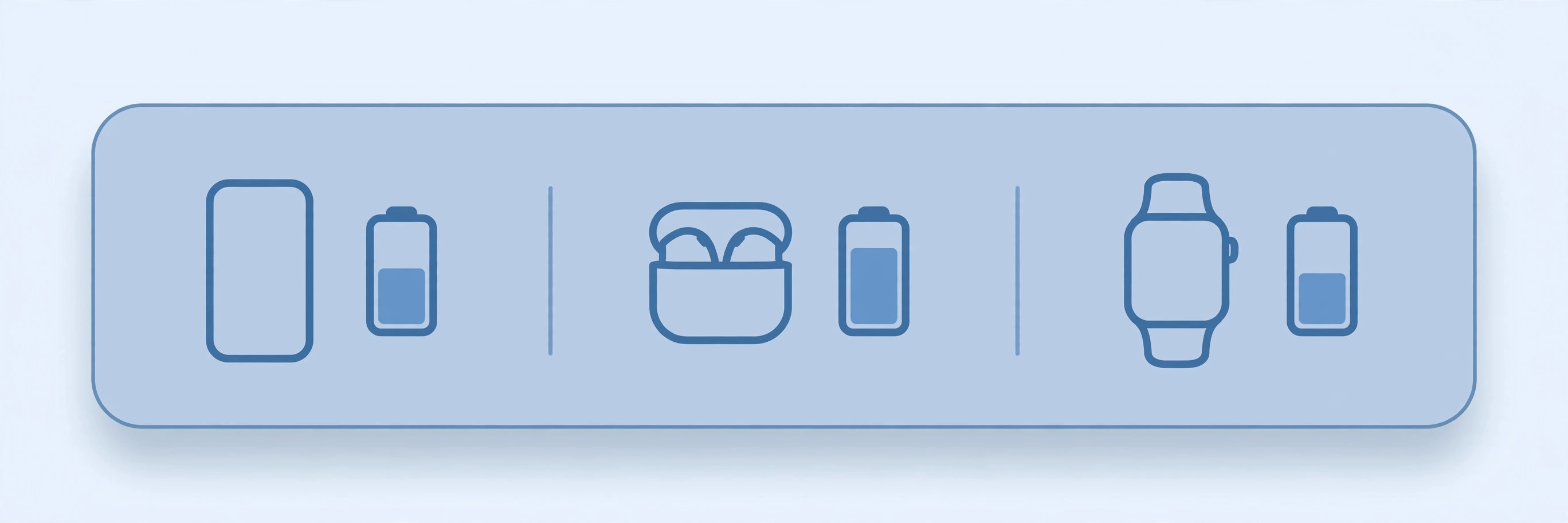
Step 3: Monitor your iPhone and Apple Watch remotely
- When your iPhone is on the same Wi-Fi network and signed into the same Apple Account, it appears in the Batteries widget — handy when the phone is charging in another room.
- Your Apple Watch reports its level through the paired iPhone, so it shows up on the Mac too. 9to5Mac has covered how this chain of connections makes the Mac a surprisingly good watch-battery monitor.
- If a device is missing, make sure Bluetooth is on at both ends and the devices are paired — our guide to checking AirPods battery levels covers the pairing side in more depth.
- Creators on YouTube also demonstrate third-party menu-bar apps if you want battery levels always visible at the top of your screen.
If it still doesn’t work
- Remove and re-pair the device in System Settings > Bluetooth; a stale pairing is the most common reason a battery level goes missing.
- Restart both the Mac and the device — this refreshes the Bluetooth battery service.
- If your AirPods specifically won’t report their charge, see our fixes for AirPods not charging, and iPhone owners dealing with charge quirks should check why charging sometimes goes on hold.
FAQ
Can my Mac show the battery level of a device that isn’t connected?
No — Bluetooth devices only report their battery while paired and in range. Once a device disconnects or leaves range, its last known level disappears from the widget until it reconnects.
Does the Batteries widget drain my devices faster?
Negligibly. The battery levels are piggybacked on the regular Bluetooth connection your devices already maintain, so there’s no meaningful extra drain.
Conclusion
Between the Batteries widget, Control Center and Bluetooth settings, your Mac gives you a complete at-a-glance view of every Apple device’s charge. Set it up once and you’ll never again pick up a dead pair of AirPods by surprise.






[…] The Mac’s Contacts app keeps its own copy of your contact data. If iCloud Contacts is not enabled on both devices, the Mac never sees the ringtone you assigned on your iPhone, so it falls back to the system default for every incoming call. Even when sync is on, ringtones only carry over when both devices share the same contact list. The fix starts with making sure both devices look at the same data — the same kind of device harmony we describe in our guide on how to monitor battery levels of your devices from your Mac. […]
[…] an eye on power matters beyond the menu bar, too. If you own several Apple devices, you can monitor the battery levels of all your devices right from your Mac, and iPhone owners can customize the battery widget on the iOS lock screen for the same at-a-glance […]