
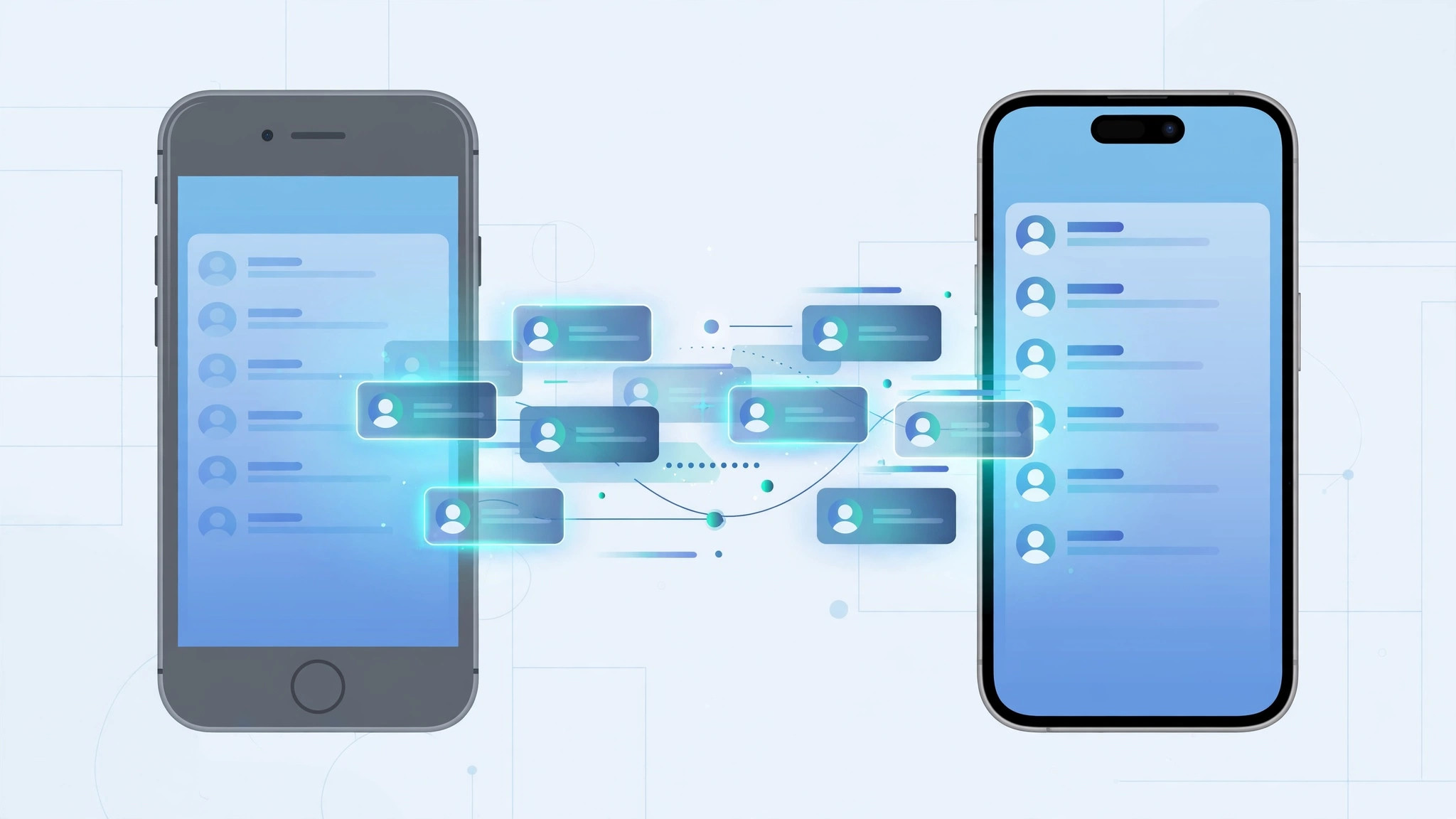
Unboxed a shiny new iPhone? Nothing spoils the upgrade like an empty Contacts app. The good news is that Apple makes it nearly impossible to lose your contacts — as long as you use the right method. Here are three reliable ways to move your contacts: iCloud Contacts sync, Quick Start direct transfer, and Google account sync. Pick the one that fits your setup.
How to transfer contacts from your old iPhone to your new iPhone
- Sync with iCloud Contacts. On your old iPhone, open Settings, tap your name at the top, then iCloud, and make sure the Contacts toggle is switched on. Give it a few minutes to upload — use Wi-Fi if you have thousands of entries. On your new iPhone, sign in with the same Apple ID, then turn on Contacts in Settings > [your name] > iCloud. Your contacts will download automatically. Apple Support documents iCloud Contacts setup if a toggle looks different on your iOS version.
- Use Quick Start to transfer everything at once. Bring both iPhones close together and turn on the new one. The Quick Start screen appears on your old iPhone — scan the animation with its camera, then choose “Transfer from [device]”. Keep both phones next to each other on Wi-Fi until the transfer finishes. Contacts, photos, apps, and settings move over together. As MacRumors notes, direct transfer does not even need an iCloud backup — handy when your iCloud storage is full.
- Sync through a Google account. Useful if your contacts live in Gmail or you want a copy outside Apple’s ecosystem. On your old iPhone, go to Settings > Contacts > Accounts > Add Account > Google, sign in, and enable the Contacts toggle. Wait for the sync to finish. Then on your new iPhone, add the same Google account and enable Contacts there too. If you’d rather keep everything on iCloud afterward, disable the Google account’s Contacts sync once the transfer is done — otherwise duplicates can appear. If that happens, our guide to removing duplicate contacts on iPhone will clean them up.
- Verify everything arrived. Open the Contacts app (or Phone > Contacts) on the new iPhone and spot-check a few entries. The counts should roughly match the old phone — a few groups may take extra minutes to appear.
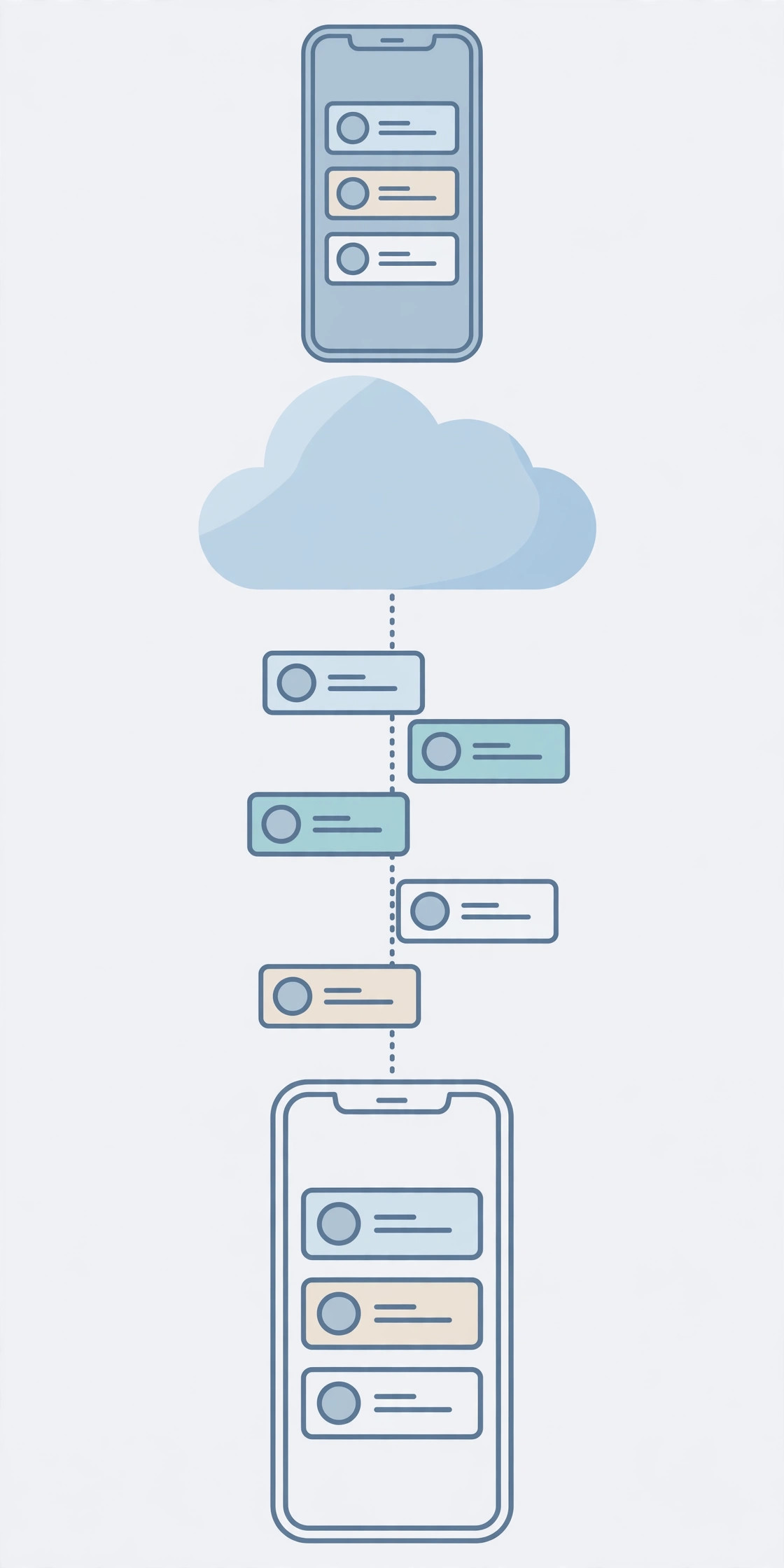
Once contacts are moved, consider setting up message sync between iPhone and Mac so your conversations follow you too. If you are selling the old phone, permanently delete text messages from the old iPhone and iCloud before resetting it, so private threads are gone for good.
If it still doesn’t work
Contacts missing on the new iPhone? First, confirm both phones are signed into the same Apple ID (Settings > your name at the top) — this fixes it most of the time. Try toggling Contacts off and back on in the iCloud settings to force a fresh sync. For Google sync, verify your entries at contacts.google.com. Give the first sync time on slow networks: thousands of contacts can take 10–15 minutes. As 9to5Mac points out, Quick Start transfers can stall if either phone drops low on battery or loses Wi-Fi, so plug both phones in before you start.
Frequently asked questions
Will Quick Start erase my old iPhone?
No. Transferring to the new iPhone only copies your data; the old phone keeps everything until you erase it yourself. Erase the old phone only after confirming the contacts are on the new device.
Can I transfer contacts without iCloud?
Yes. Quick Start’s direct device-to-device transfer works over Wi-Fi and Bluetooth without touching iCloud, and the Google-account method skips iCloud entirely. Both still need an internet connection, but no iCloud storage.
Conclusion
For most people, iCloud Contacts sync or Quick Start is all it takes — two toggles or a few taps, and your address book follows you to the new iPhone. Prefer Google? Add the account once on each phone and contacts sync themselves. Pick one method, give the sync time to finish, and verify before wiping the old phone.





