
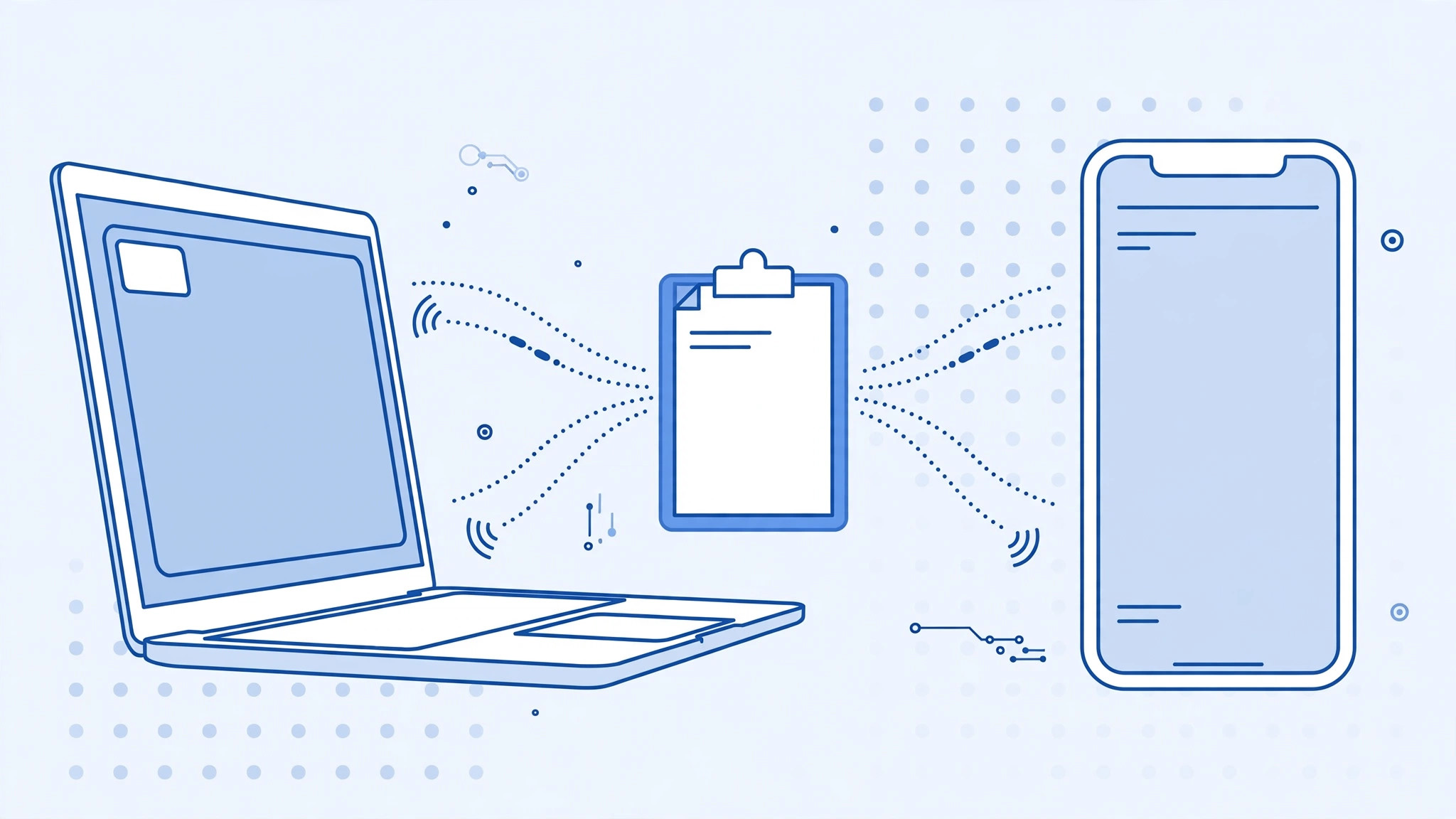
Universal Clipboard is one of the most convenient Continuity features Apple ever shipped: copy text, an image, or a video on your iPhone and paste it seconds later on your Mac — or the other way around. When it works, it feels like magic. When it stops working in macOS Sierra, it feels like your devices simply forgot they belong to the same person.
The good news is that in almost every case the problem is not broken hardware or a corrupt system. It is a short checklist of conditions that all have to be true at the same time, and one missed item silently disables the whole feature. Work through the steps below and you will almost certainly have it copying and pasting again within a few minutes.
What Universal Clipboard needs to work
Before touching any settings, it helps to know what Apple requires for the handoff to happen. Both devices must be signed in to iCloud with the same Apple ID, Bluetooth and Wi-Fi must be switched on on both devices, and the two devices need to be physically close to each other. Copy on one device, then use the regular paste command — including the right-click context menu — on the other. If any single condition fails, the clipboard simply will not travel.
Fix it step by step
- Sign in with the same Apple ID on both devices. On your Mac, open System Preferences, click iCloud, and confirm the signed-in account. On your iPhone, open Settings and tap your name at the top. The addresses must match exactly — a personal ID on one device and a work ID on the other is the most common silent cause.
- Turn Bluetooth on for both devices. On the Mac, check the Bluetooth menu bar icon or System Preferences → Bluetooth. On the iPhone, go to Settings → Bluetooth. Universal Clipboard uses Bluetooth Low Energy to discover nearby devices, so a disabled radio kills the feature instantly.
- Turn Wi-Fi on for both devices. Both devices need Wi-Fi enabled, even if they are not joined to the same network. The clipboard payload itself travels over a direct peer-to-peer Wi-Fi link that the system sets up automatically.
- Keep the devices close together. Apple recommends keeping them within a few meters of each other. If your iPhone is charging in another room while you copy on your Mac, do not expect the paste to appear.
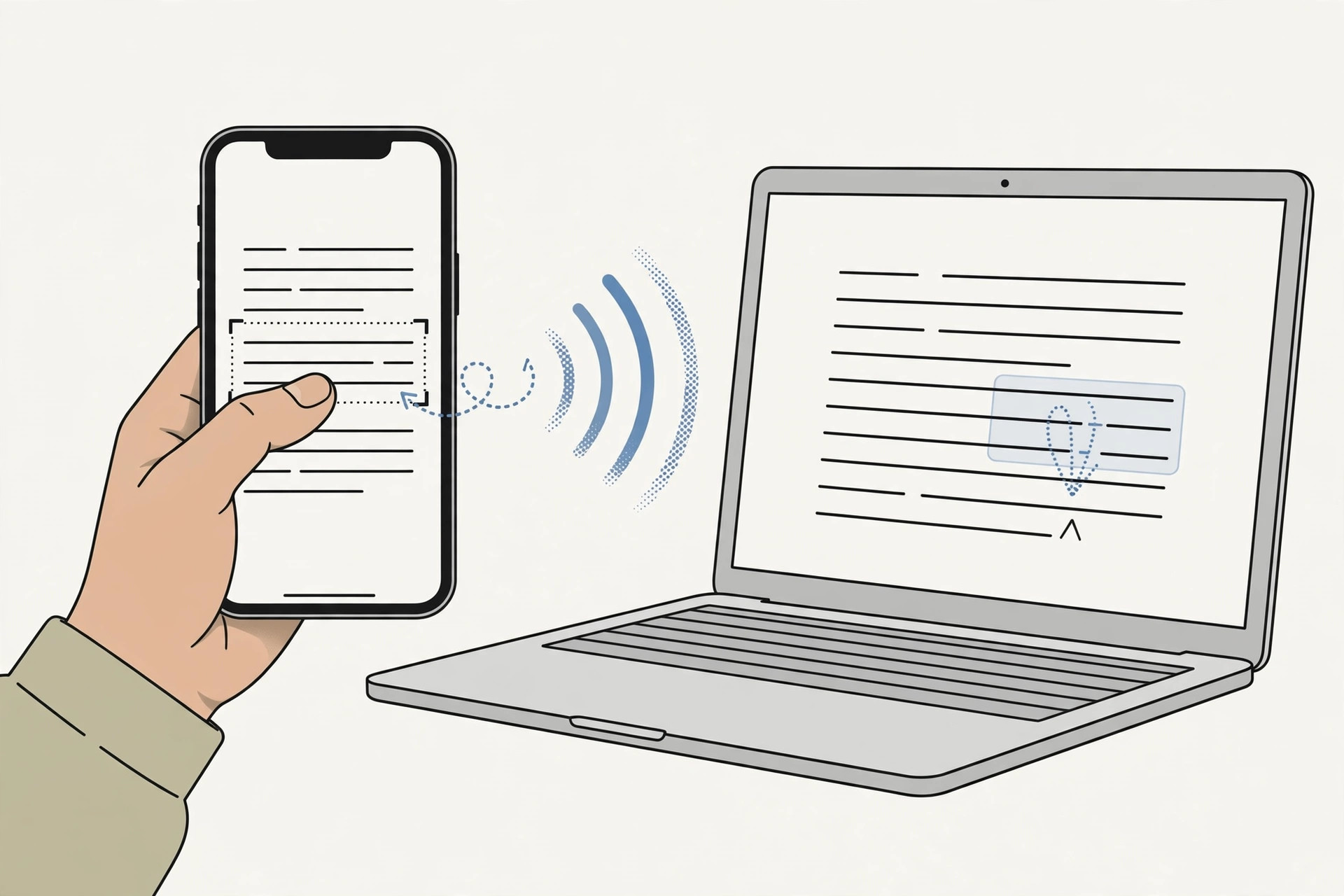
- Copy on one device, paste on the other. Select content on your iPhone and tap Copy, then on your Mac right-click (or Control-click) and choose Paste from the context menu — or press Command-V. Try both directions to isolate which side is failing.
- Check that your hardware is actually supported. Universal Clipboard requires a Mac with Bluetooth Low Energy, which means most models from 2012 onward — and the MacBook Air from mid-2011 is supported too, so if that is your machine, your hardware is fine and the problem lies elsewhere. Apple’s support pages list every compatible Mac and iOS device, and MacRumors keeps a handy rundown of which Continuity features each model supports.
- Sign out of iCloud everywhere and sign back in. If everything above checks out and pasting still fails, this is the last resort that fixes the stubborn cases. Sign out of iCloud on your Mac and your iPhone, restart both devices, then sign back in with the same Apple ID. This forces the devices to re-register their Continuity pairing from scratch.
If it still doesn’t work
Try toggling Handoff off and on (System Preferences → General on the Mac; Settings → General → Handoff on the iPhone), then restart both devices once more. Also check that neither device is in Airplane Mode and that you have not disabled Handoff in a rush of settings changes. If your Mac connects to the internet through your iPhone, our guide to setting up an automatic hotspot connection from iPhone on Mac covers the wireless pairing that Continuity relies on, and you can measure the actual iPhone-to-Mac data transfer speed over cable if you suspect the link itself is flaky. Apple’s own documentation at Apple Support and the feature trackers at MacRumors are worth a look for model-specific notes.
FAQ
Does Universal Clipboard need both devices on the same Wi-Fi network?
No. Wi-Fi just needs to be switched on. The devices build their own direct connection, so they do not have to share a router or even have internet access through Wi-Fi.
How long does copied content stay available to paste?
Only briefly — the shared clipboard typically expires after a couple of minutes, and copying something new on either device replaces it. Paste promptly after copying.
Wrapping up
Universal Clipboard failures in macOS Sierra come down to a checklist: matching Apple IDs, Bluetooth and Wi-Fi on, devices nearby, supported hardware, and a fresh iCloud sign-in when all else fails. Run through the list methodically and the feature almost always comes back to life.





