

Got a new iPhone, or need to send a batch of photos to a family member’s iPhone? There are several ways to move pictures between iPhones, but some are dramatically faster than others. Here are the quickest methods, starting with the fastest.
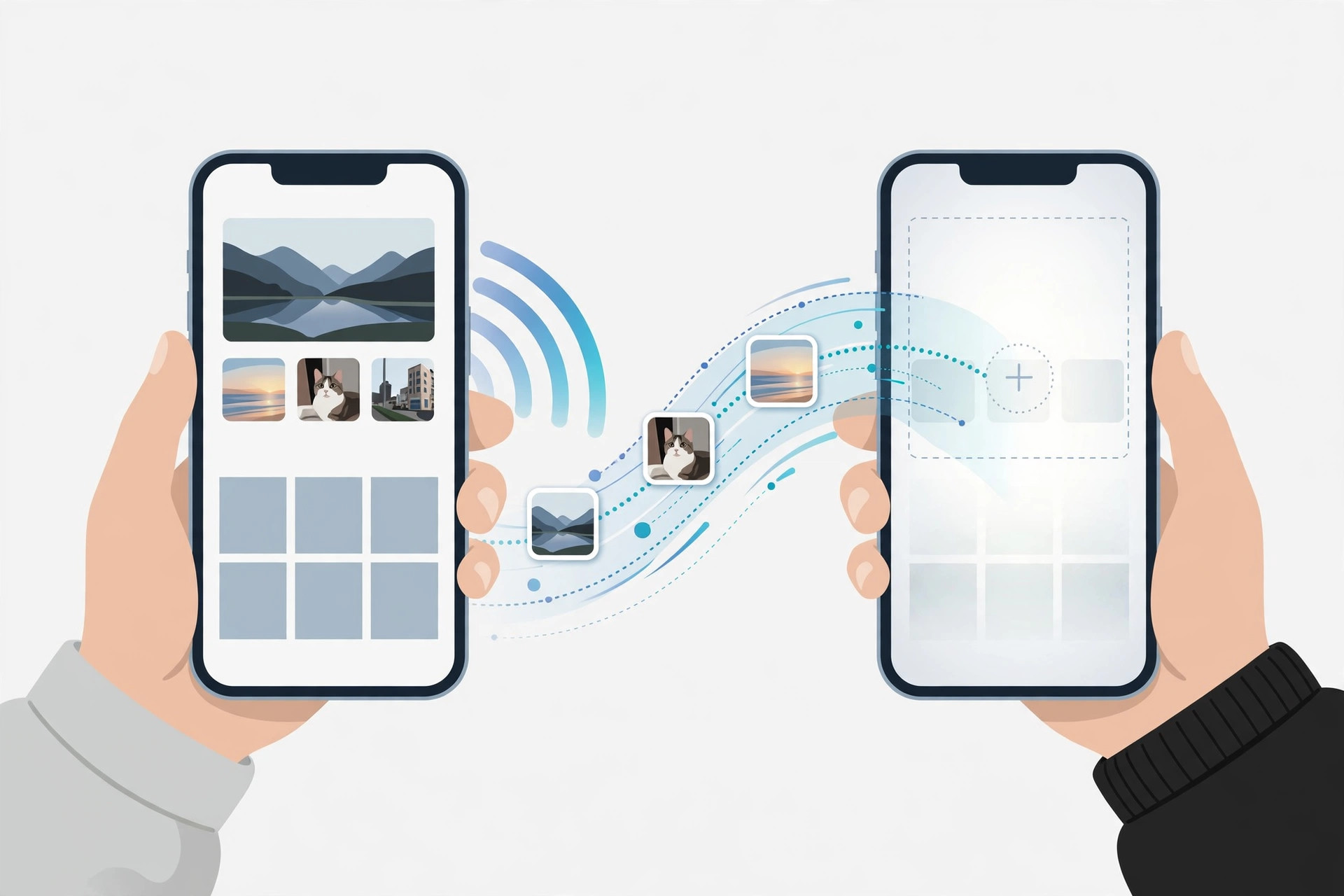
How to quickly transfer photos from one iPhone to another
1. Use AirDrop — the fastest way
AirDrop moves photos directly between iPhones over Wi-Fi and Bluetooth, with no internet needed and no quality loss. Turn on Wi-Fi and Bluetooth on both iPhones and hold them close together. On the receiving iPhone, go to Settings > General > AirDrop and choose Everyone (or Contacts Only if the sender is in your contacts). On the sending iPhone, open Photos, select the photos you want, tap Share > AirDrop, then tap the other iPhone’s name. Accept the incoming transfer on the receiving iPhone — the photos land straight in its Photos library. Apple’s iPhone support pages walk through AirDrop’s requirements and troubleshooting. For more ways your iPhone and Mac work together, see our guide on setting up message sync between iPhone and Mac.
2. Sync with iCloud Photos (same Apple ID)
If both iPhones are signed in to the same Apple ID, turn on iCloud Photos on each (Settings > [your name] > iCloud > Photos) and your entire library syncs automatically. It’s effortless for a new device, though the initial sync can take a while on a slow connection.
3. Share an iCloud album (different people)
Sending photos to someone else’s iPhone? Create a shared album: in Photos, go to Albums > Shared, make a new shared album, add the photos, and invite the person. They get full-resolution copies without cables, and it’s ideal for bulk sets from trips or events. 9to5Mac regularly covers iCloud Photos tips and changes.
If it still doesn’t work
If AirDrop doesn’t see the other iPhone, make sure both devices have Wi-Fi and Bluetooth on, Personal Hotspot off, and are within a few meters of each other. Restarting both phones fixes most discovery hiccups. If you also move files between iPhone and Mac often, our guide on setting up automatic hotspot connection from iPhone on Mac keeps the two devices talking smoothly.
Frequently asked questions
Does AirDrop reduce photo quality?
No — AirDrop sends the original full-resolution files, including Live Photos and their metadata.
Do I need internet for AirDrop?
No. AirDrop works over a direct Wi-Fi and Bluetooth connection between the two devices, so it works on a plane or anywhere without a network.
Conclusion
For speed, nothing beats AirDrop: select, share, accept, done. Use iCloud Photos sync when both iPhones share an Apple ID, and a shared iCloud album when sending to someone else. Pick the method that fits, and your photos will be where you need them in minutes.





