
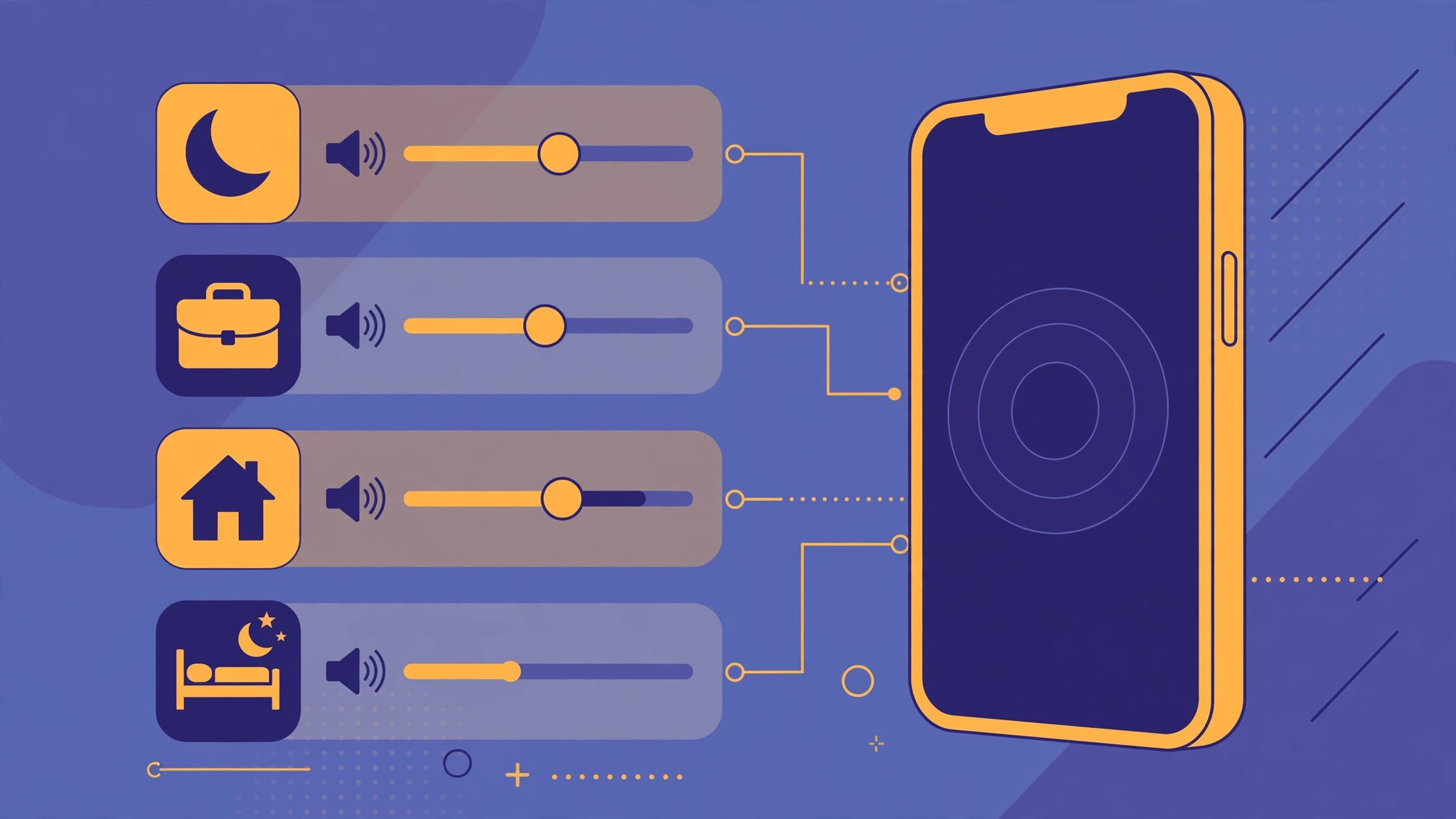
Wouldn’t it be nice if your iPhone automatically dropped the volume when Sleep focus turns on, then cranked it back up for your Workout focus? Surprisingly, iOS still doesn’t offer per-Focus volume levels. The volume setting is global, so a loud ringtone at midnight and a barely audible podcast at the gym are both equally possible. The good news: the Shortcuts app can do the job for you. In this guide, you’ll build a simple automation that changes your iPhone’s volume every time a Focus profile activates — no extra apps, no jailbreak.
Why iOS can’t do this on its own
Apple has never shipped a per-Focus volume setting, and it still hasn’t appeared in current iOS. Focus profiles can silence notifications, dim the Lock Screen, and filter apps — but the ringer and media volume stay exactly where you left them. If you want different volumes for Sleep, Work, and Driving, you need a small workaround using Shortcuts automations. Apple Support documents how automations can react to system events such as a Focus change, and enthusiast sites such as 9to5Mac have long showcased clever Focus-based automations like this one.
Step-by-step: make Focus set your volume
- Open the Shortcuts app on your iPhone and tap Automation in the bottom tab bar. This is where iOS keeps every hands-free trigger.
- Create a new automation. Tap the + (plus) icon, then pick one of your Focus profiles — for example Sleep — as the trigger.
- Set the trigger to “When Turning On”. This tells the automation to fire the moment the Focus profile activates, not when it turns off.
- Add the volume action. Tap Add Action, search for “Set Volume”, and drag the slider to the level you want — say 15% for Sleep.
- Turn off “Ask Before Running”. This is the crucial step. With it on, your iPhone pops up a notification asking permission every time; with it off, the volume changes silently in the background. Confirm that you want the automation to run without asking.
- Save the automation. The next time Sleep focus turns on — automatically at bedtime or manually — your iPhone’s volume drops to the level you chose.
Repeat it for your other Focus profiles
One automation covers one Focus profile, so repeat the same steps for the rest: a moderate volume for Work, a louder one for Driving, and a quiet one for Do Not Disturb. If you also fine-tune calling behavior per Focus, check our guide on how to allow calls only from a specific SIM card in Focus mode. And if your iPhone keeps jumping between audio outputs when the volume changes, our tutorial on how to stop iPhone from auto-switching audio to headphones will help.
If it still doesn’t work
First, double-check that “Ask Before Running” is truly disabled — an automation stuck behind a permission prompt looks like it never fires. Also verify you picked the correct Focus name and the “When Turning On” trigger, not “When Turning Off”. If you recently renamed a Focus profile, recreate the automation from scratch, since the trigger may still point to the old name. Finally, restart your iPhone; background automation listeners occasionally need a reboot to re-register.
Frequently asked questions
Does this change the ringer volume, the media volume, or both?
The “Set Volume” action adjusts the main system volume, which covers media playback. The ringer and alert volume follows the same setting when “Change with Buttons” is enabled, so for most people this automation effectively covers both.
Can I use different volumes for Driving and Sleep on the same iPhone?
Yes — that’s exactly the point. Create one automation per Focus profile (Driving, Sleep, Work, and so on), each with its own “Set Volume” level. iOS fires the matching automation whenever that Focus turns on.
Conclusion
Until Apple adds a native per-Focus volume control, Shortcuts automations are the cleanest way to get different volumes for each Focus profile. It takes a few minutes to set up, runs completely silently, and survives iOS updates. Set it once, and your iPhone will finally stay quiet at night and loud enough on the road — automatically.





