
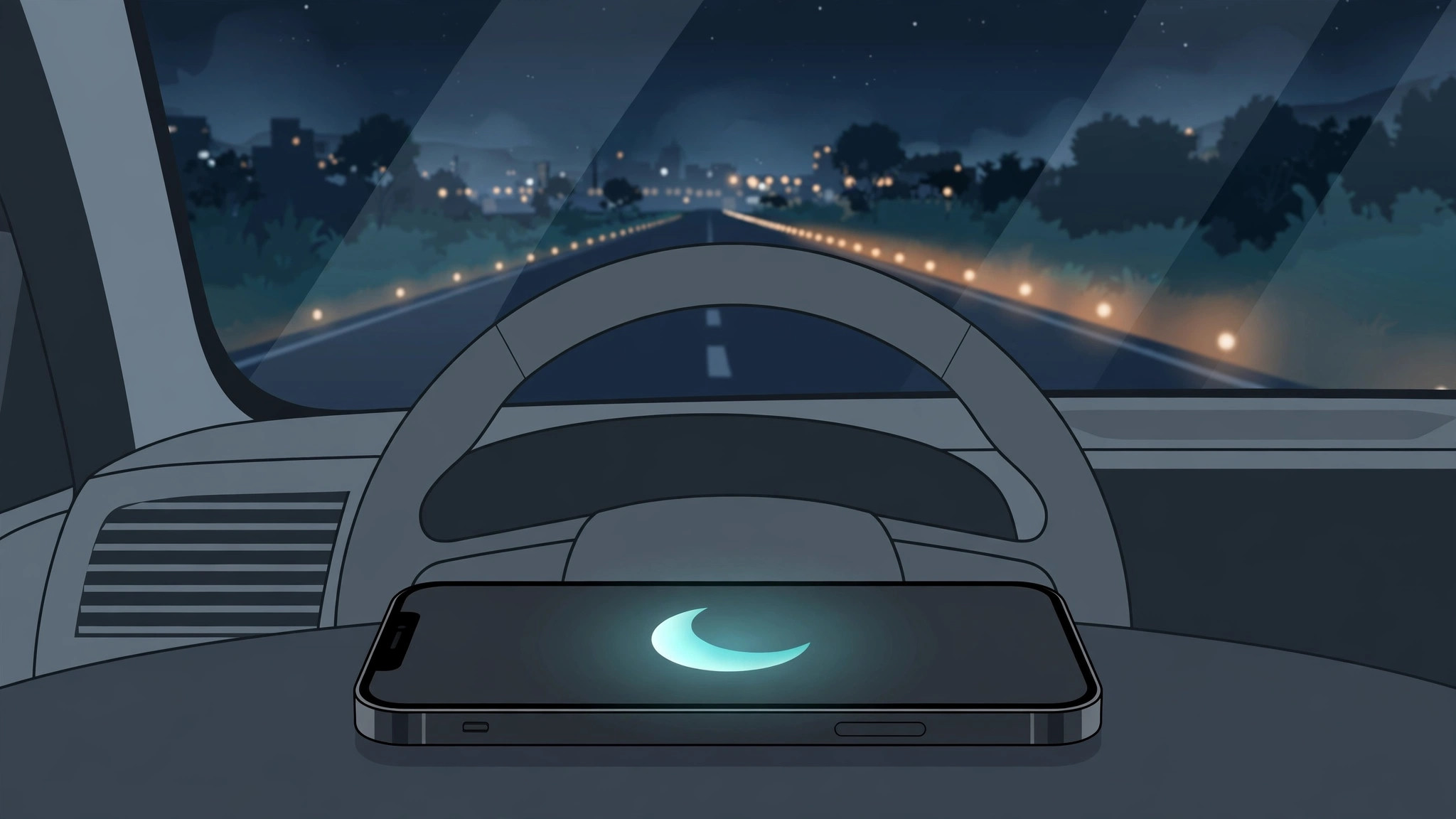
Distracted driving is dangerous, and iOS 11 has a feature built to fight it: Do Not Disturb While Driving. When it kicks in, incoming calls, texts, and notifications stay silent while you are behind the wheel, and senders get an automatic reply saying you are driving. Here is how to set it up on iOS 11 — and how to make it turn on by itself.
How to set up Do Not Disturb While Driving, step by step
1. Turn it on manually first
- Go to Settings → Do Not Disturb.
- Scroll to Do Not Disturb While Driving and tap Activate.
- Choose Manually to start. (You can switch to automatic below once you have tested it.)
2. Add the toggle to Control Center
- Go to Settings → Control Center → Customize Controls.
- Tap the green plus next to Do Not Disturb While Driving.
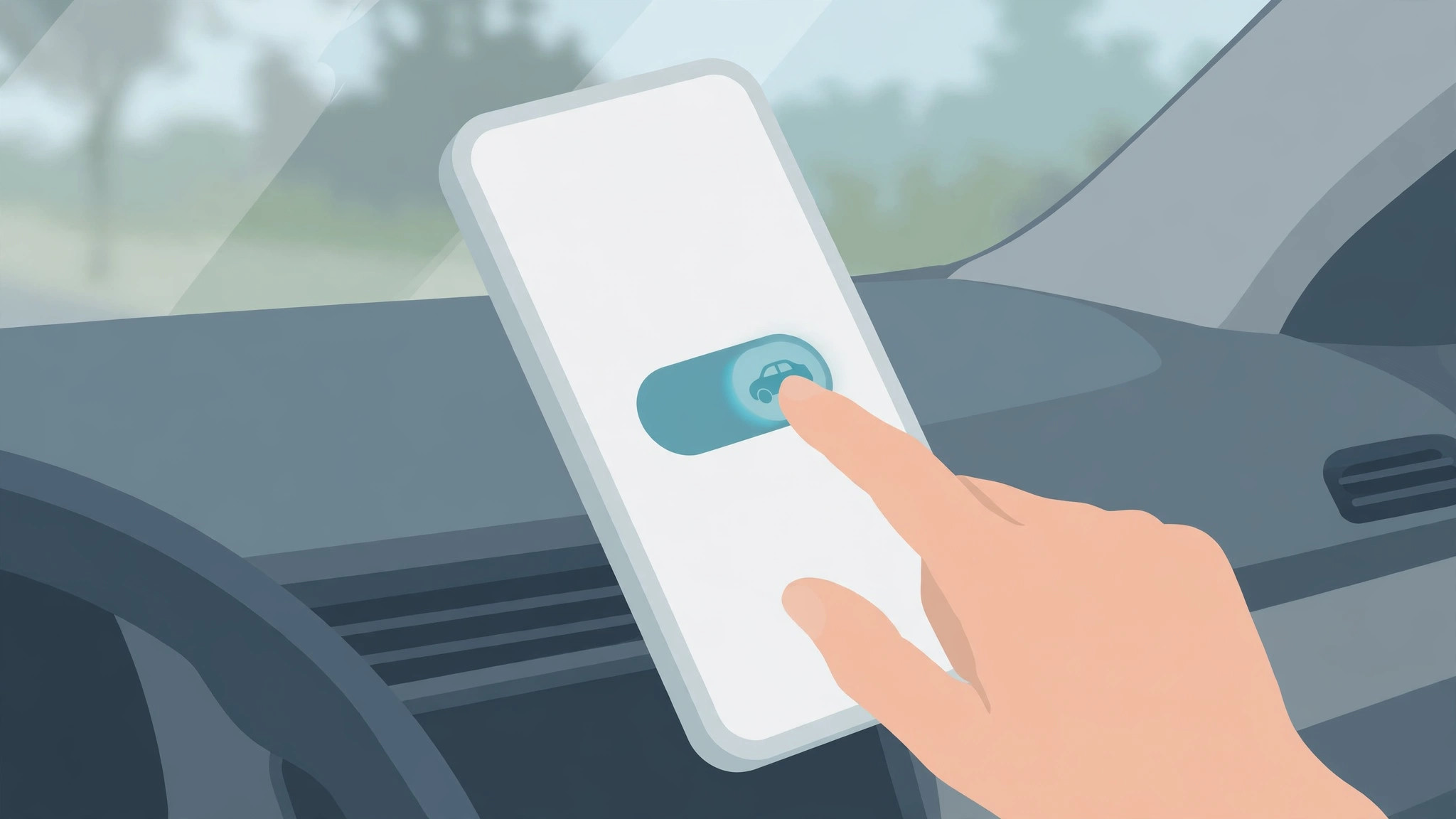
- Now swipe up from the bottom of the screen to open Control Center anytime and tap the car icon to enable driving mode instantly.
3. Make it automatic
Back in Settings → Do Not Disturb → Activate, you have three choices:
- Automatically — your iPhone uses motion detection to sense driving and enables the mode on its own. This is the most hands-off option.
- When Connected to Car Bluetooth — the mode starts whenever your iPhone pairs with your car’s Bluetooth. Perfect if you always drive the same car.
- Manually — you flip the Control Center toggle yourself each time you drive.
While the mode is active, the screen stays dark, notifications are silenced, and anyone who texts you gets an auto-reply saying you are driving. Urgent contacts can still break through by texting “urgent”.
Do Not Disturb While Driving is just one flavor of quiet mode. If regular Do Not Disturb misbehaves, see why Do Not Disturb location is not working on iPhone, and learn how to stop your iPhone auto-switching audio to headphones in the car. Since this is an iOS 11 feature, you may also like fixing screen recording on iOS 11.
If it still doesn’t work
Automatic mode never triggers? Motion-based detection needs Location Services and Motion & Fitness access. Go to Settings → Privacy → Location Services and Motion & Fitness and make sure they are on. It also learns over time — give it a few drives.
Car Bluetooth option missing? It only appears after you have paired your iPhone with a car stereo at least once. Pair first, then come back to this setting.
Want calls from favorites to come through? In Do Not Disturb settings, set Allow Calls From to Favorites so family can reach you. Apple’s guide to Do Not Disturb While Driving covers every option, and 9to5Mac has a good walkthrough with screenshots.
Frequently asked questions
Does it block navigation apps?
No. Maps and other navigation apps keep working with turn-by-turn directions; only calls, texts, and notifications are silenced.
Can passengers use the phone normally?
Yes — if the mode activates automatically while you are a passenger, tap “I’m Not Driving” on the lock screen notification to dismiss it.
Set it once, and your iPhone quietly handles the rest — the road deserves your full attention.





