
Calls suddenly sound terrible — muffled voices, crackling, or the other person can’t hear you at all. Before assuming the worst, work through this troubleshooting ladder. It starts with the most common culprit (a recent repair) and moves down to simple fixes anyone can do at home.
Step 1: If the iPhone was recently repaired, take it back
Was the phone opened up for a screen or battery replacement shortly before the problems started? A botched repair — a pinched earpiece flex cable or a microphone left disconnected — is the prime suspect for sudden call-audio failure. The honest fix is to return it to the service center that did the work and have them recheck it. No amount of settings tweaking will reseat a loose cable. Apple’s call-audio troubleshooting likewise points to hardware service when basic steps don’t help.
Step 2: Rule out the simplest thing — call volume
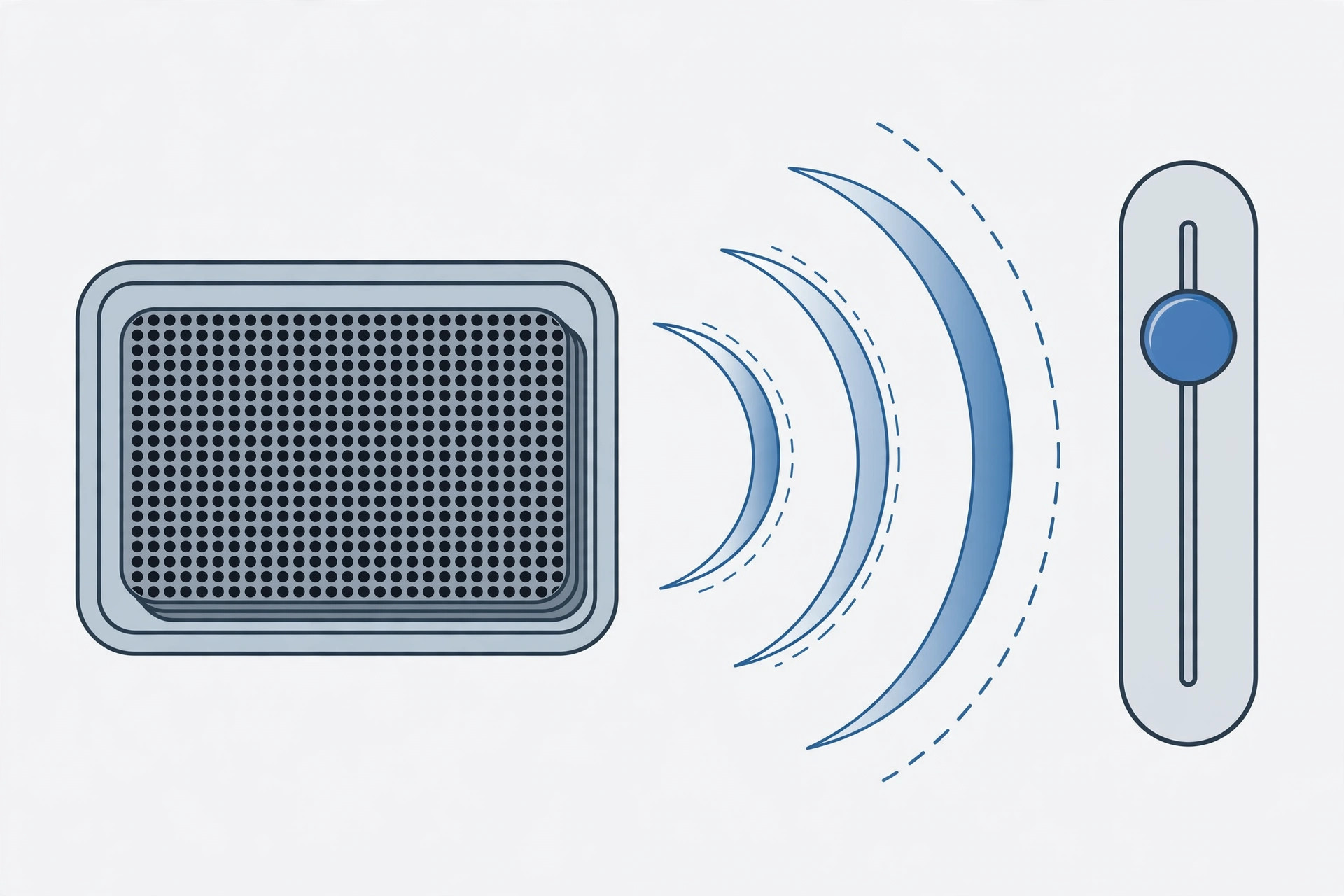
During an active call, press the volume-up button on the side of the iPhone several times. It sounds obvious, but the in-call volume is separate from media volume, and it can sit at minimum without you realizing. If the caller was inaudible and now sounds fine, you’ve solved it in five seconds.
Step 3: Clean the earpiece and microphone openings
Dust and pocket lint compact into the earpiece speaker grille and the bottom mic/speaker openings, muffling call audio in both directions. Gently brush the earpiece slit and the bottom openings with a soft, dry brush. Repair teardown guides on iFixit show how easily these tiny ports clog — and how dramatic the difference is once they’re clear.
Step 4: Isolate the fault — mic, earpiece, or software
Open Voice Memos and record a voice note: if it sounds clear, your microphone is fine. Then make a test call on speakerphone. If speakerphone sounds good but the earpiece doesn’t, the earpiece speaker is the problem; if nobody can hear you on either, the mic is suspect. This isolation tells a repair shop exactly where to look. Also check whether you have call duplication between iPhone and iPad confusing which device is handling the audio.
Step 5: Restart, update, then reset all settings
Restart the iPhone and install the latest iOS update — audio-driver bugs do get fixed in updates, and outlets like Cult of Mac regularly document them. If the problem persists, go to Settings → General → Transfer or Reset iPhone → Reset All Settings. This keeps your data and apps but returns every setting to defaults, clearing any misconfigured audio routing. For multi-SIM users, also review allowing calls only from a specific SIM in Focus mode, which can affect call behavior.
If it still doesn’t work
When cleaning, restarts, and a settings reset don’t fix call audio, you’re almost certainly looking at a hardware fault — a dead earpiece, a failed mic, or damage from that earlier repair. Book an appointment with an authorized Apple service center. Continuing to poke at settings at this point just wastes your time.
Frequently asked questions
Why did call audio break right after a screen replacement?
The earpiece speaker and proximity sensor sit on a flex cable near the top of the phone that must be disconnected during a screen swap. If it’s not reseated perfectly — or gets nicked — call audio fails while everything else works normally.
Will Reset All Settings delete my photos?
No. It resets system settings (Wi-Fi passwords, wallpaper, privacy permissions) to defaults but leaves your photos, apps, and files untouched. Still, having a backup before any reset is always good practice.
Conclusion
Start with the repair history, then check call volume, clean the grilles, isolate mic versus earpiece with Voice Memos and speakerphone, and finish with a restart, update, and Reset All Settings. If the audio is still broken after all that, hand the phone to an authorized service center — it’s a hardware job.





