
When your iPhone suddenly cannot pin down where you are, everyday things break at once: Maps spins without finding you, the Weather widget shows the wrong city, and ride-hailing apps ask you to type your pickup manually. The good news is that a lost GPS signal is almost always a settings problem, not broken hardware. Here is how to get location working again, step by step.
1. Make sure Location Services is switched on
- Open Settings → Privacy & Security → Location Services.
- If the main toggle is off, turn it on. A software update or a battery-saving tweak can silently disable it.
- While you are here, scroll through the app list and confirm the apps you rely on are not set to Never.
2. Check the app’s permission and Precise Location
- On the same Location Services screen, tap the app that cannot find you.
- Choose While Using the App for most apps, or Always for navigation and tracking apps that need background location.
- Make sure Precise Location is enabled for maps and navigation. When it is off, the iPhone only shares an approximate area, which looks exactly like a broken GPS.
Apple documents each of these permission options in detail on Apple Support.
3. Set date and time automatically
- Go to Settings → General → Date & Time.
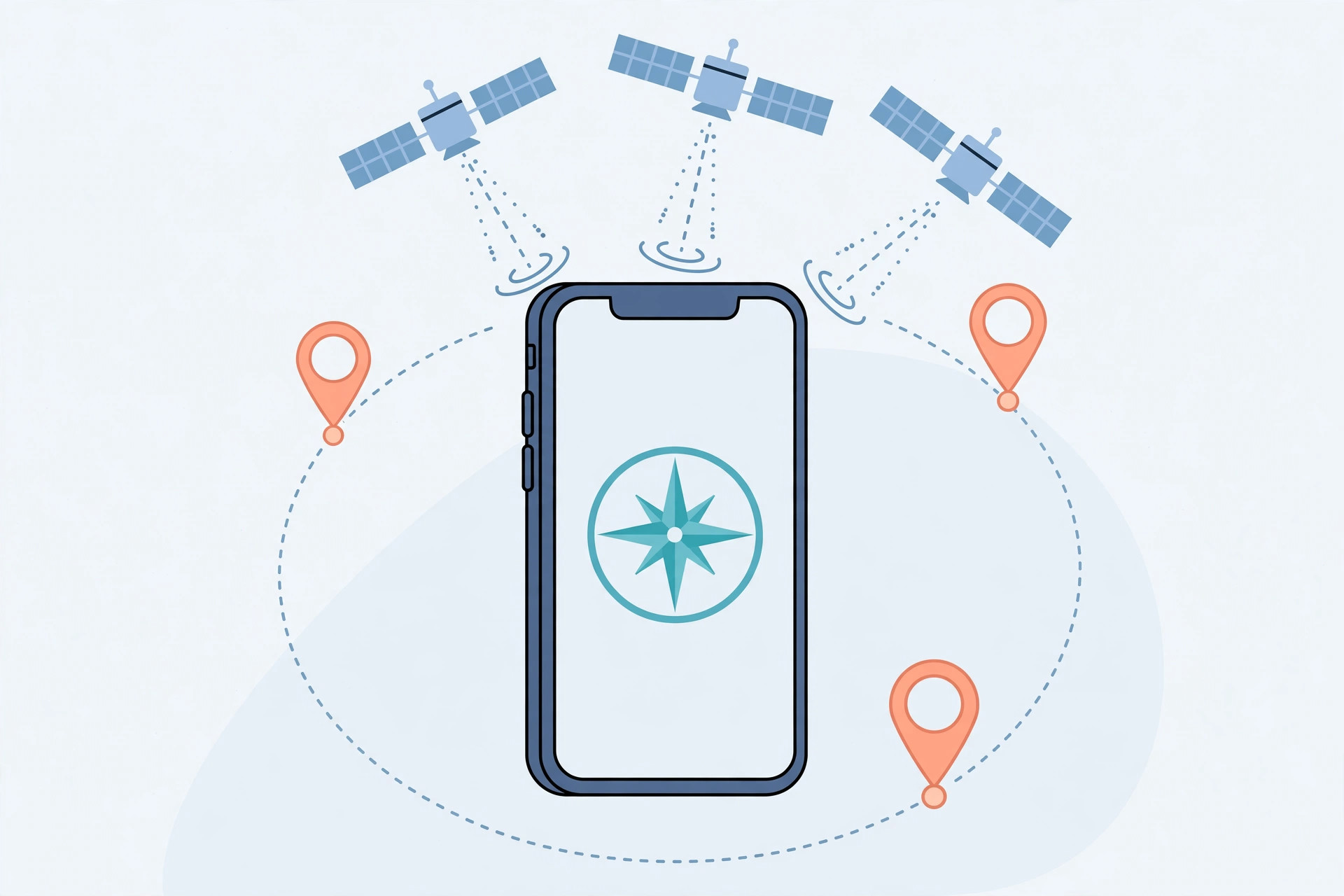
- Turn on Set Automatically. GPS satellites and the iPhone compare timestamps to compute a position fix, so a wrong clock can stop location from resolving at all.
4. Toggle Location Services and restart the iPhone
- Back in Settings → Privacy & Security → Location Services, switch the main toggle off, wait about ten seconds, then switch it back on.
- Restart the iPhone. A fresh boot clears the stale location cache that sometimes freezes the blue dot in place.
5. Give the GPS the signals it needs
- Keep both Wi-Fi and cellular data turned on. The iPhone uses nearby networks to assist the satellite fix, so a location lock comes far faster with them enabled. If you tether a Mac to the iPhone, our guide to automatic hotspot connection from iPhone on Mac keeps that link hands-free.
- Move somewhere with a clear view of the sky. Deep indoors, underground parking and narrow streets between tall buildings all weaken the satellite signal.
- Temporarily disable any VPN. VPNs route your traffic through distant servers, which can confuse apps that estimate location from your connection. Also check Screen Time content restrictions, which can block location changes.
9to5Mac regularly covers how iOS updates reshuffle these privacy toggles, so it is worth a skim after a major update.
If it still doesn’t work
Reset all location permissions at once: go to Settings → General → Transfer or Reset iPhone → Reset → Reset Location & Privacy. You will have to re-grant each app’s permission, which clears any corrupted setting. If no app can get a fix after that, the GPS hardware itself may be at fault and a service appointment is the next step. While tidying settings, you may also want to turn off call duplication between iPhone and iPad if location-based handoff features misbehave.
Frequently asked questions
Why does my iPhone show the wrong location instead of none at all?
A wrong-but-present location usually means Precise Location is off, a VPN is masking your connection, or the phone is clinging to a stale Wi-Fi fix. Enable Precise Location for the app, disable the VPN, then restart to force a fresh satellite fix.
Can a weak signal break location even with GPS on?
Yes. A weak cellular signal slows assisted GPS noticeably, so the blue dot may only appear on Wi-Fi. Check your carrier signal and confirm the app is allowed to use cellular data under Settings → Cellular.
Conclusion
Start with the master Location Services toggle, then work app by app through permissions and Precise Location, and finish with date and time, a restart and a clear sky. One of those steps fixes the problem in nearly every case, and your maps will be back to following you turn by turn.





