
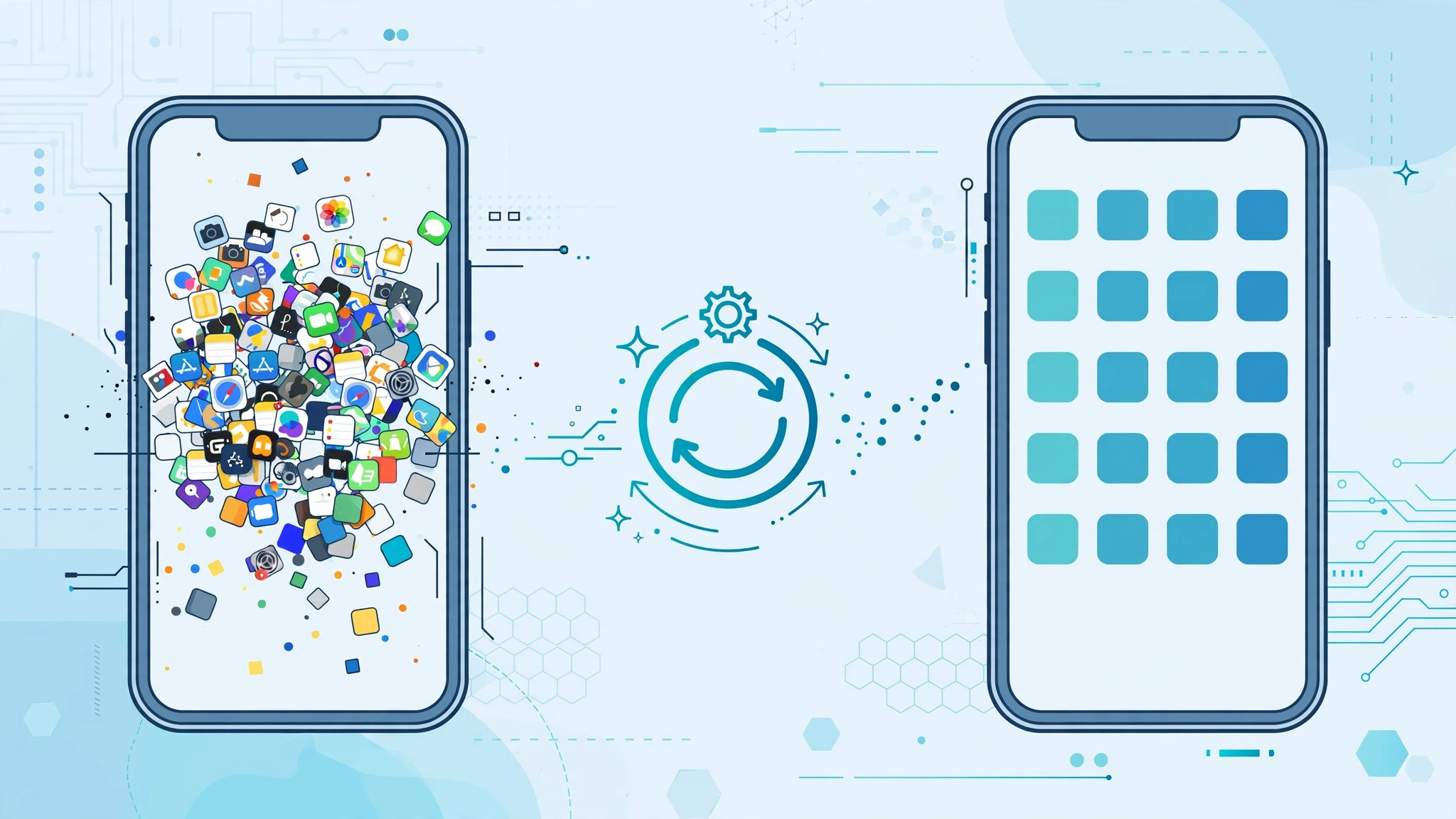
Open any iPhone that has been in daily use for a year or two and you will likely find the same thing: a home screen that grew by accident. Folders with names like “Misc”, pages of apps downloaded for one trip, widgets added on a whim and then forgotten, and your most-used apps buried somewhere you never look. The good news is that iOS has a built-in reset that sweeps all of that away in seconds — without deleting a single app or photo.
What Reset Home Screen Layout actually does
Tucked inside Settings, the Reset Home Screen Layout option restores your home screens to the arrangement your iPhone shipped with. Built-in Apple apps return to their factory positions on the first pages. Every folder you created is dissolved, every home screen widget is removed, and the apps you downloaded from the App Store are lined up on the last home screen pages in alphabetical order. It is a layout reset only: your apps, data, wallpapers, accounts, and every other setting stay exactly where they are.
How to reset your iPhone home screen layout
- Open Settings. Tap the grey gear icon on your home screen.
- Go to General. Scroll down a little and tap General.
- Tap Transfer or Reset iPhone. You will find it near the bottom of the General screen.
- Tap Reset. Choose the Reset option at the bottom of the page.
- Choose Reset Home Screen Layout. A confirmation sheet slides up from the bottom of the screen.
- Confirm. Tap Reset Home Screen Layout again. Your home screens return to the default layout instantly.
What changes, and what stays untouched
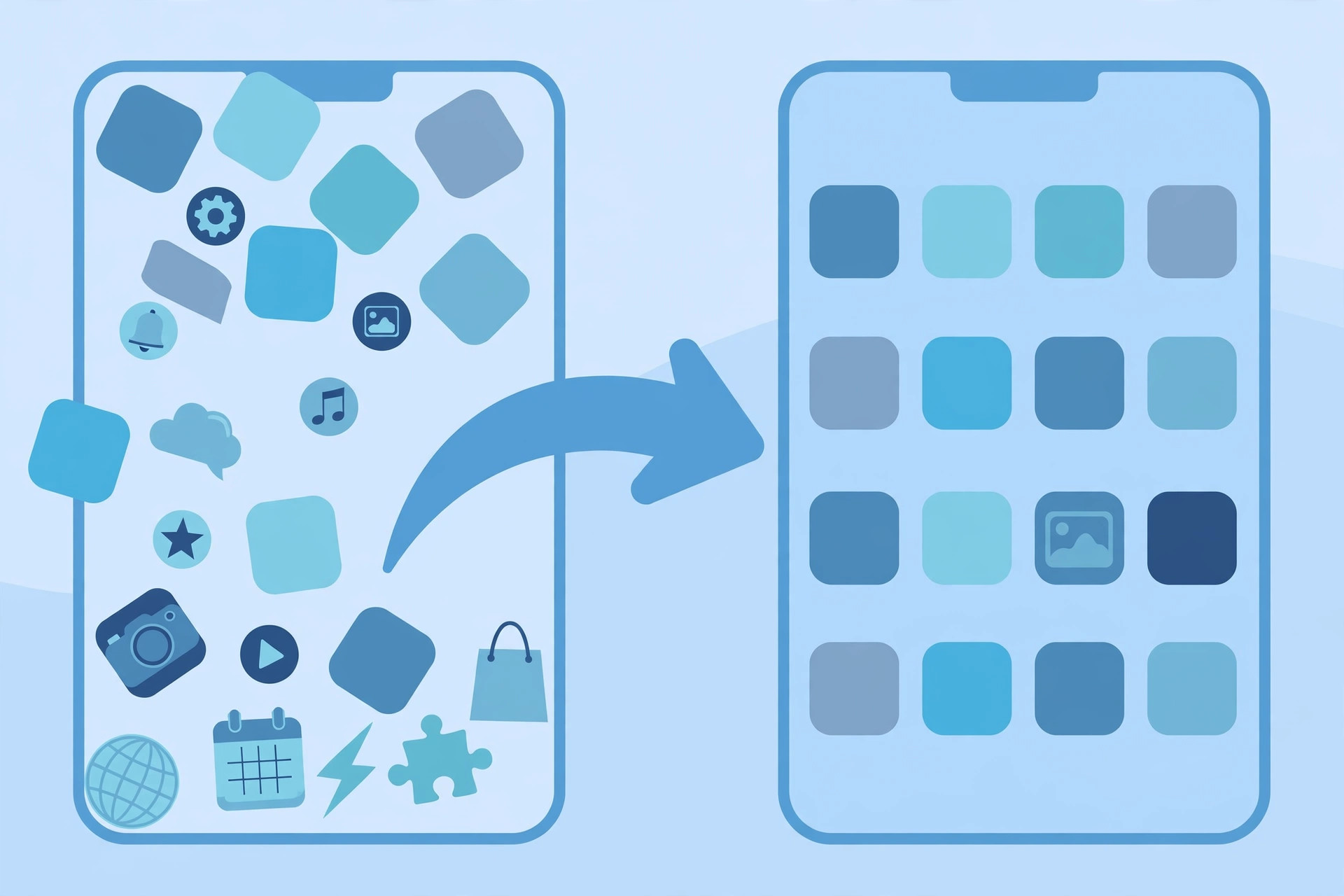
After the reset, the first pages of your home screen look like the day you unboxed the phone: Phone, Safari, Messages, Mail, and the other built-in Apple apps sit in their default spots. Your custom folders disappear — the apps inside them are simply freed onto their own icons, sorted alphabetically on the later pages. Home screen widgets are removed too, while anything you placed on the lock screen stays put. Nothing is deleted: every app, photo, message, and wallpaper is still on the device, just reorganized. Notification settings, ringtones, and Focus modes are all unaffected.
If it still doesn’t work
If your home screen still looks the same after following the steps, retrace the path and make sure the confirmation sheet actually appeared — the reset only applies once you tap the second confirmation. A common mix-up is tapping Reset All Settings instead, which changes system preferences but leaves your layout alone. If some built-in apps are still cluttering the restored layout, you can remove most of them; see our guide on which built-in iPhone apps you can delete. 9to5Mac also has a walkthrough of restoring the default home screen layout if you want a second reference.
Frequently asked questions
Will resetting the home screen layout delete my apps or data?
No. The reset only rearranges icons. No apps are removed, no accounts are signed out, and no photos, messages, or files are touched. It is purely cosmetic.
Do my widgets come back after the reset?
No. Home screen widgets are removed by the reset, and folders are dissolved. You can add widgets again afterwards from the widget gallery. If you would rather tidy the other side of the phone, see how to move lock screen widgets down in iOS 26.
Conclusion
Resetting the Home Screen Layout is the fastest way to declutter an iPhone: six taps and your home screens are back to the clean factory arrangement, with nothing deleted. From there, keep only what you actually use and let the App Library hold the rest. For more iPhone fine-tuning, learn how to turn off the Liquid Glass effect in iOS 26 or rearrange your lock screen widgets.





