
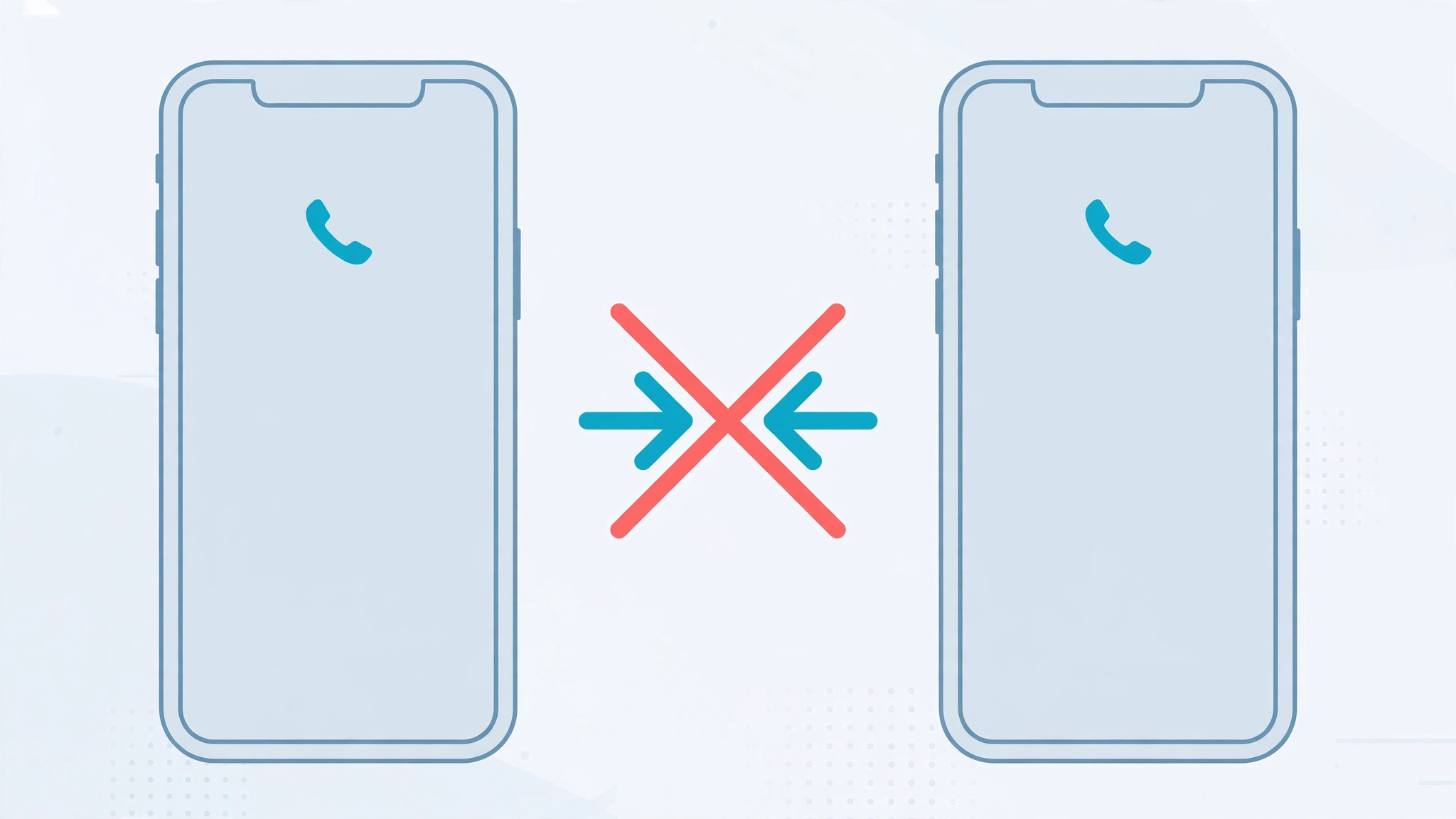
Seeing calls you never made in your iPhone’s Recents list? When two iPhones share a single Apple ID, each phone’s call history shows up on the other. It is confusing at best and a privacy headache at worst. The good news: you can stop it in a few minutes — either by giving each person their own Apple ID or by switching off the features that sync calls between devices.
Why your call history is syncing
When two iPhones sign in with the same Apple ID, Apple treats them as one person’s devices. Calls, contacts, and other data flow between them through iCloud and continuity features. That was convenient back when one person owned both devices; it becomes a problem the moment two people share an account. Apple documents this behavior in its Apple Support guides for Family Sharing and Calls on Other Devices.
Fix 1: Set up Family Sharing (best long-term solution)
Instead of sharing one Apple ID, give each person their own and link them with Family Sharing. Purchases stay shared, while call history stops migrating between phones.
- On the iPhone holding the shared Apple ID, open Settings and tap your name at the top.
- Tap Family Sharing (or Set Up Family Sharing) and follow the prompts, choosing a shared payment method.
- Invite up to six family members — each person accepts the invitation with their own Apple ID.
- Once everyone signs in with their own ID, call histories stay separate while apps, music, and subscriptions remain shared across the family.
Fix 2: Stop calls appearing on the other iPhone
If you are not ready to split Apple IDs yet, turn off the continuity feature that pushes calls across devices:
- Open Settings → Cellular → Calls on Other Devices.
- Turn off Allow Calls on Other Devices.
- Repeat on the second iPhone if the setting is enabled there too.
If you juggle two lines on one phone rather than two phones, also see how to allow calls only from a specific SIM card in Focus mode to keep work and personal calls apart.
Fix 3: Turn off iCloud Drive syncing
With iCloud Drive enabled, iPhone apps can sync data across every device on the account:
- Open Settings and tap your name at the top.
- Tap iCloud and switch off iCloud Drive.
Note that this also stops document syncing between your own devices, so it is a trade-off — the Family Sharing route above avoids that compromise entirely.
If it still does not work
If call history still crosses over after these changes, sign out of the shared Apple ID on one device (Settings → your name → Sign Out) and sign back in with a separate ID. Also check Apple’s continuity features: our guide on setting up message sync between iPhone and Mac explains how deeply Apple’s devices link together under one account, and MacRumors regularly covers quirks of shared Apple IDs.
Frequently asked questions
Will Family Sharing delete my purchased apps?
No. Purchases made with the shared Apple ID remain available to family members through purchase sharing. Nothing you have bought disappears — it simply becomes accessible under each person’s own Apple ID.
Can I merge two Apple IDs instead?
Apple does not offer any way to merge Apple IDs. The supported path is Family Sharing, which keeps purchases accessible while separating personal data like call history, messages, and contacts.
Conclusion
Shared call history is a symptom of a shared Apple ID. The cleanest cure is Family Sharing: separate IDs, shared purchases, private call logs. If that is too much change for today, switching off Calls on Other Devices and iCloud Drive stops the syncing immediately while you plan the move.





