
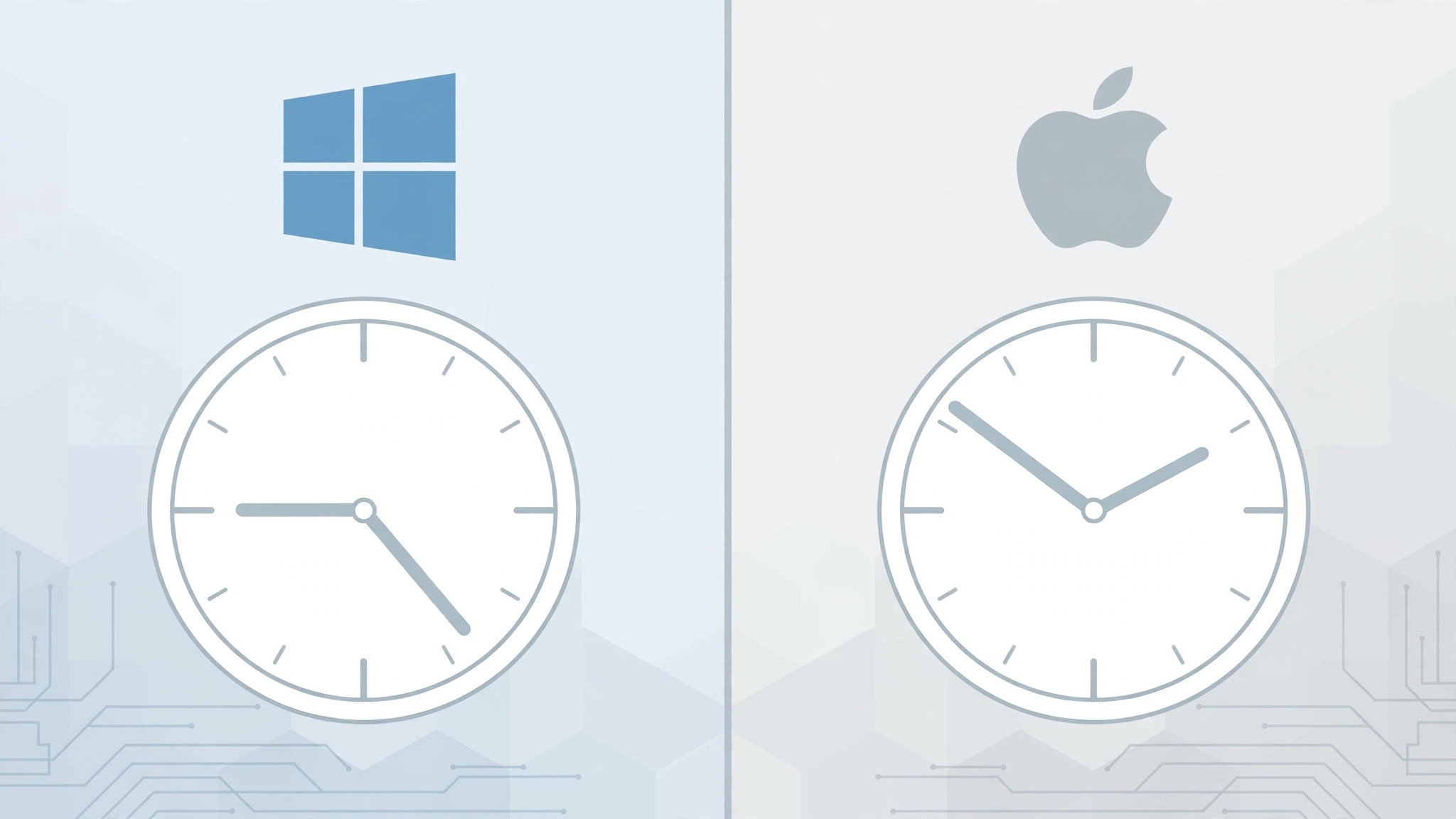
You dual-boot Windows on your Mac, and every time you switch operating systems, the clock is wrong — off by several hours. macOS shows the correct time, Windows doesn’t, or the other way around. It feels like a bug, but neither system is broken. The two operating systems simply disagree about what your Mac’s hardware clock means — and a single registry tweak in Windows settles the argument for good.
If you run Windows through Apple’s Boot Camp, this one is for you. The fix takes two minutes and survives every reboot afterward.

Why the times disagree
Your Mac has a hardware clock (the real-time clock, or RTC) that keeps time even when the computer is off. Here’s the conflict: macOS stores the RTC in UTC and applies your time zone on top of it when displaying the time. Windows assumes the RTC is already in your local time and displays it as-is. So when macOS writes UTC to the hardware clock and Windows reads it back as local time, the displayed time shifts by your UTC offset — every single boot.
Fix the clock difference step by step
The cleanest fix is to teach Windows to treat the hardware clock as UTC, matching macOS. Do this inside Windows:
- Press Win + R, type regedit, and press Enter. Confirm the administrator prompt.
- In Registry Editor, navigate to HKEY_LOCAL_MACHINE\SYSTEM\CurrentControlSet\Control\TimeZoneInformation.
- Right-click in the right pane, choose New > DWORD (32-bit) Value, and name it RealTimeIsUniversal.
- Double-click the new value, set Value data to 1, and click OK.
- Close Registry Editor and restart Windows.
- After rebooting, the Windows clock should match macOS exactly. For good measure, open Settings > Time & language and click Sync now once.
There is technically an alternative — forcing macOS to use local time for the RTC — but it can confuse other Unix-style tools on the Mac, so the Windows-side fix above is the recommended one. 9to5Mac readers have discussed this Boot Camp quirk for years, and video guides walk through the same registry edit if you’d rather watch it done.
If it still doesn’t work
If the times still differ after the registry change, check the basics first: make sure the correct time zone is selected in both operating systems, and that Windows’ “Set time automatically” is on before you hit Sync now. A wrong time zone in either OS will mask the fix. Also note that editing the registry requires an administrator account — on a managed or work machine you may need IT’s help. And while you’re making Windows feel at home on a Mac, you might want to remap the modifier keys so copy-paste shortcuts behave the way your fingers expect. If you dual-boot often, it’s also worth knowing how to change default apps for file types on Mac so documents open where you want them.
Frequently asked questions
Is editing the registry safe?
Yes, as long as you follow the path exactly and only add the one value described. If you’re nervous, back up first: in Registry Editor, click File > Export and save a copy. The RealTimeIsUniversal value is a well-documented Windows setting — you’re not hacking anything, just flipping an officially supported switch.
Does this apply to Apple Silicon Macs?
No — and you won’t need it there. Boot Camp doesn’t exist on M1/M2/M3 Macs; Windows runs in a virtual machine like Parallels, which synchronizes its clock with the host Mac automatically. This fix is specifically for Intel Macs dual-booting Windows via Boot Camp.
Conclusion
macOS speaks UTC to the hardware clock, Windows speaks local time — and RealTimeIsUniversal teaches Windows the same language. One registry value, one reboot, and your dual-boot Mac finally agrees with itself about what time it is.





