
Joining a video call from a dimly lit room can leave you looking like a shadowy silhouette to everyone else on the call. If your colleagues keep asking you to turn on a lamp, macOS has a built-in fix. Starting with macOS 26.2, Apple added a feature called Edge Light — a virtual contour light that brightens your face during video calls without any extra hardware.
Edge Light works like a digital ring light: it subtly brightens your face and evens out harsh shadows while you are on camera. The effect is applied system-wide, so it works in FaceTime as well as third-party apps like Zoom and Microsoft Teams. Here is how to switch it on and get the most out of it.
What you need before you start
Edge Light is part of the video effects Apple builds into recent macOS releases. To use it, your Mac must be running macOS 26.2 or later — on older versions the option simply will not appear. Check your version from the Apple menu > About This Mac, and install any pending update first. It also helps to confirm your camera works normally in FaceTime before you begin. Apple’s ecosystem features tie together closely, as we have seen in guides like how to set up message sync between iPhone and Mac.
How to turn on face lighting on your Mac
Unlike most camera settings, Edge Light is not buried in System Settings. It lives in the live video menu that appears in the menu bar whenever your camera is in use.
- Update your Mac to macOS 26.2. Open System Settings, go to General > Software Update, and install the latest version. Edge Light debuted in this release, so earlier versions do not include it.
- Start a video call. Open FaceTime or any other video-calling app and begin a call. The video menu icon only appears in the menu bar while the camera is actively streaming.
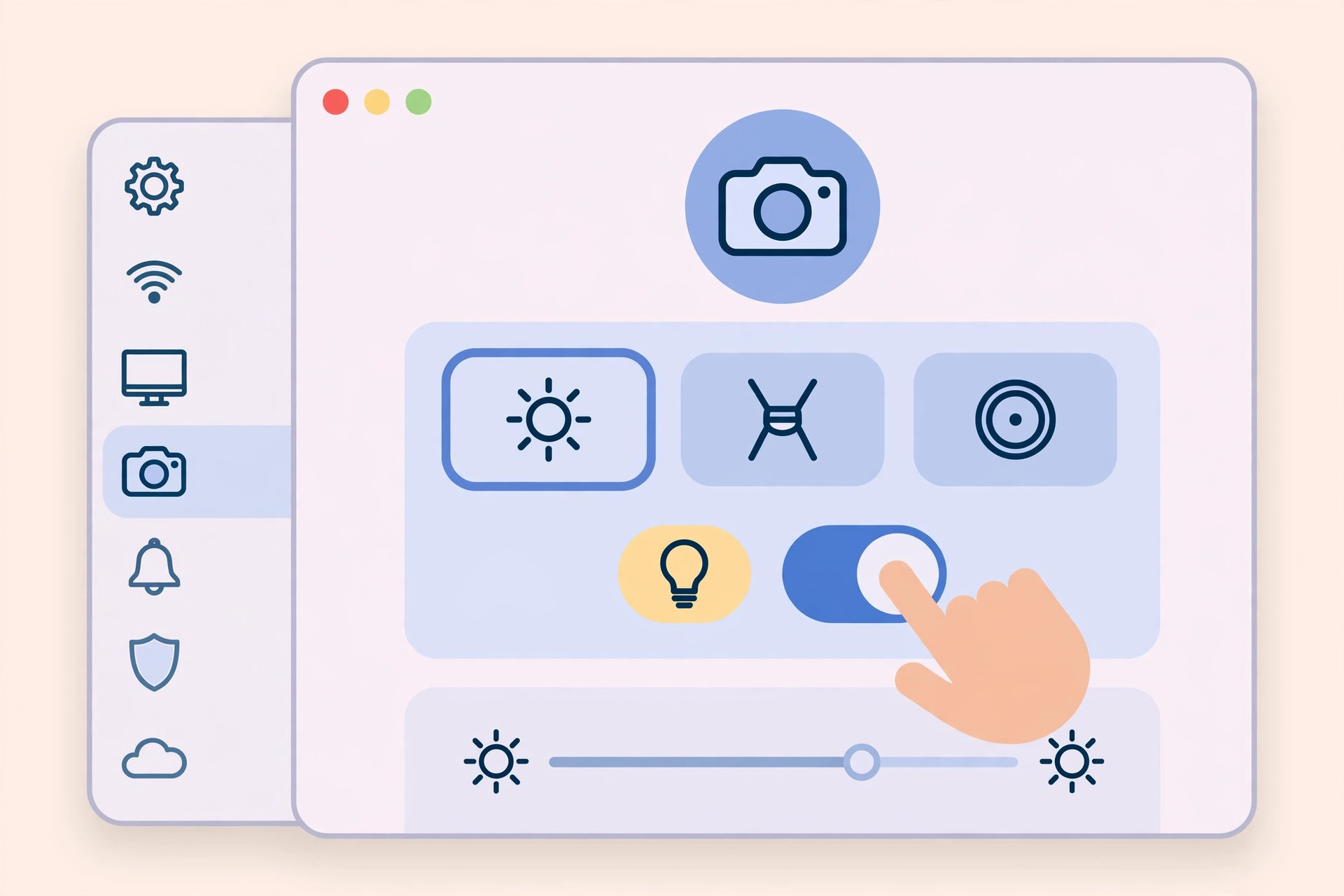
- Click the video icon in the menu bar. While your camera is on, a small video icon sits at the top of the screen. Click it to open the video effects panel.
- Turn on Edge Light. Find the Edge Light (contour lighting) option in the panel and switch it on. Your camera preview should brighten right away.
- Fine-tune the effect. Expand the Edge Light section to reveal sliders for brightness and color temperature. Raise the brightness when the room is very dark, and nudge the color temperature warmer or cooler until your skin tone looks natural.
Tips for the best-looking result
Edge Light does its best work when it has a little ambient light to build on — a pitch-black room will still look grainy, because the camera sensor needs real light to work with. Sit facing a window or a soft lamp, then let Edge Light smooth out the rest. Tech publications such as MacRumors and 9to5Mac regularly round up new macOS camera tricks, and creators on YouTube post visual comparisons of each setting. Pairing Edge Light with Portrait mode’s background blur gives you a polished, studio-like look. And if clearer audio matters as much as video, see our guide on turning off AirPods charging case sounds for quieter calls.
If it still doesn’t work
If the Edge Light option is missing, check three things: first, confirm you are on macOS 26.2 or newer; second, make sure a call is actually in progress, since the menu bar video icon only appears while the camera is streaming; third, quit and reopen the calling app. On some older Intel-based Macs, certain video effects are limited or unavailable — Apple’s support pages document which models support each effect. If the toggle appears but changes nothing, turn your camera off and back on inside the app to refresh the video pipeline.
Frequently asked questions
Does Edge Light work in Zoom, Teams, and Google Meet?
Yes. Because Edge Light is applied at the system level through macOS video effects, it works in virtually any app that uses your Mac’s camera — including Zoom, Microsoft Teams, Google Meet, and Webex — not just FaceTime.
Will Edge Light drain my MacBook’s battery faster?
The effect uses a small amount of extra processing, but the impact is negligible compared to the video call itself. On battery power you will save far more by lowering screen brightness, a tip we also cover in our guide to iOS 26’s new visual features.
Conclusion
Edge Light is one of those small macOS touches that makes a big difference on daily calls. Update to macOS 26.2, start a call, open the menu bar video panel, and switch it on — then dial brightness and warmth to taste. No ring light, no extra apps, no fuss. For more ways to get the most out of your Apple devices, keep exploring the tutorials on CompareWala.






[…] you are comfortable customizing your Mac this way, check out our other macOS guides — like how to enable face lighting during video calls on Mac — and our walkthrough for setting up message sync between iPhone and Mac to keep your devices […]
[…] For more Mac productivity tricks, see our guide to quickly opening the installed apps list in macOS 26 and enabling face lighting during video calls on Mac. […]
[…] this with good lighting and you’ll look dramatically better on calls — see our guide on how to enable face lighting during video calls on Mac for the other half of the equation, and how to take HDR screenshots on iPhone and iPad for more […]
[…] suit a more relaxed day. If you use your Mac for video calls, you might also like learning how to enable face lighting during video calls on Mac. And if you live in Apple’s ecosystem, see how to set up message sync between iPhone and Mac […]
[…] more Mac customization ideas? Learn how to open a list of every installed app quickly, try face lighting during video calls, or add emoji to your Finder folders. For official background, Apple’s guide to screen saver […]
[…] Want to grab a still from a lecture slide? You can take an HDR screenshot on your iPhone or iPad without leaving the video. And if you ever present over a video call instead, see how to enable face lighting during video calls on Mac. […]
[…] Alternate Appearance is the simplest way to share Face ID with a second person: five minutes in Settings and both of you can unlock the phone. Just remember the reset rule and the purchase-authorization implication before you hand the phone over. For more Face ID and lock-screen tips, see how to stop Safari from suggesting passwords on iPhone, how to disable quick camera launch from the lock screen, and how to enable face lighting during video calls on Mac. […]
[…] On recent macOS versions (Sonoma, Sequoia, and newer), the lock screen simply mirrors your desktop wallpaper — Apple removed the separate lock-screen image. Open System Settings > Wallpaper and pick any image; it becomes your lock screen too, and you can even set different wallpapers per Space. Apple’s Mac support pages cover the personalization options in System Settings. If you’re sprucing up your Mac, you may also like our guide on enabling face lighting during video calls on Mac. […]
[…] If your iMac is from 2019 or later and runs macOS Monterey or newer, skip the cable entirely: AirPlay to Mac mirrors or extends your primary Mac wirelessly to the iMac. It is the supported path now that Target Display Mode is history. For more Mac tricks, see how to quickly open the installed apps list on macOS 26 or how to enable face lighting during video calls on Mac. […]
[…] to run the whole setup from the Mac itself — video calls from the couch included — our guide to enabling face lighting during video calls on Mac will help you look your best on the big […]
[…] you enjoy handy built-in Mac features like this, you may also like our guide on how to enable face lighting during video calls on Mac, or learn how to set up message sync between iPhone and […]
[…] Will a scheduled shutdown close my apps without asking?No. macOS shows a countdown with a Cancel button, and any app holding unsaved documents halts the shutdown and prompts you to save. While you’re tuning your Mac, you may also like our guide to enabling face lighting during video calls on Mac. […]